

If you’re serious about YouTube in 2026, the real advantage is no longer just a better camera, it’s a smarter workflow. AI tools now handle tedious editing, generate scripts, clean bad audio, auto‑crop shorts, design thumbnails, and even suggest titles that actually get clicked.
For solo creators, agencies, and brands, that means faster production, more consistent uploads, and more time spent on what truly moves the needle: content strategy and on‑camera performance. In this guide, we’ll look at eight of the best AI tools for YouTube video creation, what they do best, where they fall short, and who should be using them.
1. Descript – Edit Video by Editing Text
Descript is built for creators who talk a lot on camera—tutorials, explainers, podcasts, interviews. Its big promise is simple: you edit your video by editing text. Once your video is transcribed, you can delete words, sentences, or whole sections in the transcript and those cuts are applied directly to the video.
What Descript offers
● AI transcription and text‑based editing
● One‑click removal of filler words and long pauses
● Screen recording and multitrack editing for tutorials and podcasts
● Optional AI voice / overdub on higher plans
The main strength of Descript is speed and approachability. Non‑technical creators can clean up long talking‑head videos without touching a traditional timeline. The trade‑off is that it’s not ideal for highly cinematic, VFX‑heavy edits, and longer projects can feel demanding on weaker machines.
Pricing usually starts in the mid‑range per month for serious use, with a limited free tier so you can try it out. Descript is best suited for educators, podcasters, commentary channels, and businesses that value clear, fast production over complex visual flair.
2. OpusClip – Turn Long Videos into Shorts
Short‑form content is one of the fastest ways to reach new viewers, but manually cutting Shorts from a 30–60 minute video is painful. OpusClip focuses entirely on that problem. You upload a long video and the AI automatically finds engaging moments, cuts them into short clips, and adds platform‑friendly captions and layouts.
Why creators like OpusClip
● Automatically detects “highlight” segments from long videos
● Generates vertical clips for YouTube Shorts, Reels, and TikTok
● Adds subtitles and dynamic caption styles
OpusClip’s biggest strength is time saved: you upload one long video and walk away with a batch of Shorts. The downside is that AI still doesn’t fully understand narrative context; sometimes a clip will start or end a bit abruptly and needs manual tweaking. Visual control is also more limited than editing everything yourself in a full editor.
Pricing normally starts in the low‑to‑mid monthly range, with some free or trial usage. It’s ideal for educators, podcasters, interview channels, and any creator who wants to squeeze maximum content out of each upload.
3. Gling AI – Automatic Rough‑Cut for A‑Roll
If your workflow involves recording long talking‑head pieces and then spending hours cutting out mistakes, Gling AI acts like a rough‑cut assistant. You upload your raw footage and Gling uses AI to remove silences, repeated lines, and obvious retakes.
After processing, you download a rough‑cut file that you can open in your main editing software for final polishing. This doesn’t replace your editor, but it removes a big chunk of the most boring, mechanical work.
Where Gling shines
● Creators who film long A‑roll sessions
● Review, commentary, and educational channels
● People who want to cut editing time without changing their main editor
The main limitation is that Gling isn’t a full editing environment; it’s a specialized pre‑processing step. It works best with clearly spoken, single‑speaker content, and complex multi‑cam or heavily stylized edits still need manual work. Pricing is typically subscription‑ or credit‑based, scaling with how many minutes you process per month.
4. Riverside – Smart Recording for Interviews and Podcasts
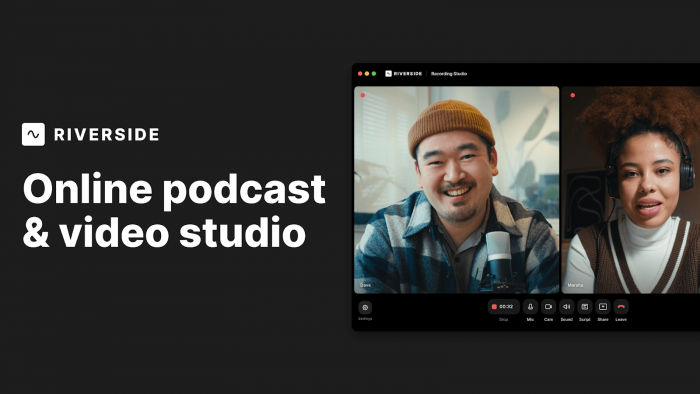
For channels built around conversations—interviews, remote panel discussions, expert shows—Riverside offers studio‑style quality in a browser. Instead of recording a compressed video call, it records each participant locally (in up to 4K video and high‑quality audio) and uploads the files in the background.
Beyond high‑quality capture, Riverside adds AI tools for transcripts, simple cuts, and automatic clips. That lets you not only publish full episodes but also slice them into shorter highlights for YouTube or Shorts.
Best use cases
● Remote interviews where you still want sharp video and clean audio
● Podcast‑style YouTube channels
● Brand and agency productions featuring guest experts
Its strengths are reliability and quality for remote guests. The limitations are format‑based: if you mostly shoot vlogs, B‑roll montages, or cinematic travel content, Riverside doesn’t help much. And guests need to use supported browsers/devices to get the best results. Paid plans typically start in the mid‑teens per month, with a free tier for light use.
5. Adobe Podcast Enhance – Fixing Bad Audio
Many otherwise decent YouTube videos suffer from echoey, noisy, or distant audio. Adobe Podcast Enhance is designed to rescue those recordings using AI. You upload your file, the system analyzes it, and you download a version that sounds fuller, cleaner, and more “studio‑like.”
This works particularly well for creators recording in untreated rooms, on built‑in mics, or on location. It can significantly raise perceived production value without changing your camera at all.
Pros and cons at a glance
● Big improvement in clarity and noise reduction with minimal effort
● Great for creators without a treated studio
● Can sound slightly over‑processed if pushed too hard
● Not a magic fix for extremely distorted or clipped recordings
Access is often available via Adobe’s ecosystem, with some free or limited options and deeper access for subscribers. Any YouTuber who struggles with room noise or echo should at least test it as part of their workflow.
6. TubeBuddy / vidIQ – AI for Ideas, Keywords, and Packaging
Even the best‑produced video won’t perform if nobody clicks on it. Tools like TubeBuddy and vidIQ sit at the strategy layer: they help you understand what people are searching for, how competitive topics are, and how to package your videos for maximum reach.
Typically, creators use these tools to:
● Research keywords and topics with strong search demand
● Analyze competition before investing in a video
● Generate or refine titles, descriptions, tags, and sometimes thumbnail text
● A/B test different titles and thumbnails (especially using TubeBuddy)
The big advantage is moving from guesswork to data‑informed decisions. Instead of blindly posting, you can design content that aligns with real audience demand. The limitation is that it’s easy to become overly obsessed with keywords and forget things like brand, storytelling, and viewer satisfaction.
Both platforms offer free plans, with paid tiers usually starting around the low‑double‑digit monthly mark. They’re especially useful for growth‑focused channels in competitive niches like tech, finance, or education.
7. Canva – AI Thumbnails and Channel Branding
Thumbnails are your first impression on YouTube, and Canva has become the go‑to tool for non‑designers. Its AI thumbnail maker and image tools now allow you to generate or transform images using text prompts, and then combine them with ready‑made templates.
You can build thumbnails, channel banners, end screens, and social posts in the same interface, which keeps your visual branding consistent. Brand kits, reusable templates, and drag‑and‑drop editing make it easy to produce assets quickly.
When Canva makes sense
● You don’t have a dedicated designer
● You want consistent branding across thumbnails and social media
● You’re okay starting from templates and customizing them
The main drawback is that overusing popular templates can make your thumbnails look generic. Some AI‑generated images also need manual polishing to avoid looking slightly off. Canva has a generous free plan, while Pro plans (with more AI tools and assets) sit in the mid‑teens per month range.
8. ChatGPT – Your Scriptwriter and Idea Partner

While most of the tools above handle visuals and audio, ChatGPT works in the idea and writing layer. It can help you brainstorm video ideas, validate angles, structure scripts, and even generate metadata like titles, descriptions, chapters, and community posts.
A typical workflow might look like this: you feed in your niche and audience, ask for 20‑30 content ideas mapped to actual viewer problems, then select a few and request detailed outlines. From there, you can generate draft scripts in your preferred tone, refine them with your own stories, and finally ask for multiple title and thumbnail text options to test.
Where ChatGPT is most helpful
● Breaking through writer’s block
● Structuring complex topics into clear, viewer‑friendly scripts
● Quickly generating multiple variants of hooks, titles, and CTAs
Its limitations are important to remember. If you rely on default, generic prompts, the output can feel bland and formulaic. Factual or data‑heavy content also needs manual checking. Used well, though, it becomes a powerful “second brain” for any type of channel.
The tool is available in both free and paid forms, with paid tiers unlocking more capable models and higher limits. Whether you run a faceless channel, a personal brand, or an agency, it can drastically speed up planning and writing.
A Practical AI‑Powered YouTube Workflow
Instead of treating these tools as separate apps, you can present them in your article as a cohesive workflow that a reader can copy:
1. Research and ideas: Start with ChatGPT plus a YouTube SEO tool (TubeBuddy / vidIQ) to identify topics with demand and low‑to‑medium competition. Use this stage to refine angles and keywords.
2. Script and plan: Turn the chosen ideas into outlines and scripts with ChatGPT, then personalize them with your stories, examples, and opinions.
3. Record with quality in mind: For interviews and podcasts, record through Riverside. For regular A‑roll, use your camera, then run the audio through Adobe’s enhancement tool if needed.
4. Edit efficiently: Send long talking‑head recordings through Gling AI for a rough cut. Finish the edit in Descript or your main editor, adding B‑roll, graphics, and music.
5. Repurpose and multiply content: Once the main video is done, upload it to OpusClip and generate Shorts and vertical clips that can be scheduled across platforms.
6. Design and optimize your packaging: Create thumbnails and branding assets in Canva, then refine titles and descriptions using ChatGPT. Use TubeBuddy or vidIQ to check keywords and, if possible, A/B test thumbnails.
Final Thoughts: Leverage AI, Don’t Hide Behind It
AI won’t replace your personality, your perspective, or your ability to tell a compelling story but it will radically reduce the time you spend on repetitive, mechanical tasks. The smartest YouTubers in 2026 won’t just “use AI”; they’ll build tight, efficient systems that let them publish more often, test more ideas, and refine their content faster than ever.
Comments