

When video editing moved to the cloud, it didn’t just change where renders happen. It changed who gets to make videos in the first place. WeVideo is one of the clearest examples of that shift: not a flashy upgrade for pro editors, but an environment that makes “I should make a video for this” a realistic thought for people who don’t live in Premiere or DaVinci.
1. When Editing Stops Being an Event and Becomes a Habit
On traditional desktops, editing feels like an event: block time, open heavy software, hope the machine doesn’t choke. In WeVideo, it quietly becomes a habit.
You don’t “go to the editing machine.” You open a tab. On a Chromebook. On a mid‑range laptop. On whatever device is in front of you.
The pattern is almost boring on purpose:
● Hit record (screen, webcam, or both) inside WeVideo.
● Drop the recording straight into a multi‑track timeline.
● Trim, split, add text, tighten the audio.
● Export to your LMS, drive, or social channel.
Nothing about this is cinematic. That’s the point. It’s repeatable. It’s not about making editing glamorous. It’s about making it ordinary enough that you actually do it.
2. Accessibility‑First by Design (and by Trade‑Off)
WeVideo’s real personality shows when you look at its design priorities:
● Reduce setup: no installs, SSO into a browser.
● Remove hardware lock‑in: the same project runs on Chromebooks, PCs, Macs.
● Limit complexity: the timeline is multi‑track, but not overwhelming.
● Enable shared work: collaboration and classrooms are built‑in, not bolted on.
It’s an accessibility‑first environment, not a “Pro Mode lite.” That’s why it sits squarely between CapCut/Canva and Premiere/Resolve: more structure and collaboration than phone apps, less depth than pro suites.
The upside is that non‑specialists actually start and finish projects. The downside is that power users hit ceilings in color, audio, and effects almost immediately and many reviews say exactly that.
3. Inside the WeVideo Studio: Enough Power, On Purpose
Seen from the inside, WeVideo’s editor is a deliberate act of restraint.
Timeline: “iMovie‑Level Comfortable”
You can:
● Stack multiple video, audio, and text tracks.
● Trim, split, crop, adjust speed, tweak basic color and volume.
● Drag in transitions, motion titles, and lower thirds without digging through 12 nested menus.
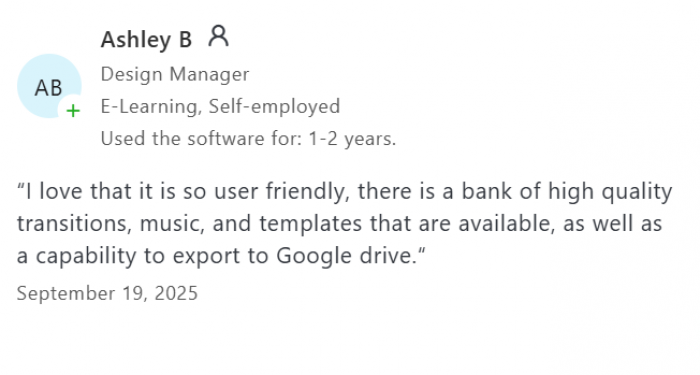
Verified users on Capterra and Software Advice consistently call it “very user friendly” and praise the “high quality transitions, music, and templates.” It feels closer to iMovie than to Premiere and if you’re teaching 7th graders or onboarding HR staff, that’s a feature, not a bug.
Screen Recording: Killing Context Switching
One of WeVideo’s most underrated moves is wiring screen + webcam recording directly into the editing pipeline. For tutorials, walkthroughs, and flipped lessons, the loop becomes:
Record → Edit → Export → Assign
without ever leaving the platform. No downloading files from a recorder and dragging them into another app. That small ergonomic detail is why teachers and product folks actually use it.
Stock and Templates: Borrowed Taste on a Deadline
If you’re not a designer, templates and stock are what keep your videos from looking like 2009 PowerPoint exports. WeVideo leans hard into this:
● A large built‑in stock library (videos, images, music), expanded on paid plans.
● Pre‑built templates for promos, lessons, announcements, social posts.
Users call this out as a major time saver: one long‑time customer says the stock library “alone has paid for the cost of my subscription.” The creative trade‑off is obvious—templates can feel rigid, fonts limited—but if your metric is “on‑brand enough, fast,” it works.
Green Screen and Effects: Practical, Not Epic
Chroma key works. Picture‑in‑picture works. Background replacement is good enough for school announcements, explainers, and social clips. But if you’re expecting After Effects‑grade compositing or serious grading, WeVideo steps back; reviewers explicitly say it “lacks the level of variety… as Adobe Cloud and Premiere Pro.”
It’s a kit for practical video, not for your next festival entry.
4. When a Video Becomes a Lesson, Not Just a File
The biggest plot twist in WeVideo isn’t in the editor. It’s what happens after you click “Finish.”
Interactivity: Embedding the Quiz Inside the Video
Interactivity turns passive video into a two‑way object:
● You add questions (MCQ, polls, check‑all‑that‑apply, open response, even PDF‑based prompts) at specific timestamps.
● The video pauses until the learner responds.
● Analytics show who watched, which items they missed, and where they stopped.
Support docs now even walk students step‑by‑step through “How do I complete interactive assignments?” because this has become a mainstream workflow, not a niche feature.
For teachers, this moves you from “Watch this and then do a worksheet” to “The video is the worksheet, graded and tracked.” For trainers, it’s the difference between a compliance video and a measurable micro‑course.
AI as a Lesson‑Builder, Not a Gimmick
Recent releases add AI Assist on top of Interactivity:
● Auto‑generate questions from your video or a YouTube link, then refine them.
● Auto‑caption your video for accessibility.
● Reduce background noise automatically.
This is AI pointed at real instructional pain points: “I don’t have time to write good questions for every clip” and “My audio sounds like a fan convention.” It’s not trying to write your script; it’s trying to accelerate the hardest but most boring parts of making video teach.
5. Classrooms and Small Teams: Where WeVideo Becomes a Place, Not a Tool
If you deploy WeVideo at any scale, it stops being “my editor” and becomes our shared room.
Student Voice in a Walled Garden
With WeVideo for Schools, students don’t just watch:
● They record and edit their own videos in the same browser tool.
● They publish into ClassFeed‑style video discussions where classmates can watch and comment but everything stays in a managed environment.
● They can even create learner‑made interactive “bulbs” for peers.
District and ed‑tech sites highlight this as a way to “elevate student voice” and support project‑based learning in a way that works on Chromebooks and within district privacy rules. Teachers on G2 call it a “game‑changer” for giving students a space to create dynamic, engaging projects.
School Comms and Admin Stories
WeVideo also leans into school communications:
● Templates for newsletters, principal messages, event recaps, and social posts.
● Brand tools to keep district colors, logos, and fonts consistent.
● Collaboration so students and staff co‑produce announcements and highlight reels.
This is why you’ll see WeVideo featured in district tech pages and PD sessions—not as “the editor,” but as the school’s video platform.
Small Teams: Shared Studio, Shared Assets
For small marketing or training teams, the pattern is similar:
● Shared projects with simultaneous editing and role‑based access.
● Shared media folders, stock, and brand kits so no one is reinventing the wheel.
● Cloud storage and autosave so nobody loses work when a laptop battery dies.
Reviews repeatedly praise collaboration while still noting that this is not “enterprise post‑production”—it’s collaboration for people who need to ship content, not cut feature films.
6. Safety, Compliance, and the Fine Print You Actually Need to Read
Because so much WeVideo usage is in K‑12 and higher‑ed, the platform isn’t just a UX story; it’s a compliance story.
What WeVideo Puts on the Table
On its site and in district agreements, WeVideo commits to:
● Compliance with COPPA, FERPA, and state student privacy laws (NY Ed Law 2‑d, etc.) for education deployments.
● Alignment with GDPR and CCPA, with separate GDPR roadmap/commitment and DPA.
● Security practices tied to SOC 2 Type II and the NIST Cybersecurity Framework, including encryption, least‑privilege access, and ongoing audits.
● Formal DPAs and Student Data Privacy Consortium agreements with districts that define how data is processed and protected.
● An AI policy explicitly stating that personal data (including student data) is not used to train models.
District privacy one‑pagers list encryption in transit and at rest, breach response, and vendor oversight, which you don’t see for hobby tools.
What Independent Evaluators Warn About
Common Sense’s privacy evaluation, however, does not give WeVideo a free pass:
● It applies a “Warning” label, citing concerns about data collection, potential profiling, and clarity around some encryption and third‑party sharing details.
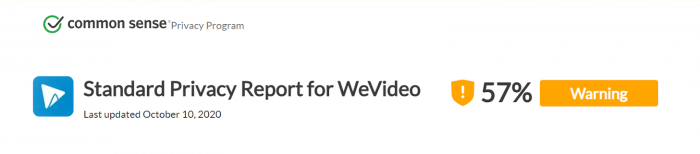
That doesn’t negate WeVideo’s commitments, but it does mean:
● Schools and teams should not treat it like a casual consumer app.
● You should review the privacy policy, secure a strong DPA, and configure accounts under admin control not let everyone sign up ad‑hoc.
WeVideo is far more privacy‑aware than most consumer editors, but it’s still a cloud service handling student data; governance is mandatory, not optional.
7. Real User Reviews: The Crowd Filling in the Edges
Feature lists describe intent. Reviews describe impact. A few themes show up across Trustpilot, Capterra, G2, and Software Advice.
The Love Letters
● “Very user friendly… robust enough to create very professional looking videos.”
● “Our students quickly learn how to navigate the site and work collaboratively or individually to create dynamic and engaging projects.” G2
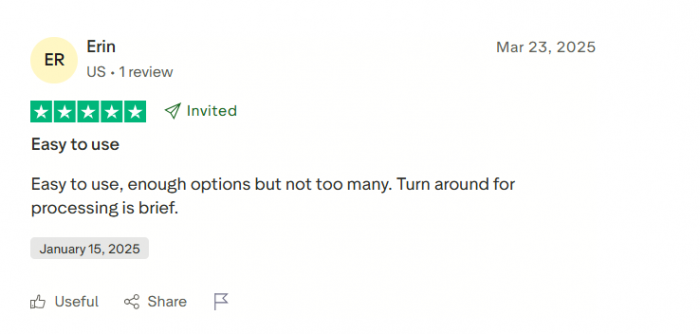
● “Easy to use, enough options but not too many… It does everything that we need.”
● “The stock library alone has paid for the cost of my subscription.”
These come from teachers, instructional designers, and small business users whose main needs are accessibility, collaboration, and “good enough” polish. The scores match: WeVideo typically sits in the mid‑4s out of 5 on usability and overall satisfaction in these segments.
The Frustrations
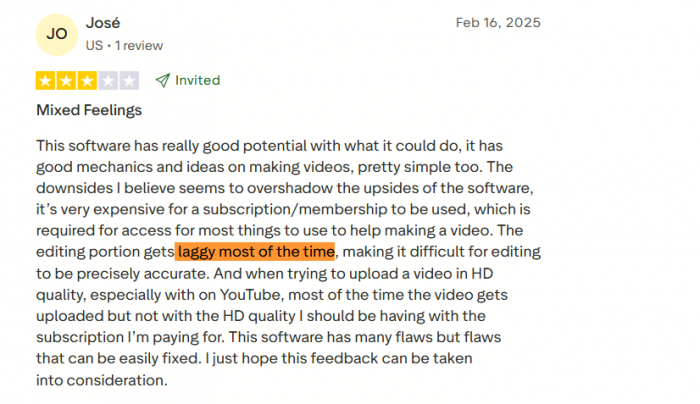
● “Editing gets laggy most of the time… uploading and exporting in HD has become a frustrating chore.”
● “It doesn’t have the level of variety and interconnectivity as Adobe Cloud and Premiere Pro.”
● “They basically tricked me into using a feature that requires a much more expensive plan once it came time to pay… really, really unacceptable.” softwareadvise
● “Customer support is near impossible… took several days to respond, no useful help.”
These are the voices of people pushing project size, expecting pro‑level depth, or hitting pricing and support friction. They aren’t wrong; they’re bumping into the edges of WeVideo’s chosen lane.
Crowd Verdict in One Sentence
If you strip reviews down to their essential signal:
● WeVideo delights people who need fast, approachable, collaborative video.
● It disappoints people who expect deep pro control or very cheap, unlimited use.
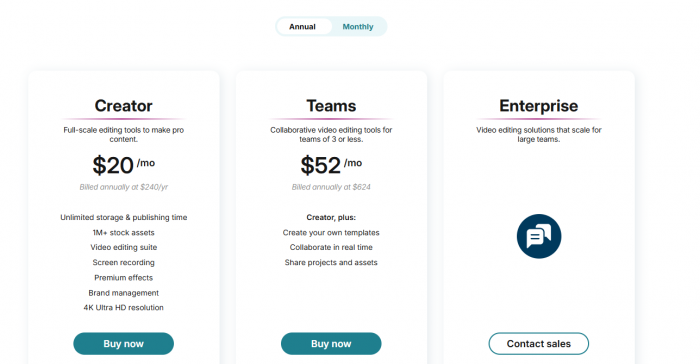
8. Pricing as a Behavior Filter, Not Just a Table
Yes, there are free and paid tiers. The more interesting question is: What behavior does each tier encourage?
● Free: a sandbox. Try the workflow, understand the UI, maybe have students create a small project—but watermarks and minute caps make it an evaluation space, not a production environment.
● Mid‑tier (Unlimited / Creator / Professional‑style): the “we do this often” zone. No watermark, higher resolutions, more stock, fewer limits—and suddenly WeVideo feels like a daily tool.
● Education / Teams / Enterprise: the coordination tier. You’re not just buying features; you’re buying rosters, governance, collaboration, and support to run WeVideo at the scale of a school, district, or department.
9. Where WeVideo Fits in the 2026 Tool Stack
Placed correctly, WeVideo solves very specific problems:
Best as the hub if:
● You teach, train, or communicate via video weekly.
● Your people are on browsers (often Chromebooks).
● You care about interactive lessons and analytics.
● You need something your IT and privacy teams can sign off on.
Best as a helper if:
● You already have a full LMS and pro editors; you just need an easy editor for students and non‑specialists.
Not the right tool if:
● You’re doing high‑end cinematic work and need Resolve/Premiere‑level control.
● You’re frequently offline or have very poor bandwidth.
● You need every feature unlocked at hobby budgets.
10. The Real Answer: What Actually Happens When Editing Moves to the Cloud
When video editing moves to the cloud via something like WeVideo, three things happen:
1. More people make more videos: Because the barrier to entry drops, no installs, gentle UI, shared space—teachers, students, and small teams start treating video as a default medium instead of a special project.
2. Videos start teaching back: Interactivity, AI‑generated questions, playlists, and analytics turn a file into an ongoing conversation with learners.
3. Video creation and institutional responsibilities collide: Privacy, student data, contracts, and support all become part of the story which WeVideo addresses more seriously than many tools, but never enough to skip due diligence.
Final Verdict
WeVideo makes the most sense when you judge it on the job it actually chose: being a cloud‑based video learning and creation space that ordinary teachers, students, and small teams can live in every day. It trades pro‑level depth for accessibility, collaboration, and interactive lessons, which is why real users consistently rate it highly for ease of use and value, even as they warn that performance can lag on heavy projects and that serious work usually requires paid plans.
If your world revolves around classrooms, training modules, school communications, or repeatable team content, WeVideo offers a coherent bundle browser editing, templates and stock, interactive video, analytics, and institutional safety features that few competitors match in one place. If your world revolves around cinematic finishing, advanced color, and offline reliability, it’s better treated as a helpful side tool than your primary editor.
Comments