

The first time I opened Clipfly AI, it felt less like launching a video editor and more like opening a “video idea machine.” I wasn’t staring at a scary timeline with tracks and keyframes; I was looking at a big text box asking me what I wanted to create. That simple shift starts from the idea, not the edit pretty much sums up how Clipfly works once you actually use it.
Getting Started: What Clipfly AI Feels Like
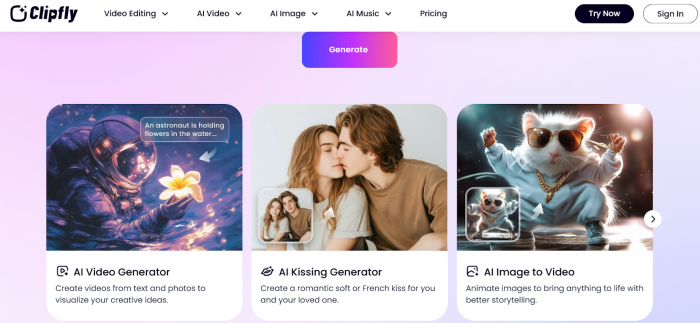
From a user’s seat, Clipfly is a browser‑based studio with companion mobile apps that tries to cover my entire short‑form video workflow in one place. I log in, click one of the big entry points (Text‑to‑Video, Image‑to‑Video, Video Enhancer, Object Remover, etc.), and I’m immediately pushed to describe what I want to see on screen rather than fiddle with technical settings.
The onboarding curve is almost nonexistent. I didn’t need to “learn” the tool in the traditional sense; I just tried prompts, uploaded a few images and clips, and let the AI do the heavy lifting. The interface is clean and labeled in plain language, so even when I first landed on the editor, I knew exactly where to cut, where to add text, and how to change music without hunting through menus.
My First Test: From Prompt to Social‑Ready Video
I started by treating Clipfly like an AI intern: I gave it a short brief “30‑second TikTok‑style promo for a new budget smartphone, upbeat, targeted at students, vertical video” and pasted a loose script.
How the Text‑to‑Video Flow Actually Works
Here’s how the process feels in practice:
1. I paste my script or type a detailed prompt.
2. I choose things like aspect ratio (vertical for TikTok/Reels, horizontal for YouTube), overall style, and whether I want AI voice‑over and subtitles.
3. I hit generate and watch Clipfly assemble a storyline, split my script into scenes, match stock‑style visuals, add transitions, music, and captions.
The first time I did this, the draft came back surprisingly coherent. The scenes followed the structure of my script, the visuals mostly matched the narrative (shots of phones, students, campus vibes), and there was music that didn’t feel totally generic. It wasn’t perfect, but it was a solid first draft I could actually imagine publishing with minimal tweaks.
Where things got interesting was in the “almost right, but not quite” moments. Sometimes one or two scenes felt too stock or slightly off‑context. Instead of surgically swapping a single shot, Clipfly nudged me toward regenerating that chunk from the prompt. That’s the main trade‑off I experienced: Clipfly is brilliant at fast, idea‑level drafting, but less brilliant at frame‑by‑frame micromanagement.
Playing With Image‑to‑Video and Those “AI Dance/Baby” Clips
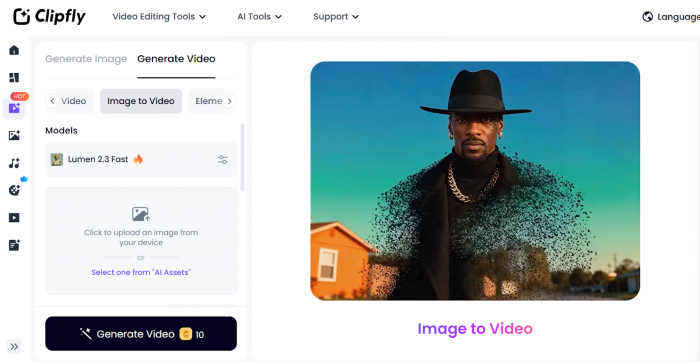
After text‑to‑video, I wanted to see how Clipfly handled more playful formats. This is where the image‑to‑video and mobile‑friendly features really show up.
I uploaded a couple of product photos and a portrait, then tried the image‑to‑video options. The tool applies motion—pans, zooms, rotations, and dynamic framing to otherwise static images and wraps them into short clips with transitions and music. For product shots, it’s instantly useful: a static catalog image suddenly looks like a social ad with slow zoom‑ins and subtle camera movement.
On mobile, the “AI dance” and “baby video” styles lean into the viral side of things. You drop in a face or photo, choose a dance or fun template, and Clipfly animates it into a meme‑ready clip. It’s not something I’d use for serious branding work, but it’s perfect for trend‑driven content or personal posts.
That said, when I pushed it with more complex poses or tried to make the motion too realistic, artifacts and slightly uncanny movements appeared. The lesson I learned: Clipfly’s image‑to‑video is excellent for short, fun, social‑native content and simple product sequences not for long, detailed character animation or ultra‑realistic motion.
Editing Inside Clipfly: Enough for Most Daily Jobs
Once I had a few clips generated, I switched into “editor mode” to see how far I could go without exporting to a traditional editor.
Clipfly’s editor is intentionally lightweight. I could:
● Trim clips, reorder scenes, and adjust durations.
● Add text overlays, subtitles, stickers, and basic graphics.
● Change music, tweak volume, and adjust the overall mood.
● Apply filters and transitions to make everything feel cohesive.
The big surprise for me was how little time I spent thinking about technical constraints. Instead of managing tracks and keyframes, I was mostly making high‑level decisions: shorter here, slower there, different music, more intense color. For routine short‑form content, that’s exactly what I want.
Where the limits became obvious was in advanced tasks. If I wanted complex multi‑layer compositions, intricate audio mixing, or very specific timing synced to beats or voice inflections, Clipfly’s simplified timeline started to feel constraining. For everyday social videos, it’s more than enough; for meticulous brand films, it’s more of a first‑draft tool than a finishing environment.
The AI Enhancement That Actually Feels Like Magic
The part of Clipfly that genuinely impressed me on real footage wasn’t the generator; it was the enhancer and object/background removal.
I tried feeding it a slightly blurry, low‑light product video I’d shot months earlier. The enhancer sharpened edges, improved color balance, and removed a bit of the noisy “cheap camera” look. It didn’t turn it into cinema, but it made it publishable without me touching a complex color grading interface.
The object remover was another highlight. I tested it on a street shot with a distracting passer‑by in the background and on a product clip where a random logo popped into frame. Marking the unwanted object and letting Clipfly fill in the background was far easier than the manual masking and cloning I’m used to in traditional tools. It’s not perfect every time, but for quick clean‑ups it saved me a lot of time.
Those enhancements alone make Clipfly useful even if I ignore the text‑to‑video parts and just treat it as an “AI fixer” for footage I shot elsewhere.
How the Plans and Credits Feel in Real Use
From a user perspective, the pricing and plan structure matters less as numbers and more as “how often can I experiment before I hit a wall?”
On the free tier, I could comfortably:
● Test the interface and features.
● Generate shorter videos at standard resolution.
● Run a few enhancement and removal jobs.
But I had to be mindful of credits and limits. If I kept regenerating long videos or ran multiple enhancement passes, I could feel the ceiling pretty quickly. It’s fine for casual use or occasional projects, but the moment I started treating Clipfly as a daily content engine, the free plan no longer felt sufficient.
On paid tiers (especially the lower annual plan), the experience changed. Higher resolution exports, more generous credits, and faster processing meant I could iterate more freely. I didn’t worry as much about “wasting” a generation on a risky creative idea, which is crucial for experimentation. The pricing felt reasonable when I compared it to stacking separate tools for stock‑like visuals, TTS, captions, and a standalone editor.
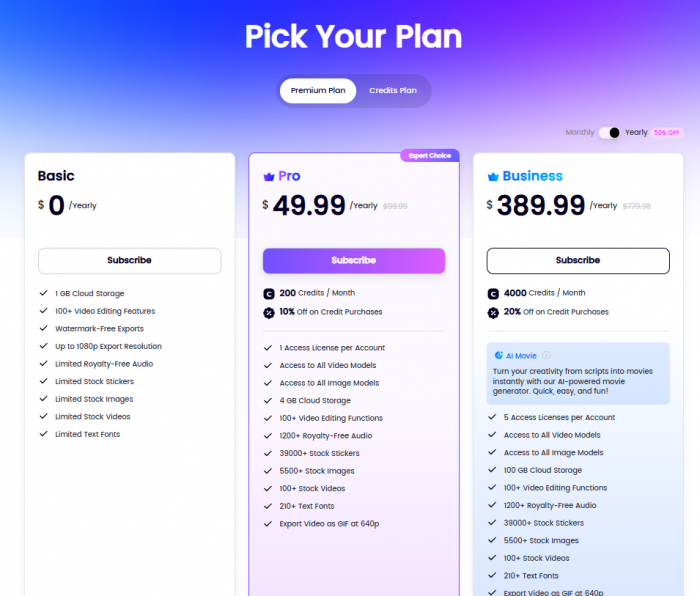
The one mental adjustment I had to make: adopting a slightly more disciplined workflow. I found it smarter to refine my script and prompt, then generate, rather than spam dozens of half‑baked prompts and burn credits on throwaway drafts.
Performance and Reliability in Day‑to‑Day Use
In my own usage and from patterns echoed by other users, Clipfly’s performance lands in a sweet spot for its target audience.
● Short videos and simple prompts generate in seconds to under a minute.
● Longer, multi‑scene projects can take a few minutes, which is still far faster than manual editing for a comparable first draft.
● Enhancement and upscaling take longer but run in the background, so I could switch to other tasks while they processed.
Occasionally, I did run into slower queues and the odd failed render, especially when playing on the free plan. Retrying usually solved it, but it’s something you notice if you’re working against tight deadlines. On a paid tier, those hiccups were less frequent and processing felt more consistent.
I never felt like I was “waiting all day” on Clipfly, which is important if you’re used to desktop editors that chew through CPU and force you to babysit renders.
What It’s Like Compared With Traditional Editors
Using Clipfly after years of conventional editing felt like switching from a full DAW to a podcasting tool that just asks, “What do you want your show to sound like?”
The trade‑off looks like this in real life:
● I lose microscopic control: perfect frame‑accurate cuts, infinite layers, advanced color, and complex audio mixes.
● I gain speed: the ability to go from idea to reasonably polished video without touching most of those controls.
So the way I ended up using Clipfly is simple:
● For quick promos, social clips, explainer snippets, product teasers, and trend‑based content, I stayed entirely inside Clipfly from idea to export.
● For bigger, more sensitive projects (brand films, campaign centerpieces, emotionally rich storytelling), I used Clipfly as an “idea generator” or rough‑cut engine and then moved the project into a more advanced editor for fine‑tuning.
Once I framed it that way in my head, the tool made perfect sense.
How Other Users’ Experiences Matched (or Didn’t Match) Mine
Looking at broader user feedback, I saw a lot of themes that lined up with what I experienced:
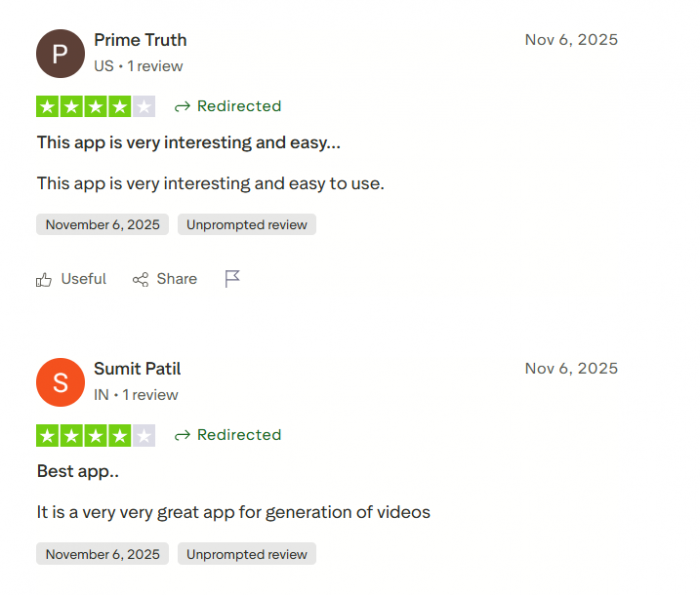
● People love how easy and non‑intimidating the interface is. Beginners can produce something watchable on day one.
● Many call out the object remover and enhancement tools as standouts for cleaning up imperfect footage.
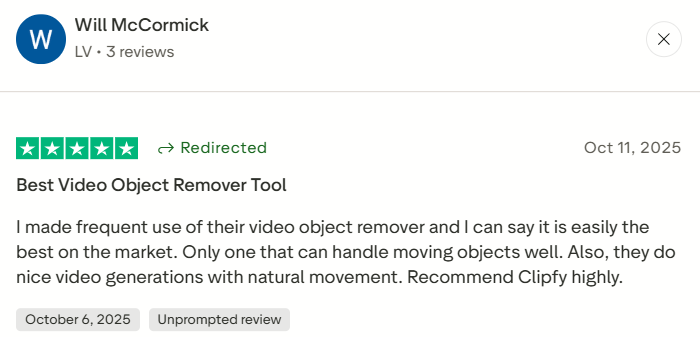
● Most praise the “all‑in‑one” nature: instead of juggling multiple subscriptions or apps, they can stay in a single environment.
The complaints are also familiar:
● Free‑tier users often feel that limits and performance slowdowns hit them faster than they’d like if they use the tool heavily.
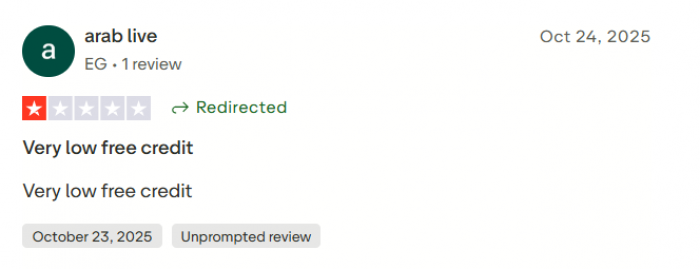
● Power users want more granular control, more editing depth, and more generous credit policies.
● A few mention occasional instability or failed renders, especially under load, which I also bumped into here and there.
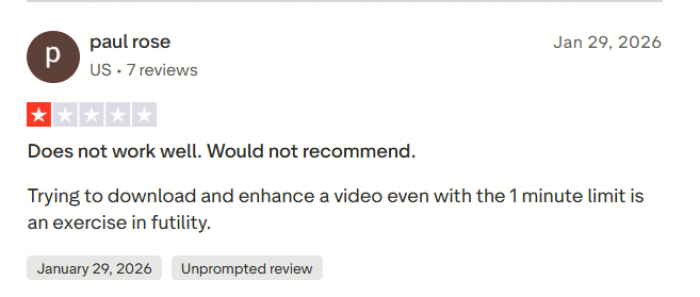
What reassured me was that the praise and criticism both feel consistent with how the product is positioned. The tool generally does what it says; the friction shows up when people expect it to behave like a full‑blown pro editor instead of what it is—a fast, AI‑driven creative assistant for video.
Where Clipfly Fits in My Real Workflow
After using Clipfly across different scenarios, I’ve roughly slotted it into three roles in my own stack:
1. Primary production tool for short‑form social: If I’m making TikToks, Reels, Shorts, or quick promos, Clipfly often is the only tool I need from idea to export.
2. Enhancer for “almost good” footage: When I have recordings that are usable but not polished, I run them through Clipfly’s enhancer and object remover instead of spending ages in a traditional editor.
3. Prototype engine for bigger projects: For complex campaigns, I sketch multiple video directions in Clipfly, pick the strongest one, and then rebuild or refine it in a more advanced editor.
That combination of roles makes Clipfly less of a “replacement” and more of a speed and experimentation layer on top of how I already think about video.
Final Verdict
If I had to sum up my experience with Clipfly AI in one line, it would be this: it’s an excellent idea‑to‑video engine for people who care more about getting good content out quickly than about obsessing over every single frame.
As a creator or marketer, the real value is that I can go from a rough idea in my head to a watchable, platform‑ready video without fighting a complex timeline, hunting for stock, or stitching multiple tools together. The trade‑offs such as limited fine‑grained control, credit‑based limits, and the occasional render hiccup are real, but they’re also predictable once you understand what the platform is optimized for.
For beginners, solo creators, and small brands, I’d genuinely consider Clipfly as a main tool for short‑form video creation. For agencies and advanced editors, I’d still recommend it but as a fast prototyping, experimentation, and enhancement layer rather than the only place where your video lives.
Comments