

CapCut is widely used for creating Instagram Reels, TikTok videos, and YouTube Shorts, but it is not the only editor worth considering. Some alternatives offer greater control over video editing, while others simplify captions, branded content, and short-form video production.
The right alternative depends on what you publish and how much editing you actually need. Here are eight CapCut alternatives, including their social media applications, limitations, pricing, and reasons to consider switching.
8 Best CapCut Alternatives at a Glance
| Tool | Social media strength | Free version |
| VN Video Editor | Detailed Reels and Shorts editing | Yes |
| InShot | Quick mobile editing | Yes |
| Canva | Branded posts, Stories, and videos | Yes |
| VEED | Subtitles and talking-head content | Yes |
| Instagram Edits | Instagram-focused video production | Yes |
| Filmora | Advanced editing and effects | Yes, limited |
| Kapwing | Video repurposing and collaboration | Yes, limited |
| KineMaster | Multi-layer mobile editing | Yes, limited |
1. VN Video Editor: For Creators Who Want More Editing Control
Social media focus: Instagram Reels, TikTok, YouTube Shorts, and cinematic short videos.
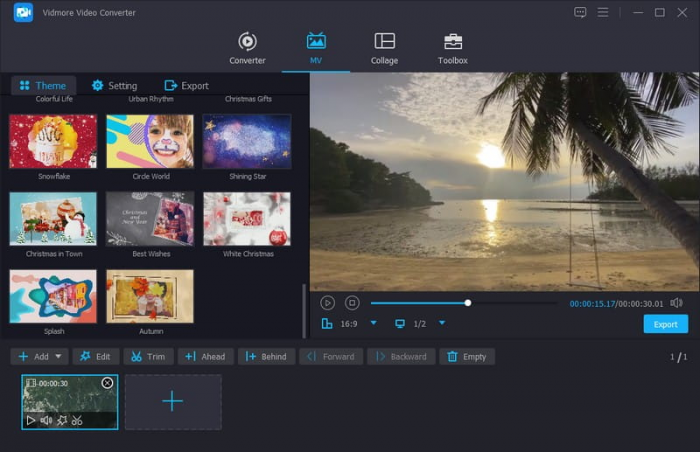
VN Video Editor is one of the closest CapCut alternatives for creators who want detailed editing controls without switching to complicated desktop software.
Its multi-track timeline allows you to arrange video clips, background music, voiceovers, text, and overlays independently. It also supports keyframe animations, speed curves, automatic captions, and exports up to 4K at 60 FPS. These capabilities are particularly useful for travel Reels, product showcases, cinematic videos, and tutorials where timing and transitions matter.
What changes when you move from CapCut?
● You can adjust individual video and audio layers instead of depending primarily on ready-made templates.
● Keyframe controls let you create custom motion effects and transitions for short-form videos.
● The free version supports watermark-free exports, making it practical for regular social media publishing.
Where VN falls behind: VN includes templates and visual effects, but creators who regularly use CapCut's specific viral templates and trending effects may find fewer direct replacements.
What does it cost? VN Video Editor offers a free version with watermark-free editing and exporting. VN Pro starts at $7.99/month or $69.99/year in the US. Optional AI credit packages start at $1 for 100 credits. Pricing may vary by platform and region.
Who should make the switch? VN is particularly suitable for creators who want more control over how their Reels and Shorts look without paying simply to remove a watermark.
2. InShot: When a Reel Needs Editing in Minutes
Social media focus: Instagram Stories, Facebook Reels, TikTok, and everyday short videos.
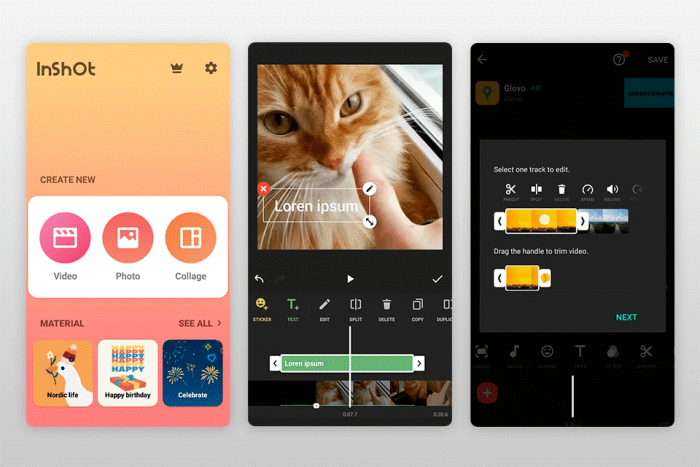
Not every social media video needs advanced transitions or multiple editing tracks. Many creators simply need to trim clips, add music, adjust video dimensions, and publish.
InShot is built around those everyday tasks. Its interface provides accessible controls for cutting videos, inserting text, applying filters, adding transitions, and changing aspect ratios. It also includes AI-assisted features such as automatic captions, bilingual subtitles, and tools for removing unwanted pauses or filler words.
Where InShot works particularly well:
● Daily Instagram Stories: Combine short recordings, add music and text, and prepare them for publishing without a lengthy editing process.
● Small business promotions: Edit product videos, discount announcements, and demonstrations using simple visual elements.
● Personal vlogs: Trim footage, adjust timing, and add subtitles without dealing with an advanced timeline.
What you sacrifice: InShot is less flexible than more advanced editors for complicated compositing, detailed animations, and projects requiring extensive layer management. Some filters, effects, and editing features also require a paid subscription.
Free or paid? InShot has a free version with advertising and feature limitations. InShot Pro starts at $4.99/month or $19.99/year, while a lifetime purchase is listed at $49.99 on the US Apple App Store.
Consider InShot instead of CapCut if: You produce frequent Stories, casual Reels, and product clips where quick editing matters more than elaborate visual effects.
3. Canva: When One Campaign Needs Multiple Social Media Formats
Social media focus: Instagram carousels, branded Reels, Stories, Facebook posts, and LinkedIn content.

CapCut is primarily a video editor, but creating social media content often involves more than video. A single campaign may require an Instagram carousel, a Facebook graphic, a Story, and a promotional Reel.
Canva brings those different formats into one design platform. It allows creators to combine graphics, video clips, animations, music, and branded elements without building every design from scratch. Maintaining consistent branding also helps improve visual content engagement across different social platforms.
What Canva handles beyond CapCut:
● Create coordinated Instagram posts, Stories, videos, and thumbnails using consistent branding.
● Maintain the same fonts, logos, and color schemes across different social media formats.
● Produce animated promotional graphics, product announcements, and simple videos from existing templates.
For instance, a clothing brand could use the same product photographs and campaign colors to create an Instagram carousel, animated Story, and promotional Reel.
The compromise: Canva does not provide the same depth of video editing as dedicated timeline editors. Precise audio adjustments, speed effects, and complicated visual compositions are better handled elsewhere.
Pricing breakdown: Canva Free includes basic design and video editing capabilities. Canva Pro starts at approximately $12/month when billed annually at $144/year on its US pricing page. Regional pricing can differ.
Where switching makes sense: Canva is a better fit for social media managers, small businesses, and marketers producing both graphic posts and videos rather than only short-form footage.
4. VEED: When Captions Matter More Than Visual Effects
Social media focus: Talking-head Reels, educational Shorts, interviews, and captioned videos.
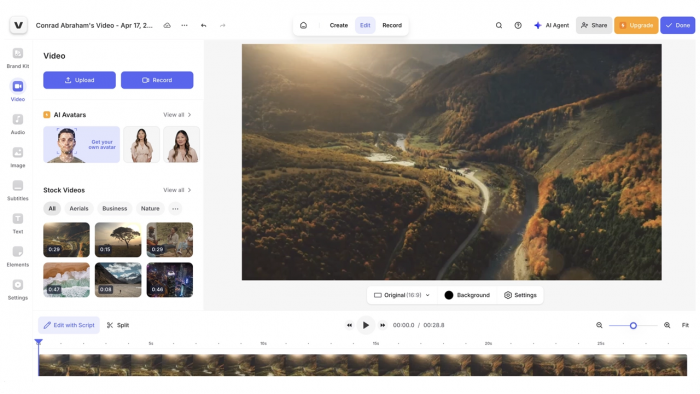
A talking-head Reel requires a different editing approach from a cinematic montage. Clear speech, accurate subtitles, and well-timed cuts often matter more than complicated transitions.
VEED is a browser-based video editor that focuses on speech-driven content. It supports automatic subtitles, transcript-based editing, video resizing, and audio cleanup tools.
One of its most useful functions is editing video through its transcript. Instead of locating every unwanted phrase manually on a timeline, creators can make cuts using the spoken text.
How VEED fits a social media workflow:
1. Upload an interview, product explanation, tutorial, or recorded presentation.
2. Generate subtitles and correct any transcription errors.
3. Remove unnecessary sections, adjust caption styling, and resize the footage for vertical viewing.
4. Export the finished clip for Instagram Reels, TikTok, or YouTube Shorts.
This approach is especially useful for educators, coaches, consultants, and podcasters who regularly repurpose recorded conversations.
The main drawback: VEED's free exports carry a watermark, and higher export resolutions or expanded AI capabilities require payment. It is also less focused on creative transitions and trending visual effects than CapCut.
Cost of using VEED: A free plan is available with watermarked 720p exports. Paid plans start at approximately $9/month with annual billing or $19/month when billed monthly.
A good reason to move: Choose VEED when adding captions, editing spoken content, and preparing educational videos take up more time than visual editing.
What You Gain and Give Up
The first four alternatives approach social media creation differently. Some replace CapCut's video editing controls, while others address requirements that CapCut is not primarily designed around.
| Alternative | What you gain | What you give up |
| VN | Manual control over video layers, animations, and timing | Some CapCut-specific trending templates |
| InShot | Faster editing for basic mobile content | Advanced timeline flexibility |
| Canva | Graphics, branding, and video in one workspace | Detailed video editing controls |
| VEED | Transcript-based editing and subtitle workflows | Some creative effects and free export flexibility |
The difference matters when content production increases. Someone publishing several educational Reels weekly may save more time using VEED's transcript tools than switching between large collections of video effects.
5. Instagram Edits: When Instagram Is Your Main Platform
Social media focus: Instagram Reels, creator content, and Facebook videos.
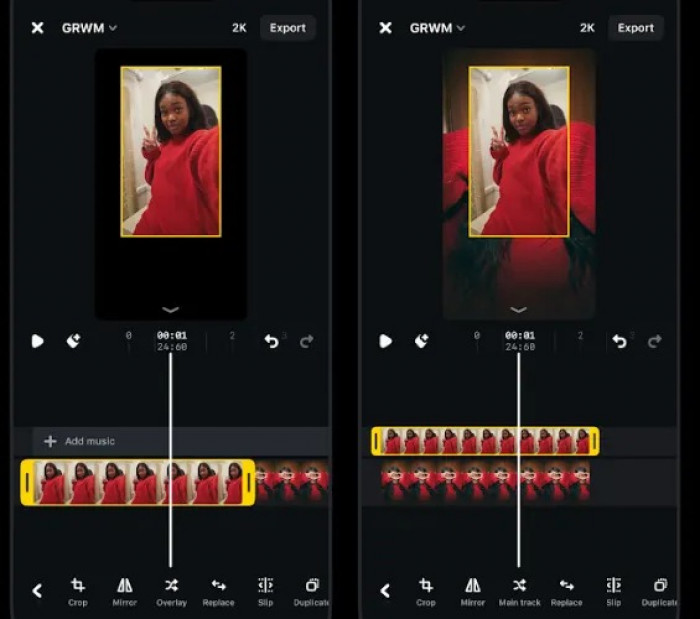
Instagram Edits is Meta's dedicated video editing app. It combines recording, editing, draft management, and performance insights in one mobile environment.
The app includes a frame-accurate timeline, green-screen effects, transitions, video enhancement tools, and exports without an added watermark. Videos can also be shared directly to Instagram and Facebook.
What distinguishes Edits from many other CapCut alternatives is its connection with Instagram performance data. Creators can review available insights, including skip rate, to understand how viewers respond to their videos.
Why Instagram creators may prefer it:
● Record, organize, and edit Reels within an application developed specifically for Instagram creators.
● Use timeline adjustments, visual effects, and green-screen features without requiring separate editing software.
● Review available performance insights to identify videos where viewers lose interest early.
● Export videos without an added watermark for publishing on other social media platforms.
Where it is less capable: Edits is not a complete social media management platform. It does not replace tools designed for branded graphics, multi-platform scheduling, or broader campaign collaboration.
Is Instagram Edits free? Yes. Its core video editing tools are free, and the app supports watermark-free exports, including up to 4K resolution.
Who will benefit most? Instagram-first creators who want to edit videos and evaluate their performance within a connected publishing workflow.
6. Filmora: When Basic Mobile Editing Starts Feeling Restrictive
Social media focus: Product launches, professional Reels, YouTube videos, and promotional content.
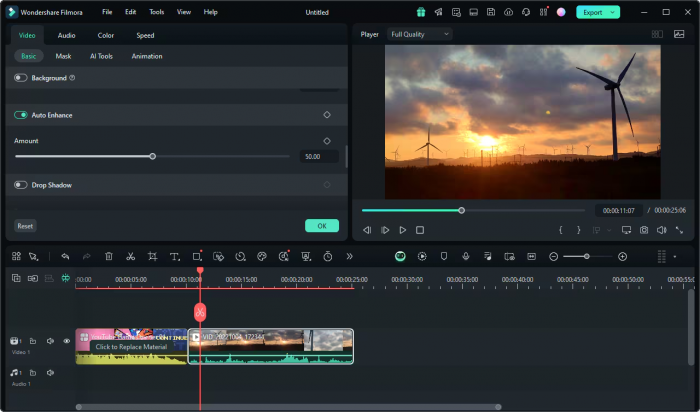
CapCut handles many everyday editing tasks, but larger projects often demand more advanced controls. Promotional videos, detailed tutorials, and long-form YouTube recordings may require multiple audio tracks, color adjustments, motion effects, and extensive footage management.
Filmora provides a more developed editing environment for these requirements. It supports keyframe animation, motion tracking, color correction, audio adjustments, and AI-assisted video editing.
Its AI Smart Short Clips feature is also relevant for creators who want to transform longer recordings into short-form content, although access to some AI functions depends on credits and subscription limits.
Where Filmora earns its place:
● Product launches: Combine multiple camera angles, animated titles, close-up footage, and background audio.
● Content repurposing: Edit longer YouTube videos and prepare shorter segments for social media.
● Professional promotions: Apply more detailed color corrections, audio adjustments, and motion effects to campaign videos.
The downside to consider: Filmora has a steeper learning curve than basic mobile editors, and its free version includes watermark restrictions. Several AI features also have usage-based limitations.
Plans and starting prices: Filmora provides a free version for testing its editing capabilities. Its Basic annual plan starts at $49.99/year, approximately $4.17/month when billed annually. The Advanced annual plan is listed at $59.99/year, and a perpetual license starts at $79.99 for the eligible version.
Choose Filmora over CapCut when: Your social media videos require more detailed production, particularly if you edit long-form footage, manage multiple audio sources, or work primarily on a computer.
7. Kapwing: When One Video Needs Several Social Media Versions
Social media focus: Video repurposing, team collaboration, subtitles, and multi-platform campaigns.
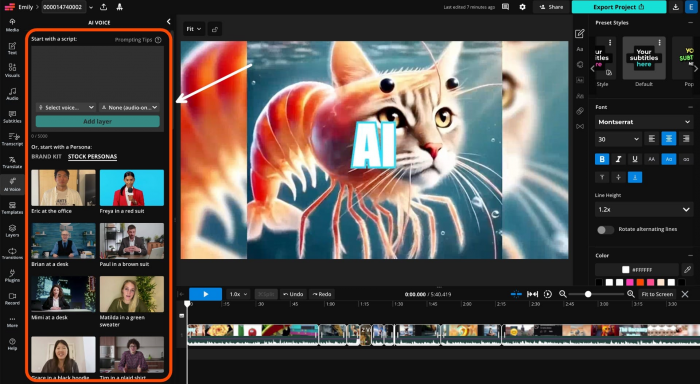
A single podcast episode or interview can become several social media posts. The challenge is extracting useful segments, adjusting video dimensions, adding subtitles, and preparing multiple versions without rebuilding the project each time.
Kapwing is a browser-based video editor designed around these kinds of workflows. It supports trimming, automatic subtitles, resizing, AI-assisted editing, and shared workspaces.
Its collaborative capabilities make it especially relevant for small marketing teams where one person records content, another edits it, and a third reviews the finished posts.
How a creator could use Kapwing:
A marketing team records a 15-minute interview with a founder. Instead of publishing only the full recording, it extracts several short answers, adds subtitles, and prepares different clips for Instagram Reels, YouTube Shorts, and LinkedIn.
Kapwing's online workspace supports this process without requiring everyone to install the same desktop editor.
Where it falls short: Kapwing is less suitable for detailed offline editing and demanding visual effects. Its free plan also places limits on export duration, resolution, and watermark removal.
How much does Kapwing cost? Kapwing Free includes watermarked exports, videos up to four minutes, and 720p output. Kapwing Pro starts at $16 per member/month when billed annually or $24/month with monthly billing.
The strongest reason to switch: Kapwing is worth considering when several people work on social media videos or when the same recording needs to be adapted for multiple platforms.
8. KineMaster: When You Want Desktop-Style Layers on Mobile
Social media focus: Layered Reels, product demonstrations, tutorials, and mobile content production.
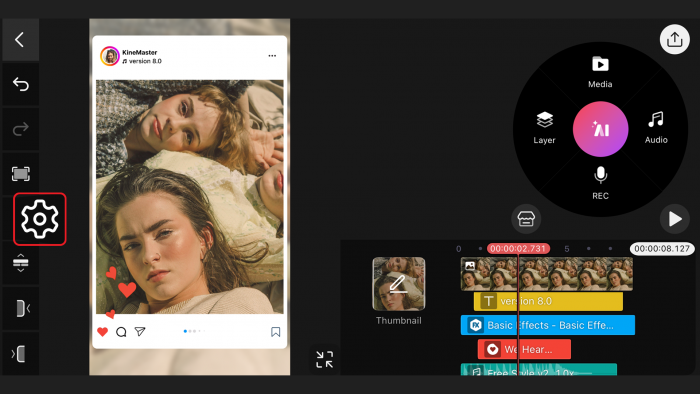
KineMaster is designed for creators who want detailed video editing without moving from their phones to a desktop computer. Its editing environment supports multiple layers of video, text, graphics, audio, and visual effects. It also includes keyframe animation, chroma-key editing, and audio controls.
These features make it useful for videos that require more than simple trimming or preset transitions.
A creator explaining a mobile application, for instance, could combine screen recordings, animated labels, highlighting effects, and voiceovers within the same project.
What makes KineMaster different?
● Multiple editing layers provide control over footage, text, graphics, and additional visual elements.
● Keyframe animation makes it possible to move and animate individual objects within a video.
● Chroma-key tools support green-screen effects and composited scenes.
● Audio controls help creators manage background music, sound effects, and recorded narration.
What may frustrate users: KineMaster requires more manual adjustments than simpler mobile editors. Its free exports also include a watermark, which can be a limitation for regular branded content.
Free plan and subscription: KineMaster offers a free version with editing and export limitations. Premium starts at $7.99/month or $51.99/year, equivalent to approximately $4.33/month with annual billing. Premium removes watermarks and ads and provides additional assets.
Switch to KineMaster if: You want precise control over video layers, animated elements, and green-screen effects while continuing to edit on a mobile device.
Which Alternative Fits Your Social Media Content?
The eight tools are not interchangeable. Choosing the right editor depends on what takes the most time in your current content production process.
| Your main requirement | Recommended tool | Why it fits |
| Creating watermark-free Reels for free | VN Video Editor | Detailed timeline editing without watermark removal fees |
| Editing daily social media videos quickly | InShot | Accessible trimming, captions, and visual adjustments |
| Creating branded social media campaigns | Canva | Graphics and videos with consistent design assets |
| Producing caption-heavy educational content | VEED | Transcript-based editing and subtitle tools |
| Publishing primarily on Instagram | Instagram Edits | Instagram-connected creation and performance insights |
| Producing detailed promotional videos | Filmora | Extensive editing, audio, and motion controls |
| Repurposing recordings for several platforms | Kapwing | Browser-based editing and collaborative workflows |
| Editing layered videos entirely on mobile | KineMaster | Keyframes, overlays, and compositing features |
Can Free Editors Actually Replace CapCut?
Free editors can handle many of the tasks that make CapCut popular, including trimming footage, adding music, creating transitions, and adjusting videos for social media dimensions.
However, free access does not always include unrestricted exports or advanced editing tools.
VN and Instagram Edits are particularly attractive because their core editing capabilities include watermark-free exporting. InShot also provides a usable free version, although premium effects and certain functions require payment.
VEED, Kapwing, Filmora, and KineMaster provide free access with more noticeable restrictions. These may include watermarks, resolution limits, usage allowances, or locked features.
Before settling on a free editor, evaluate these points:
● Export quality: Check whether the free plan supports watermark-free videos and sufficient resolution for your intended platforms.
● Automatic captions: Confirm whether caption generation is free, usage-limited, or restricted to paid subscriptions.
● Creative assets: Look at whether the effects, fonts, stock footage, and templates you need are available without upgrading.
● AI editing limits: Check whether AI features require credits or have monthly usage allowances.
● Commercial licensing: Verify whether music, templates, and stock assets can be included in sponsored or business content.
These restrictions become more important for businesses and creators publishing regularly. A free editor may be sufficient for occasional personal videos but less suitable for a demanding commercial production schedule.
The Best CapCut Alternative Depends on Your Content
VN Video Editor is one of the strongest overall CapCut alternatives for creating Instagram Reels, TikTok videos, and YouTube Shorts. It offers detailed editing controls and watermark-free exports without requiring a paid subscription.
InShot is a practical option for quick everyday editing, while Instagram Edits is particularly suitable for Instagram-focused creators. Canva is more relevant for businesses producing a combination of graphics, Stories, and branded videos.
For specialized requirements, VEED handles speech-focused content, Filmora provides advanced production controls, Kapwing supports content repurposing and teamwork, and KineMaster offers detailed editing directly on mobile devices.
The best alternative is not necessarily the editor with the most effects or templates. It is the one that supports the type of social media content you produce regularly, provides the controls you actually need, and fits your budget.
Comments