

Most background removers can delete a plain wall behind a sharply focused person. The real test begins with flyaway hair, pale products, glass, fur, bicycle spokes and shadows that make an object feel grounded.
This comparison examines six leading options by cutout quality, repair controls, export limits, batch processing and what happens after removal. The aim is to identify the tool that leaves the least repair work for each type of user.
“Best” Changes With the Job
A background remover is only one stage in a larger image workflow. Someone preparing a profile photo may need a transparent PNG once every few months. An online seller may need hundreds of product images with the same white background, dimensions and shadow treatment. A social media editor may care less about a technically perfect alpha mask if the cutout can be placed inside a finished design without leaving the editor.
That creates four different definitions of “best”:
● An occasional user needs a quick result, a usable free download and no complicated account setup.
● A designer needs manual edge correction, layers, text, templates and several export sizes in the same workspace.
● An ecommerce seller needs consistent cutouts, background replacement, realistic shadows and batch production.
● A developer or high-volume team needs an API, predictable processing costs and reliable output dimensions.
Cutout quality cannot be separated from resolution and repair. A clean preview is useless if the download is too small, while a fast mask loses its advantage when there is no practical way to restore a missing earring, chair leg or section of hair.
The Images That Expose Weak Tools
Judging a remover with one studio portrait produces an easy winner and a weak comparison. A useful test needs subjects that fail for different reasons. These six image types reveal far more than a simple headshot against a contrasting wall.
| Test image | What the image reveals |
| Portrait with loose hair | Whether individual strands survive without a hard, helmet-shaped edge |
| White product on a pale surface | Whether the remover can separate similar foreground and background colours |
| Glass bottle or clear container | Whether reflections and partial transparency remain believable |
| Long-haired pet | Whether fur keeps its soft, irregular boundary |
| Chair, bicycle or jewellery | Whether narrow gaps and small internal spaces are cleared correctly |
| Low-light subject in a busy room | Whether the main subject is recognised without strong contrast |
The source image should stay unchanged across every tool. Resizing or brightening only one upload makes the result impossible to compare fairly. Download the highest available transparent PNG, since browser previews can hide rough edges and resolution restrictions.
Inspect whether the correct subject was selected, fine edges survived, old background colour remained as a fringe, errors could be repaired and the export was large enough for its intended use.
No ranking can predict every photograph. Results change with lighting, focus, contrast and subject shape, so the fairest conclusion also considers repair controls, limits and the wider workflow.
The Short Answer
For regular product or marketing work, Photoroom is the best overall background remover because removal sits inside a strong product-photo workflow. remove.bg is the better dedicated choice, Adobe Express offers the strongest free route, and Canva suits people already producing content there. Clipdrop provides a generous daily allowance, while Pixelcut is useful for small ecommerce teams needing batch exports and mobile access.
| Tool | Strongest reason to choose it | Main compromise |
| Photoroom | Product-photo workflow, batch tools and consistent exports | More platform than an occasional user needs |
| remove.bg | Focused removal, API access and simple automation | Free website downloads are low resolution |
| Adobe Express | Free removal inside a broad design editor | Dedicated masking control is less central |
| Canva | Fast cutouts inside an established content workflow | Background Remover is positioned as a Pro feature |
| Clipdrop | Daily free use plus cleanup, relighting and replacement | Workflow feels like separate utilities rather than one production system |
| Pixelcut | Ecommerce editing, batch exports and team plans | The best productivity features sit in paid plans |
1. Photoroom: Best Overall for Product Work
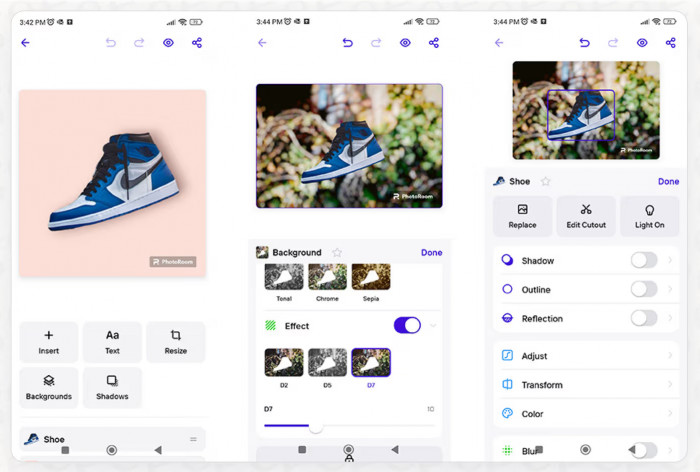
Photoroom is the strongest overall choice when background removal is the beginning of the job rather than the end. Its editor is built around product imagery, so a cutout can move directly into a white-background listing, branded composition, resized marketplace image or batch workflow.
The platform also provides bulk removal for groups of product photos. This matters when consistency across a catalogue is more valuable than saving a few seconds on a single file.
Ecommerce images often need the same margins, canvas ratio, background colour and visual weight. Photoroom keeps those tasks together. Its paid plans currently provide 1,000 exports on Pro, 3,000 on Max and 10,000 on Ultra, while core tools such as Background Remover, preset Shadows, Retouch, Fill and Expand do not consume advanced-generation credits.
This distinction matters when preparing a catalogue. A seller may begin with 100 original photos but export several versions of each product for different marketplaces, advertisements and social formats. The number of finished files can therefore rise much faster than the number of original photographs.
Photoroom is less compelling for someone who only wants one transparent file. Each saved image counts towards the monthly allowance, including exports from the editor, Batch or Shopify sync, so buyers should estimate final variations rather than source photographs alone.
Its strength is the complete product workflow. The user can remove a distracting background, introduce a clean studio surface, rebuild a soft shadow and standardise the image without assembling the result across several applications.
Best for: marketplace sellers, resellers, small brands and content teams that need finished product visuals rather than isolated PNGs.
2. remove.bg: Best Dedicated Remover
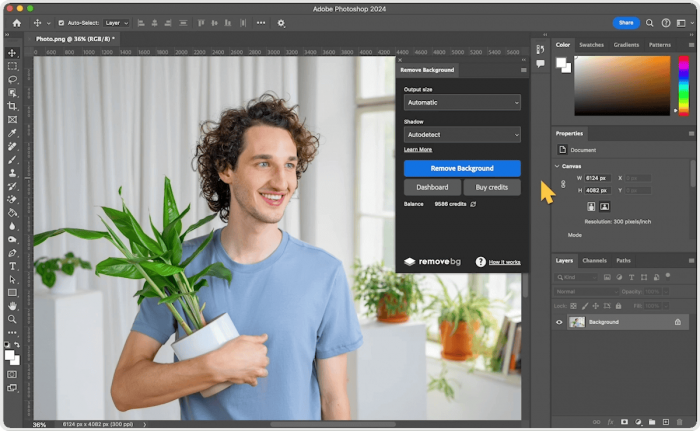
remove.bg remains the clearest option for users who want a specialist service rather than a design suite. The workflow is deliberately narrow: provide an image, isolate the foreground and download the result.
That focus is useful in repeatable processes where another application already handles layout, retouching or publishing. A designer can generate the cutout in remove.bg and continue working in Photoshop, Affinity Photo, a website builder or a content-management system.
Its strongest distinction is automation. remove.bg provides an API, code examples and integrations for connecting removal to software or existing production systems. Free accounts receive 50 API previews each month, while paid plans add larger-volume access and full-resolution processing.
The service supports images up to 50 megapixels on premium plans, giving it a clear role in workflows where a small web preview would not be enough.
The free website tier is its biggest weakness. Removal is limited to previews of up to 0.25 megapixels, with one bonus high-resolution test credit. Subscriptions suit predictable volume, while pay-as-you-go credits cover irregular work and currently do not expire.
A 0.25-megapixel preview may be enough to judge whether the subject was recognised, but it can become visibly soft when enlarged for a store listing, presentation or detailed social graphic. Users should therefore separate the quality of the mask from the quality of the file they are permitted to download.
remove.bg is easiest to recommend when the user already knows what happens next. Someone who still needs templates, shadows, text and several output sizes may receive better value from a broader platform.
Best for: agencies, developers and editors that need a focused remover or an API inside an existing workflow.
3. Adobe Express: Best Free All-Round Option
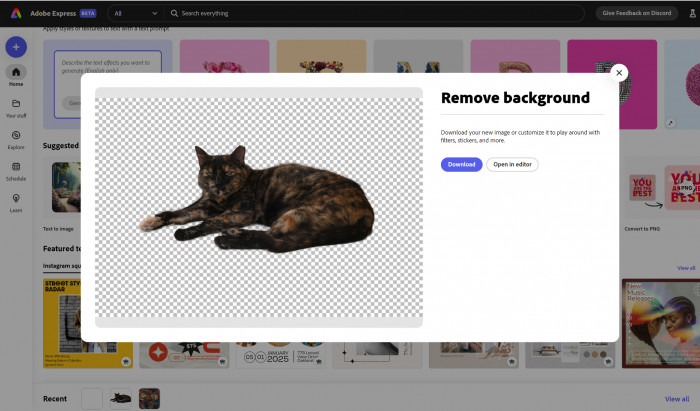
Adobe Express is the most practical free choice for a user who wants to remove one background and immediately turn the result into a usable graphic. Adobe lists Remove Image Background among the Quick Actions in its free plan, and Express can export PNG files with transparency.
The same project can then be resized, combined with text, adjusted or placed into a social, document or promotional layout. A cutout is rarely the final deliverable. It may need a coloured shape, price badge or text layer, and Express reduces the downloads and re-uploads required to complete those jobs.
This is particularly useful for profile images, blog graphics, simple advertisements and presentation visuals. A user can remove the original room or wall, position the subject on a cleaner background and add the supporting design elements without learning a full desktop image editor.
The compromise is that Adobe Express is not organised primarily as a precision masking application. Users who frequently rescue fine hair, transparent fabric or intricate gaps may still prefer a specialist remover followed by a detailed editor. Express is strongest when the first automatic result is already close and the priority is completing the design quickly.
The free tier includes 5GB of storage and standard creation tools, while premium plans expand templates, fonts, stock assets and brand management. Background removal should be judged as part of Express, not as a reason by itself to buy a larger Adobe bundle.
For an occasional user, this is an important advantage. The remover is not restricted to a tiny preview, and the resulting cutout can immediately become part of a finished design.
Best for: occasional users, students, marketers and small teams that need a free cutout inside a capable design workspace.
4. Canva: Best for Existing Canva Workflows
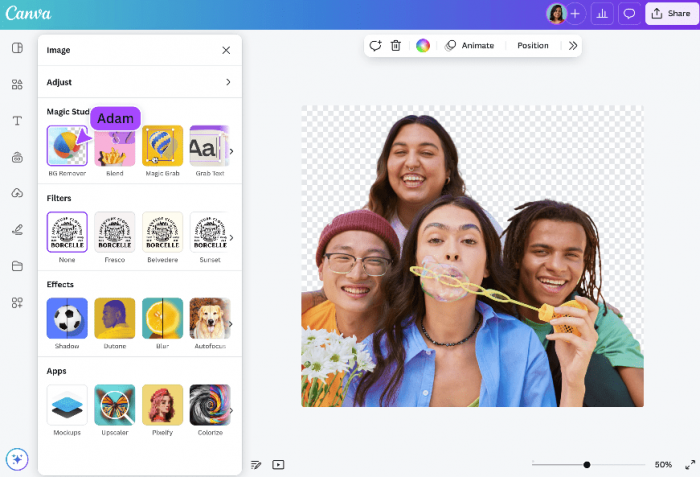
Canva is the sensible winner for people who already build social posts, presentations, advertisements and thumbnails on the platform. Its Background Remover is placed inside Canva Pro: the user selects an image, opens the effects controls and removes the background without leaving the design.
Canva also provides an image eraser for removing specific remaining areas after the automatic pass.
Its real strength appears after removal. The cutout can be layered over shapes, placed in a template, matched with brand colours, resized through Magic Switch and exported as part of a completed asset.
Canva Pro also bundles premium media, brand tools, transparent-background downloads and social scheduling, so the remover becomes one feature within a familiar production environment.
Consider a YouTube thumbnail. After removing the presenter’s background, the editor may need to enlarge the face, place the person in front of headline text, add a border and create a second version for another platform. Canva keeps those jobs inside the same canvas.
The practical question is whether the user needs Canva Pro as a whole. Anyone who only wants transparent PNGs should compare it with Adobe Express, Clipdrop or a dedicated credit purchase. Canva makes financial sense when the same person already relies on its templates, brand kit and resizing tools.
The tool also suits compositions where the cutout will be viewed at normal social-media size rather than examined at full resolution. Complex transparent objects and fine edge failures may still call for a specialist mask or manual editor before the image is returned to Canva.
Best for: creators and marketing teams already producing most of their visual content in Canva.
5. Clipdrop: Best Free Allowance for Repeated Experiments
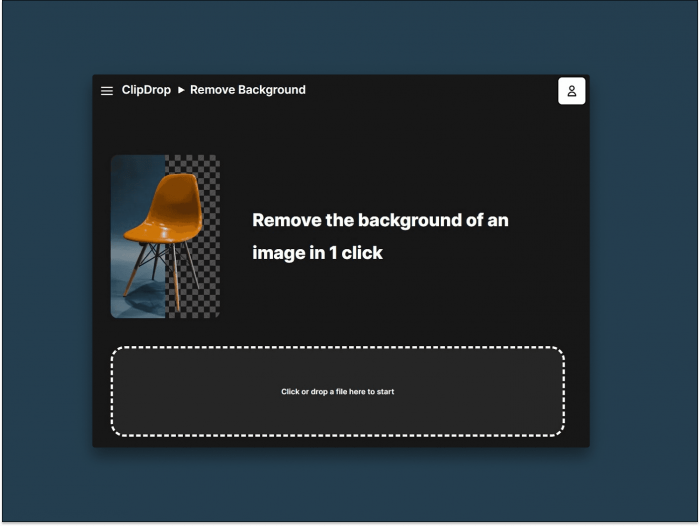
Clipdrop is useful when one background removal is followed by several other quick image operations. Its toolkit includes Cleanup, Relight, Replace Background, Text Remover and upscaling, giving users several ways to improve or repurpose the isolated subject.
The remover accepts up to ten files through the web interface and is presented for portraits, products, drawings and images with small details.
The free allowance is unusually clear. Clipdrop currently lists 20 background removals per 24 hours, alongside daily limits for Cleanup, Relight and upscaling. Pro increases background removal to high resolution and lists a limit of 1,000 operations per 24 hours. API access is charged separately on a usage basis.
This makes Clipdrop a useful testing ground. Several representative images can be processed before paying, while the surrounding tools help clean distractions or place the subject into a new setting.
A creator could remove a product background, clear an unwanted label with Cleanup, adjust the lighting and introduce a different setting. This is more flexible than using a remover that ends as soon as the transparent file is generated.
The drawback is cohesion. Clipdrop feels more like a shelf of utilities than a structured catalogue or design workflow, so teams producing strict templates may still need another application.
Its daily free allowance is most valuable for experimentation, occasional content production and comparing how different source images behave. High-volume commercial users will still need to inspect resolution, API costs and consistency across large batches.
Best for: creators who want frequent free experiments and a collection of focused image utilities.
6. Pixelcut: Best for Small Ecommerce Teams
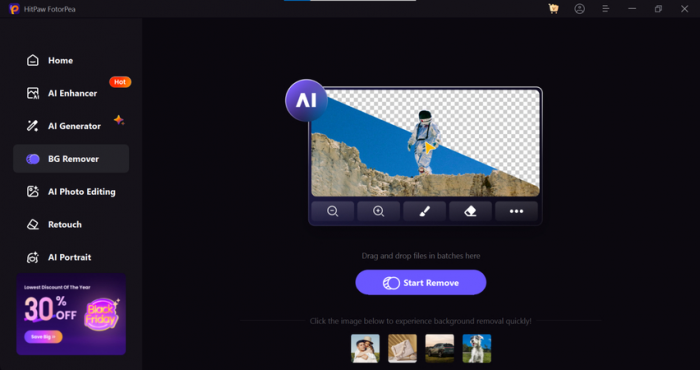
Pixelcut sits between a product-photo studio and a mobile design editor. It supports web, iOS and Android, and its help centre describes the platform as an editor for ecommerce sellers and content creators.
Background removal can be combined with product backgrounds, upscaling, erasing and batch editing, allowing a seller to process several images without returning to the upload screen for every item.
The free plan offers limited background removal and watermark-free export. The current Pro plan is listed at $10 per month and includes unlimited background removal, unlimited upscaling, a three-person team and 1,000 batch exports each month.
The $30 plan expands the team and monthly batch allowance. Those figures make Pixelcut easier to budget than a credit-only product when a small shop knows it will process images regularly.
Its mobile support is especially useful for sellers who photograph, edit and publish products from the same phone. A batch of clothing, accessories or handmade items can be photographed during the day and prepared for upload without transferring every file to a desktop application.
Pixelcut’s API prices background removal at five credits, equivalent to $0.05 per image, and supports files up to 6000 by 6000 pixels with PNG, JPEG and alpha-mask output. This gives businesses a route from manual editing to automation without changing providers.
The limitation is similar to Photoroom’s: occasional users may not need the full workspace. Pixelcut makes the strongest case when batch exports, mobile access and product presentation are part of the same weekly task.
Best for: small online shops and compact teams that want product editing, mobile access and predictable batch capacity.
Why Difficult Edges Still Fail
Automatic removal is a segmentation problem, not a simple colour-deletion command. The software estimates which pixels belong to the foreground, which belong to the background and which sit partly between them. Difficult photographs weaken those boundaries.
Hair and fur contain thin shapes mixed with background colour. A hard mask cuts away natural strands and creates a helmet edge; a softer mask may leave a grey, green or blue halo.
The problem becomes more visible when the subject is moved onto a sharply contrasting background. Pale strands that looked acceptable against a light preview can develop a dark outline when placed over black, blue or red.
Glass creates a different problem. Its edge belongs to the subject, but much of the centre is the background seen through it. Making the bottle opaque creates a cloudy block, while deleting the centre removes reflections.
Similar colours test whether the system understands the object’s form rather than relying mainly on contrast. A white shoe on a pale floor may lose part of its sole, while a beige chair against a cream wall may develop uneven legs.
Narrow gaps in jewellery, bicycle wheels and furniture reveal whether small background islands have been cleared. These leftover patches are easy to miss on the checkerboard transparency preview but become obvious after the cutout is placed on a new colour.
Contact shadows introduce a final judgement. Removing every trace of the original floor creates a technically transparent file, but the product may appear to float. Ecommerce tools often solve this by creating a fresh, controlled shadow after removal rather than preserving the inconsistent original.
This is why repair controls matter. A restore brush should bring back a missing section without rebuilding the entire mask. An erase brush should clear leftover patches at a useful zoom level. The best automatic result needs no repair, but the best working tool often makes a small correction painless.
Free Plans Need a Usability Check
“Free” may mean a full-resolution file, a low-resolution preview or a limited number of exports. Those offers are not equivalent.
| Tool | Current free position | Paid model to watch |
| remove.bg | Website previews up to 0.25MP, plus one high-resolution test credit | Subscription or non-expiring pay-as-you-go credits |
| Photoroom | Free removal tool and a limited free production tier | Monthly plans with export allowances and fair-use limits |
| Adobe Express | Remove Image Background is listed in the free plan | Premium adds broader assets, brand and production features |
| Canva | Background Remover is promoted as part of Canva Pro | Subscription bundles design, brand and publishing tools |
| Clipdrop | 20 removals per 24 hours | Pro adds high-resolution processing and larger daily limits |
| Pixelcut | Limited removal with watermark-free export | Pro adds unlimited removal and batch exports |
Judge the final file rather than the preview. Check dimensions, transparency, watermarking and commercial-use terms, and remember that three background variations may count as three exports.
The payment model should match the workload. A monthly plan suits a store processing new products every week. Pay-as-you-go credits are more sensible for seasonal campaigns or one large migration. A free design editor may be enough for a blogger creating two cover images each month.
Annual billing deserves particular care. Before committing, process several difficult images from the actual workload and calculate the number of final exports. A platform may perform well but still be poor value if its export rules do not match the way the team creates variations.
Best Tool by Use Case
Best overall: Photoroom. It gives regular sellers and marketing teams the most complete route from original photo to consistent final image. Its limitation is that the plan and export structure may be excessive for occasional work.
Best dedicated remover: remove.bg. It is focused, easy to automate and suitable for workflows that already have a separate editor. The low-resolution free download is the main obstacle.
Best free option: Adobe Express. It combines free background removal with a practical editor and transparent export. Fine masking control is not its central strength.
Best for social design: Canva. It removes the need to move a cutout between applications when the final asset is already being made in Canva. It is poor value if background removal is the only Pro feature the user needs.
Best daily free allowance: Clipdrop. Twenty removals per day provide enough room to compare several images and repeat failed attempts. A separate layout or catalogue tool may still be required.
Best for a small ecommerce team: Pixelcut. Its paid plan combines unlimited removal, mobile access, team seats and batch exports at a clear entry price. Very occasional users can find simpler free options.
A Faster Buying Decision
Choose the tool by examining the work after the cutout:
● Use remove.bg when the required output is a transparent file that will continue into another professional editor or automated system.
● Use Photoroom when a product must move from removal to a clean, marketplace-ready image with repeatable styling.
● Use Adobe Express when cost matters and the result must become a poster, profile image or promotional design.
● Use Canva when the team already stores templates, brand assets and social layouts there.
● Use Clipdrop when several quick image treatments are needed without committing to a full production platform.
● Use Pixelcut when mobile editing, batch exports and a compact ecommerce workflow are required together.
Before paying annually, process the hardest ten images from the real workload. Include pale products, fine hair, transparent packaging and low-light photographs. A service that performs brilliantly on its demonstration files may still struggle with the lighting, camera and inventory used by a particular business.
Final Verdict
Photoroom is the best background remover for most regular commercial users because it handles the work surrounding the cutout as well as the removal itself. remove.bg remains the cleaner specialist choice, while Adobe Express offers the strongest free starting point.
The final decision should be made with difficult images, not polished samples. Speed matters, but the better tool is the one that preserves important edges, exports at the required size and leaves the least visible evidence that a background was ever removed.
Comments