

You can move a Canva presentation to PowerPoint in seconds. Just open the deck and click Share → Download → PPTX. That’s the easy part. The hard part hits when PowerPoint swaps fonts, re-wraps text, and wipes every Canva animation. Canva even warns that exported designs “may look different” and that video or motion won’t transfer. To dodge those surprises, we’ll walk through a simple three-step plan: prep the file in Canva, export it the right way, then repair the PPTX inside PowerPoint.
The fast way: download a PPTX from Canva
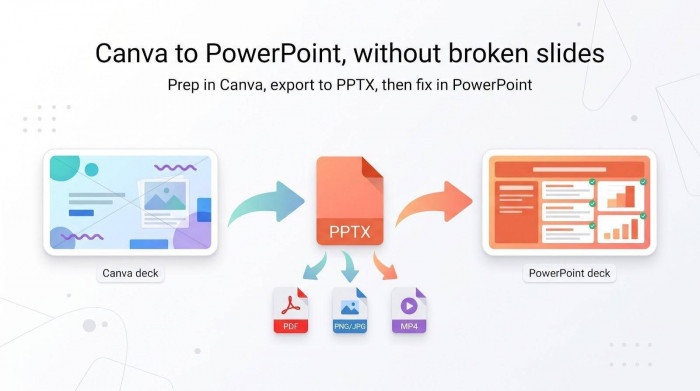
Need the file now? Follow Canva’s default menu path:
1. Open the presentation in Canva.
2. Click Share (top right).
3. Select Download.
4. Under File type, choose PPTX (Microsoft PowerPoint).
5. Pick All slides, This page, or a Custom range.
6. Click Download to save the .pptx.
If you don’t see PPTX, make sure the design type is Canva Presentation, not a poster or Doc. Some toolbars show Share → See all → Microsoft PowerPoint instead: selecting that option opens the same dialog.
Keep the freshly saved file handy. We’ll check fonts and layout as soon as you open it in PowerPoint.
Decide what must survive before you convert
Before you click Download, ask one question: what absolutely has to survive the jump to PowerPoint? Fonts, layout, and motion rarely travel together, so set your priorities now.
Which matters more: editability, exact appearance, or motion?
The export method that fits best depends on what your audience needs:
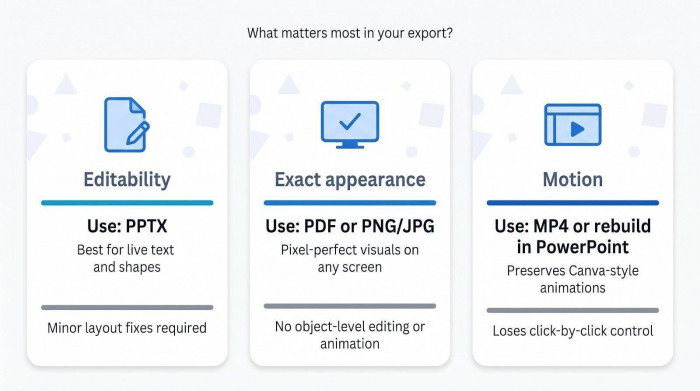
| If you care most about… | Use this format | Trade-off |
| Live, editable text and shapes | PPTX, then polish in PowerPoint | Minor layout fixes required |
| Pixel-perfect visuals on any screen | PDF or full-slide PNG/JPG | No object-level editing |
| Canva-style animations | Export that slide as an MP4 or rebuild motion in PowerPoint | Loses click-by-click control |
Call the shot now. Sponsors who value brand fidelity over last-minute tweaks often choose static files. A sales team that rewrites decks on the flight will need an editable PPTX (even if that means planning a quick repair session later). Making this choice early saves frantic fixes down the line.
Why Canva formatting changes in PowerPoint
PowerPoint reshuffles your Canva slides for three reasons: it swaps any font it can’t find, applies its own text-box and object-sizing rules, and flattens effects it doesn’t understand. If layout triage feels daunting, open the exported .pptx in PowerPoint or Google Slides and run “Remix entire presentation” with Plus AI's AI slide maker. The tool runs through every slide inside PowerPoint or Google Slides, picks a compatible master layout, and realigns text boxes and images in one click, often fixing most wrap and alignment issues before you even touch fonts or animation. In the next sections we will unpack each cause, starting with missing fonts, and show the fastest fix.
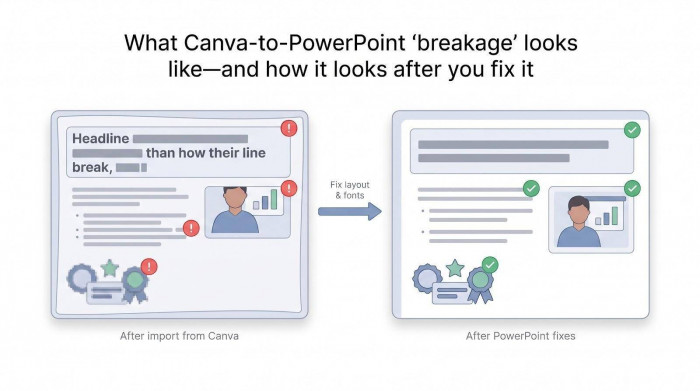
PowerPoint can’t find the Canva font
When PowerPoint can’t locate a font used in Canva, it swaps in the closest match. One change can push headlines onto new lines, stretch text boxes, and misalign whole slides.
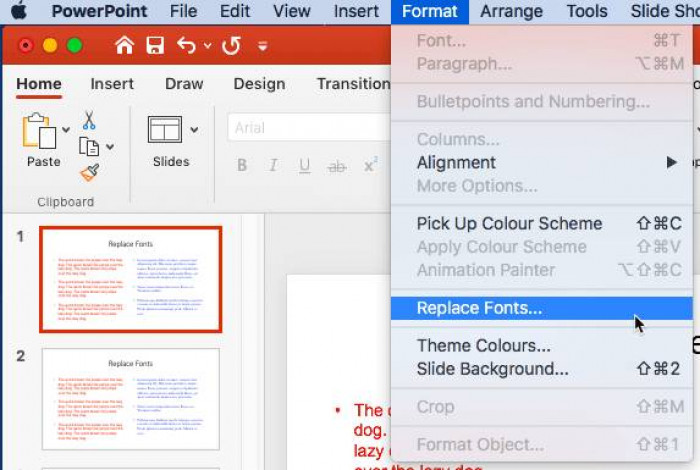
PowerPoint for Mac: Format → Replace Fonts. On Windows, use Home → Replace → Replace fonts.
Fast fix: replace the missing font once, and every slide updates.
1. Open the PPTX in desktop PowerPoint.
2. Go to Home → Replace → Replace fonts.
3. Select the missing Canva font in “Replace,” choose a local or brand-approved font in “With,” then click Replace.
4. Need the exact typeface? Install it on every presentation computer or embed it with File → Options → Save → Embed fonts (some licenses block embedding and increase file size).
A single global swap beats nudging every headline by hand.
Text boxes follow their own sizing rules
Fast fix: widen tight text boxes in Canva and turn off AutoFit in PowerPoint.
PowerPoint watches character count, internal margins, and its default AutoFit feature. When space feels tight, it quietly shrinks or stretches text, so a forced line break in Canva can rewrap when you open the PPTX, pushing headlines into images and bullets outside safe margins.
Prevent the shuffle in Canva by leaving each box a little wider than its longest line and deleting hidden spaces. After export:
1. Right-click the text box in PowerPoint and choose Format shape → Text options → Text box.
2. Set AutoFit to Do not AutoFit when layout must stay fixed, or Resize shape to fit text when flexibility matters.
Two clicks solve alignment problems faster than nudging every shifted sentence.
Groups and special effects flatten into one picture
Quick check: if an object that was editable in Canva now behaves like one image, PowerPoint has flattened the group because it can’t interpret all the layers.
Why it happens
Canva exports layered text, shapes, and transparency as a single bitmap when PowerPoint cannot reproduce an effect. Canva’s help center warns that unsupported parts “may appear merged or missing” after download.
Fast fixes
1. Need to tweak one word? Re-create that text box on top of the image.
2. Need full editability?
a. In Canva, ungroup complex clusters, then export again.
b. Or flatten the section on purpose: download the selection as a high-resolution PNG, re-insert it, and leave editable items (titles, data points) separate.
As a last resort, lay a transparent rectangle over the image and add new text, but that patch is harder to manage later. Decide which slide elements must stay live, then export accordingly; the right call now saves rework down the line.
Frames and crops speak different languages
**Quick fix: after export, realign each image with Picture format → Crop → Fill or Fit.
Canva locks a photo inside a frame at a set zoom and focal point, but PowerPoint applies its own Crop, Fill, and Fit rules. A centered headshot can drift, or a corner logo can creep inward.
Pre-export, zoom out in Canva and confirm every framed image is centered. Post-export:
1. Select the picture in PowerPoint.
2. Open Picture format → Crop.
3. Choose Fill to maintain proportions or Fit to reveal hidden edges, then drag until faces and logos land where you need them.
A 60-second crop pass now beats an emergency resize just before showtime.
Slide size causes last-minute layout drift
Quick fix: confirm slide dimensions in PowerPoint with Design → Slide size → Widescreen (16 : 9), Standard (4 : 3), or custom → Ensure Fit.
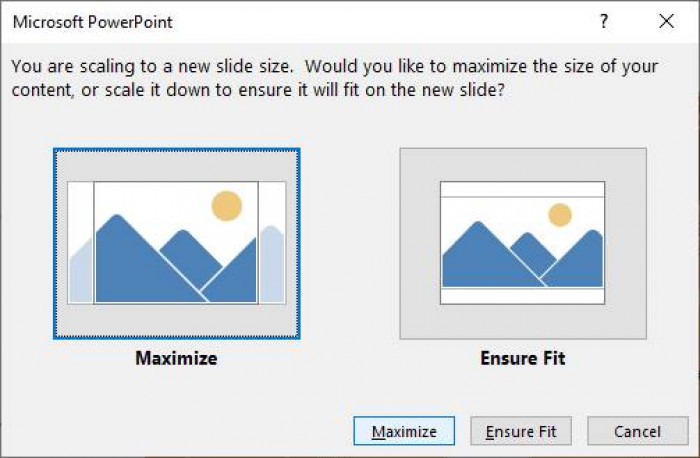
PowerPoint slide size dialog screenshot showing Widescreen and Standard options
Canva starts every new deck at 16 : 9, but many corporate templates, and some older projectors, still rely on 4 : 3. If the aspect ratios don’t match, objects creep toward the edges and every alignment tweak unravels.
Before you touch fonts or animation:
1. In PowerPoint, open Design → Slide size.
2. Choose Widescreen (16 : 9), Standard (4 : 3), or enter the event’s custom dimensions.
3. If prompted, pick Ensure Fit; it scales content down slightly yet keeps everything visible. Maximize can push images off-slide. For more detail, see Microsoft’s guide on changing slide size.
Set the slide size first. Rebuilding animation on the wrong canvas is wasted work.
Animations and embedded video don’t survive the export
Quick fix: either rebuild the motion in PowerPoint or export the slide as an MP4.
Canva’s help center is clear: “animations and embedded videos are not yet supported in Microsoft PowerPoint.” The PPTX you download therefore contains only static objects; every fade, slide transition, or GIF arrives frozen.
Choose one of these routes:
1. Rebuild in PowerPoint for full editability
a. Open the slide, go to Animations, and recreate each effect (adjust Duration and Delay as needed).
b. Re-insert video with Insert → Video → This device, then run File → Info → Optimize compatibility so the media plays on any conference laptop.
2. Export motion as video for pixel-perfect playback
a. In Canva, download the animation-heavy slide as an MP4.
b. Drop the MP4 onto a blank PowerPoint slide. Timing is locked, but what the audience sees matches your Canva preview exactly.
Pick the option that best serves the story, then move on to polishing the rest of the deck.
Pre-export checklist in Canva
Run this six-point scan before you click Download → PPTX. It can save hours of post-export repairs.
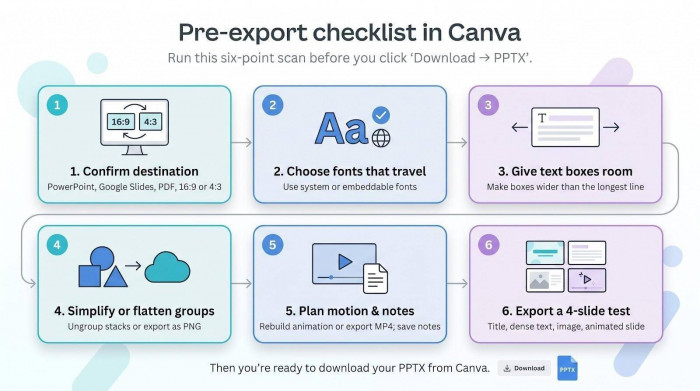
1. Confirm the destination requirements
Ask where and how the deck will run: PowerPoint, Google Slides, PDF, 16 : 9, or 4 : 3. Size the Canva file to that spec now; every later tweak builds on this choice.
2. Choose fonts that travel
Stick to fonts installed on the presenting computer or plan to embed them later. List every family you used, then replace outliers in Canva with an Office-native face if distribution or licensing is uncertain.
3. Give text boxes room to breathe
Leave each box a few pixels wider than its longest line and delete hidden spaces. Canva’s help center notes that tight boxes can resize during PPTX download; a small margin prevents surprise wraps.
4. Simplify or flatten restless groups
Ungroup complex stacks or export them as a high-res PNG, then re-insert. You safeguard the visual while keeping titles and data live for edits.
5. Plan separately for animation, video, and notes
Rebuild motion in PowerPoint or export the animated slide as an MP4; keep original videos and create a PDF-with-notes backup. PPTX won’t carry Canva animations, and notes can truncate during conversion.
6. Export a four-slide test deck
Download one title, one dense text, one image, and one animated slide, then open the PPTX on the actual presentation laptop. Fix anything that breaks before exporting the full deck. Five minutes now can spare dozens later.
Once all six boxes are ticked, you’re ready to download the full presentation with confidence.
Fix the exported deck in PowerPoint
Work in a duplicate, compare against a PDF reference, then fix size, fonts, text boxes, layers, motion, notes, and images, in that order.
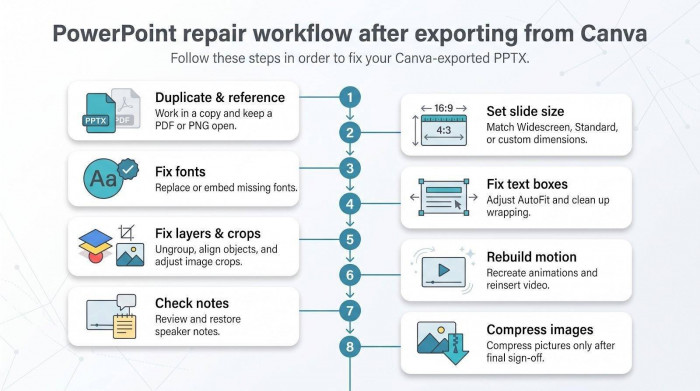
Keep an untouched copy
Save the raw PPTX, then edit a duplicate while a PDF or PNG reference sits in a second window. Flipping between them makes font swaps, line breaks, and shifted images easy to spot.
Verify slide size first
Design → Slide size → pick Widescreen (16 : 9), Standard (4 : 3), or the client’s custom size → Ensure Fit. Changing size later unravels every alignment fix.
Replace or embed missing fonts
Home → Replace → Replace fonts → swap the impostor for an approved face, then File → Options → Save → Embed fonts if licensing permits.
Repair text boxes and wrapping
Right-click the box → Format shape → Text options → Text box → set AutoFit.
● Do not AutoFit for fixed headlines.
● Resize shape to fit text for dense bullets.
Delete stray spaces that Canva may have added.
Fix layers, alignment, and crops
Home → Arrange → Selection pane to reveal hidden stacks, Ctrl + Shift + G to ungroup, then Format → Align → Distribute for even spacing.
For images: Picture format → Crop → Fill or Fit, then drag until faces or logos align.
Rebuild animation and reinsert video
Canva motion is gone. Animations tab → add effects → adjust Duration/Delay.
Insert video with Insert → Video → This device, then run File → Info → Optimize compatibility so media plays everywhere.
Check speaker notes
View → Notes page and trim or re-paste any text that overruns the printable area. Keep the PDF-with-notes backup handy.
Compress pictures last
After final sign-off: Picture format → Compress pictures → choose 330 ppi (HD), 220 ppi (Print), 150 ppi (Web), or 96 ppi (E-mail) and untick Apply only to this picture to batch-process. Save a high-quality master before you delete cropped areas.
Follow this sequence once, and future Canva-to-PowerPoint migrations will feel routine rather than risky.
How to open the Canva export in Google Slides
Quick path: upload the PPTX to Drive, then choose Open with Google Slides.
1. Drag the fixed .pptx into Google Drive or click New → File upload.
2. Double-click the file to open a preview, then click Open with Google Slides at the top.
3. Work in Office-compatible mode, or choose File → Save as Google Slides to create a fully native copy.
Google adds another conversion layer, so re-check fonts, image crops, and media playback. If you turn the deck into a native Slides file, be ready to adjust text boxes again because Slides uses its own AutoFit logic, and embedded videos often need reinserting. Treat this step as a final polish, not a one-click cure-all.
When PDF or slide images beat an editable PPTX
Use a static format when appearance matters more than last-minute edits. The table below shows the safest option for each goal:
| Need | Best export | What you gain | What you give up |
| Pixel-perfect look on any screen | PDF (standard or print) | Fonts embed, every element stays exactly where you placed it | No object-level editing or animation |
| Lightweight yet locked visuals | PNG/JPG per slide | Small file size, perfect fidelity when set as slide background | Text and shapes fuse into one picture |
| Exact Canva timing with motion | MP4 video | Guaranteed playback of Canva animations | Click-to-advance interactivity |
Use PDF for a final, read-only deck
Best when you need pixel-perfect slides and no one has to edit them.
Download PDF standard for on-screen viewing or PDF print when you need bleeds and crop marks. Under Advanced settings, toggle Flatten PDF to merge all layers into one, which keeps fonts displaying accurately and blocks editing in tools like Acrobat.
Trade-off: viewers can’t fix typos or copy charts, but they will see exactly what you approved on any device, including phones. If the presenter needs a script, export a companion PDF with notes; those notes render more reliably than in a converted PPTX.
Use PNG or JPG to lock the layout
Export each slide as an image when appearance matters more than on-site edits.
In Canva, choose Download → PNG for text-heavy graphics or Download → JPG for photo-heavy slides that can tolerate mild compression. Insert the image into PowerPoint as a normal object or set it as the background with Design → Format background → Picture fill.
What you gain: zero layout drift, because text, icons, and shapes fuse into one picture.
What you lose: every edit handle. Keep an original, editable deck on standby in case the client needs last-minute tweaks.
Use MP4 when motion matters most
Export the animated slide as an MP4 when you want Canva timing exactly as previewed.
In Canva, select Download → MP4 video to render every entrance, exit, and transition into a single file. Place the MP4 on a blank PowerPoint slide or play it as a standalone video.
What you gain: perfect motion fidelity and synced audio.
What you lose: slide interactivity. Viewers watch a video you can’t pause to edit mid-presentation. For workshops that need click-by-click control, rebuild the animation in PowerPoint instead. For keynotes with tight cues and background music, MP4 is the stress-free choice.
Frequently asked questions
Can you convert a Canva presentation to PowerPoint?
Yes. Open the deck, click Share → Download → PPTX (Microsoft PowerPoint), and Canva hands you a .pptx file.
Is a Canva-exported PPTX fully editable?
Mostly. Basic text and shapes stay live, but complex groups or effects may arrive as a single flattened image.
How do I export from Canva without losing formatting?
Use Office-safe fonts, leave text boxes a little wider, then in PowerPoint run Replace fonts, confirm Slide size, and adjust AutoFit.
Does Canva export animations to PowerPoint?
No. Canva states that “animations and embedded videos are not yet supported.” Rebuild effects in PowerPoint or export the slide as an MP4.
Why did my Canva fonts change in PowerPoint?
PowerPoint swapped any font it couldn’t find. Install the missing typeface, replace it globally (Home → Replace fonts), or embed it.
Why do text boxes shift after export?
PowerPoint’s AutoFit and margin rules differ from Canva’s. Widen the box, or set Format shape → Text box → Do not AutoFit / Resize shape to fit text.
How do I open a Canva PPTX in Google Slides?
Upload the file to Drive, choose Open with Google Slides, then re-check fonts, crops, and media.
Do Canva speaker notes transfer to PowerPoint?
Sometimes. Always compare with a PDF with notes backup, and paste any missing text into View → Notes page.
Why can’t I see the Microsoft PowerPoint download option?
Make sure the design type is Canva Presentation. Posters, Docs, and some social templates don’t offer PPTX export.
Which export format preserves the exact Canva design?
PDF or slide images (PNG/JPG) lock every pixel in place but remove live text and animation.
Conclusion
One rule wins conversions: prep in Canva, export the PPTX, then repair and test in PowerPoint.
● PPTX keeps text and shapes editable, so plan a quick font, size, and layout pass.
● PDF or slide images lock pixel-perfect visuals when no edits are needed.
● MP4 (or rebuilt animations) preserves motion for show-ready playback.
Always open the file on the presentation machine, and when possible, send a reference PDF alongside the editable deck. Follow that checklist, and your Canva slides will appear exactly as intended, every time.
Comments