

AI presentation tools are useful only when they match the way you actually make decks. A founder needs a pitch deck, a teacher needs clear learning slides, a marketer needs visual storytelling, and a business team usually needs something that can survive PowerPoint edits.
This list focuses on eight strong tools that help with different parts of presentation creation: writing, structuring, designing, branding, exporting, and team collaboration.
Quick Comparison: Best AI Presentation Tools
| Tool | Best For | Free Plan | Starting Paid Price |
| Beautiful.ai | Polished business decks | Trial only | $12/month annually |
| Canva AI Presentations | Visual and marketing decks | Yes | Around $15/month |
| Plus AI | Google Slides and PowerPoint users | Free trial | $10/month |
| Slidesgo AI | Quick template-based presentations | Yes | Around $5.99/month |
| Presentations.AI | AI-first business decks | Yes | Around $16/month |
| Decktopus AI | Quick structured decks | Limited free plan | $14.99/month annually |
| Pitch | Team decks and sales presentations | Yes | Paid plans vary by team size |
| Microsoft PowerPoint with Copilot | PowerPoint-native AI decks | No Copilot trial | Bundled with Microsoft 365 Copilot plans |
1. Beautiful.ai
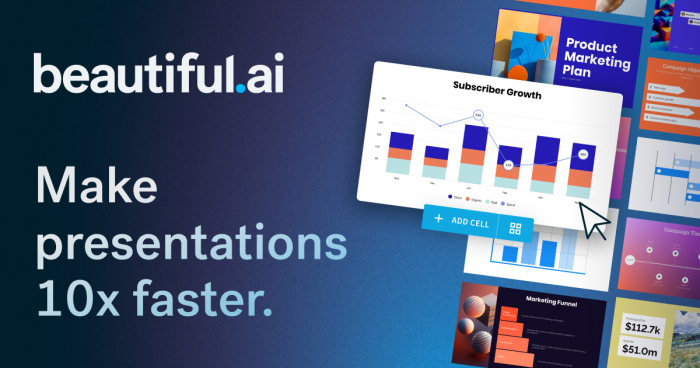
Beautiful.ai is built for people who want polished business presentations without spending too much time fixing slide layouts manually. Instead of giving you a completely blank canvas, it uses smart slide templates that automatically adjust spacing, alignment, charts, text blocks, and visuals as you add content.
That makes it useful for business reports, sales decks, startup pitches, strategy presentations, and internal team updates. It is not the most flexible design tool, but that is also its strength. It keeps the deck clean, structured, and professional even if the user has very little design experience.
| Pros | Cons |
| Smart slide layouts save formatting time | Less creative freedom than Canva |
| Good for business and corporate decks | Can feel template-based after repeated use |
| Strong brand controls for teams | No permanent free plan for regular users |
| Clean export options, including PowerPoint | Team plan can feel expensive for small teams |
How it helps in the presentation-making process:
● Start with a structured slide type: Choose from title slides, comparison slides, timelines, charts, team slides, and data slides instead of building from a blank page.
● Add your content: Insert text, numbers, images, icons, or charts, and the tool automatically adjusts the layout.
● Keep the design consistent: Beautiful.ai applies the same fonts, colors, spacing, and brand style across the deck.
● Polish faster: You spend less time resizing visuals, moving boxes, and fixing alignment.
● Export and share: Once the deck is ready, you can present it online, share it with a team, or export it as a PowerPoint file.
Pricing: Beautiful.ai does not have a permanent free plan, but it offers a 14-day free trial. The Pro plan starts at $12 per month when billed annually, while the Team plan starts at $40 per user/month when billed annually.
Best for: Professionals, founders, consultants, and teams that need clean business presentations without manual design work.
2. Canva AI Presentations
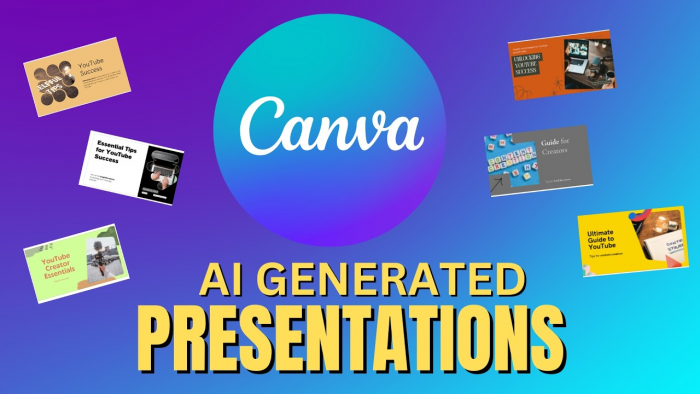
Canva AI Presentations is best for people who want slides that look more visual, colorful, and media-friendly. It is not only a presentation maker. It is a full design platform, which means you can create slide decks, social graphics, thumbnails, videos, documents, posters, and brand assets from the same workspace.
For presentation creation, Canva is especially strong when the deck needs to look engaging rather than strictly corporate. It works well for marketing presentations, classroom decks, social media reports, creator portfolios, event slides, and small business pitches. The AI features help you start faster, but the real value is the editing freedom after the first draft is created.
| Pros | Cons |
| Huge template and design asset library | Can feel less structured for serious corporate decks |
| Easy drag-and-drop editing | Too many templates can slow decision-making |
| Good AI writing and design tools | Advanced brand control needs paid plans |
| Great for visual, creative, and marketing slides | Not ideal for complex data-heavy decks |
How it helps in the presentation-making process:
● Start from a prompt or template: Use Canva’s AI tools or pick from a large presentation template library.
● Build a visual first draft: Add headings, images, icons, charts, videos, and brand elements without needing design software.
● Edit everything easily: Change colors, fonts, layouts, photos, backgrounds, and animations through a simple drag-and-drop editor.
● Turn one deck into many formats: Resize or adapt the same material into social posts, PDFs, videos, or pitch assets.
● Collaborate and present: Share with team members, comment on slides, present directly, or export in formats like PDF and PowerPoint.
Pricing: Canva has a free plan. Canva Pro usually starts around $15 per month for individuals, with team and business pricing available depending on region and seat count.
Best for: Marketers, creators, teachers, freelancers, and small businesses that want highly visual presentations.
3. Plus AI
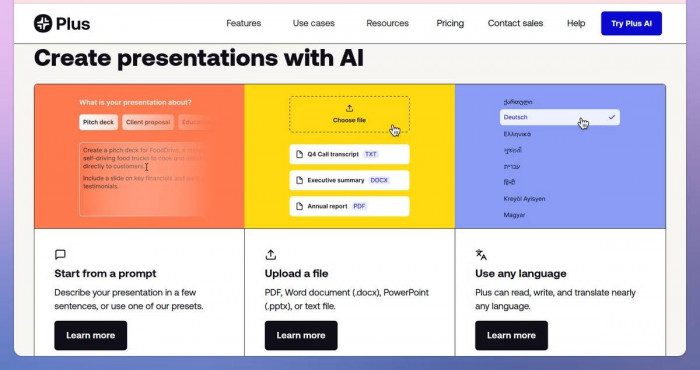
Plus AI is useful when you already work inside Google Slides or PowerPoint and do not want to move your whole workflow into a separate presentation app. Instead of forcing you to build decks on another platform, Plus AI works as an add-on that helps generate, rewrite, and improve slides inside tools many teams already use.
This makes it one of the most practical choices for business users. If your company already shares decks in Google Slides or PowerPoint, Plus AI reduces friction because the final file stays in the same format. It is especially helpful for reports, client updates, training decks, strategy slides, and recurring internal presentations.
| Pros | Cons |
| Works inside Google Slides and PowerPoint | Not as visually flashy as Canva or Pitch |
| Good for rewriting and improving existing slides | Requires paid plan after trial |
| Useful for business workflows | Design quality depends on templates |
| Keeps files in familiar formats | Less exciting for creative storytelling decks |
How it helps in the presentation-making process:
● Start inside your existing slide tool: Use Plus AI directly in Google Slides or PowerPoint.
● Generate a first draft: Enter a prompt, outline, or source material, and let the tool create a structured deck.
● Rewrite weak slides: Improve slide titles, shorten long text, or make content more executive-friendly.
● Use your own templates: Teams can keep decks closer to their existing brand style and format.
● Edit normally after AI generation: Since the output stays in Slides or PowerPoint, you can continue editing like a regular deck.
Pricing: Plus AI is free to try. Paid plans start at $10 per month, with higher plans for larger teams and more advanced branding or template needs.
Best for: Teams that want AI slide creation without leaving Google Slides or PowerPoint.
4. Slidesgo AI
Slidesgo AI is best for people who want a quick, template-based way to create presentations without starting from a blank slide. It is especially useful for students, teachers, content creators, and casual business users who need a clean deck fast but do not want to spend too much time on layout or design.
Its AI Presentation Maker lets users create a presentation by entering a topic, choosing a tone, selecting a style, and then editing the generated result inside Slidesgo’s online editor. The output is more template-led than deeply strategic, so it works better for educational slides, simple explainers, workshop decks, classroom material, and fast topic-based presentations than complex corporate storytelling. Slidesgo also says users can edit text, colors, layout, images, and icons after generation.
| Pros | Cons |
| Very easy for beginners to use | Not ideal for complex business decks |
| Strong library of Google Slides and PowerPoint templates | Output can feel template-based |
| Useful for students, teachers, and quick explainers | Final slides still need fact-checking and polish |
| Free AI presentation maker available | Premium templates and assets may require a paid plan |
How it helps in the presentation-making process:
● Start with a topic: Enter the subject of your presentation instead of building the outline manually.
● Choose tone and style: Select the tone and visual direction that fits the audience, such as formal, creative, casual, or classroom-friendly.
● Generate the first draft: Slidesgo AI creates a deck structure with slides, text, and visuals.
● Edit the deck online: Adjust text, colors, layout, images, icons, and other slide elements in the editor.
● Export or continue editing: Use the deck with Google Slides, PowerPoint, or Slidesgo’s own editing tools depending on your workflow.
Pricing: Slidesgo has a free plan for basic template access and AI presentation creation. Its Premium plan is commonly listed from around $5.99 per user/month, giving users access to more premium, ad-free templates and assets. Pricing can vary by region or billing page, so check the current Slidesgo pricing page before publishing.
Best for: Students, teachers, beginner presenters, and users who want quick template-based presentations without a complicated workflow.
5. Presentations.AI
Presentations.AI is built around AI-first presentation creation. Instead of starting from templates alone, the platform focuses on turning prompts, outlines, documents, or business ideas into structured decks with design, flow, and branding added automatically.
It is especially useful for business users who want a faster way to create client decks, sales presentations, pitch decks, leadership updates, and internal reports. The tool is more deck-focused than Canva and more AI-native than traditional slide editors, which makes it a strong option for people who want both speed and business polish.
| Pros | Cons |
| Strong AI-first deck creation | Export and advanced features may require paid plan |
| Good for pitch decks and business presentations | Free plan can be limited for serious use |
| Supports brand and design consistency | May need editing for deeper subject accuracy |
| Useful for teams and client-facing decks | Less familiar than PowerPoint or Google Slides |
How it helps in the presentation-making process:
● Start from a prompt or business brief: Describe the deck you want instead of manually creating an outline.
● Let AI create the structure: The tool builds sections, slide flow, and key points.
● Apply design automatically: Layouts, visuals, and styling are added to make the deck look presentable faster.
● Use brand controls: Teams can keep colors, fonts, and assets closer to their brand identity.
● Share, present, or export: Use it for live presentations, client sharing, or further editing depending on the plan.
Pricing: Presentations.AI has a free plan for getting started. Paid plans are commonly listed from around $16 per month, with business and team features available on higher tiers.
Best for: Founders, sales teams, marketers, and business users who want AI to handle both structure and design.
6. Decktopus AI
Decktopus AI is designed for people who want a guided presentation-building experience. It does not just create slides from a prompt. It also helps with structure, content flow, slide suggestions, visual assets, audience questions, and presentation delivery support.
That makes it useful for users who do not know where to begin. Instead of asking you to design every slide, Decktopus asks for basic input and turns it into a more complete presentation package. It is a good fit for proposals, webinars, reports, startup decks, class presentations, and lightweight business decks.
| Pros | Cons |
| Guided presentation workflow | Credit system may feel limiting |
| Good for quick deck creation | Design output may need manual polish |
| Includes AI assistance and image generation | Not as powerful as PowerPoint for deep editing |
| Useful for proposals and business decks | Best features are on paid plans |
How it helps in the presentation-making process:
● Enter your presentation idea: Start with a topic, goal, or short description.
● Generate the deck structure: Decktopus creates slide sections and suggested flow.
● Add visuals and AI images: Use built-in AI tools to improve the visual side of the deck.
● Prepare for delivery: Use features like audience Q&A support and presentation tips.
● Export or share: Download as PDF or share the deck depending on your plan.
Pricing: Decktopus has a limited free option. Paid plans start at $14.99 per month when billed annually, with AI credits included for presentation generation and related features.
Best for: Users who want a guided, all-in-one tool for quick proposals, reports, and business presentations.
7. Pitch
Pitch is more than an AI slide generator. It is a presentation workspace for teams that need to create, edit, share, and track decks together. Its strength is not only slide design, but also collaboration, brand control, reusable templates, sharing links, and analytics.
This makes Pitch especially useful for startups, sales teams, agencies, and companies that create client-facing decks often. If your team regularly sends proposals, sales decks, investor updates, or partnership presentations, Pitch gives you a more modern workspace than old-school slide files passed around by email.
| Pros | Cons |
| Strong team collaboration features | May be more than solo users need |
| Good for sales and client-facing decks | Pricing depends on team needs |
| Modern templates and brand controls | Less familiar than PowerPoint |
| Useful sharing and analytics features | Advanced features require paid plans |
How it helps in the presentation-making process:
● Start with AI or templates: Create a deck from a prompt, existing content, or a modern template.
● Collaborate with your team: Multiple users can comment, edit, and refine the deck together.
● Keep decks on brand: Use shared styles, brand libraries, and reusable templates.
● Share with clients or prospects: Send live links instead of static files.
● Track engagement: Paid plans can help teams understand how viewers interact with presentations.
Pricing: Pitch has a free plan for individuals and small teams. Paid plans vary depending on seats and workspace needs, with Pro and Business options for teams that need more branding, analytics, links, and collaboration controls.
Best for: Sales teams, startups, agencies, and collaborative teams that create polished external decks.
8. Microsoft PowerPoint with Copilot
Microsoft PowerPoint with Copilot is the most natural option for people who already live inside Microsoft 365. Instead of using a separate AI presentation tool, Copilot brings AI assistance directly into PowerPoint, where users can generate slides, summarize documents, rewrite content, and improve existing decks.
Its biggest advantage is familiarity. Many companies still run on PowerPoint, and many stakeholders expect final decks in PPTX format. Copilot is not always the fastest or prettiest AI presentation maker, but it is one of the most practical options for enterprise teams because it sits inside the software they already use.
| Pros | Cons |
| Works directly inside PowerPoint | Requires Microsoft 365 Copilot access |
| Good for corporate workflows | Can be expensive for individuals |
| Useful for turning documents into slides | Output still needs human editing |
| Best fit for Microsoft 365 teams | Not as design-led as Canva or Beautiful.ai |
How it helps in the presentation-making process:
● Start from a prompt or document: Ask Copilot to create a deck from an idea, Word file, outline, or existing content.
● Generate slide structure: Copilot can help organize sections, titles, and talking points.
● Rewrite slide content: Use it to shorten text, improve clarity, or make slides more executive-ready.
● Summarize and repurpose material: Turn long documents, reports, or meeting notes into presentation-ready content.
● Keep editing in PowerPoint: After AI creates the draft, you can refine the deck using normal PowerPoint tools.
Pricing: Microsoft 365 Copilot does not offer a standard free trial for full Copilot access in Office apps. Pricing depends on the Microsoft 365 business plan and Copilot bundle, with business plans listed from around $22 per user/month during current Microsoft pricing offers.
Best for: Corporate teams, enterprise users, and professionals who already create most presentations in PowerPoint.
Which AI Presentation Tool Should You Choose?
The best AI presentation tool depends on how you work, not just which tool generates slides fastest. If your biggest problem is design polish, Beautiful.ai is one of the strongest choices. If you want creative control, Canva is the better fit. If you already live in Google Slides or PowerPoint, Plus AI is more practical than moving everything into a new workspace.
Slidesgo AI is a better fit when you want a simple, beginner-friendly way to create template-based presentations quickly, especially for education, explainers, and lightweight decks. Presentations.AI is stronger for AI-first business deck creation. Decktopus AI is useful when you want a guided workflow from topic to finished deck. Pitch is best for collaborative sales and client-facing presentations. Microsoft PowerPoint with Copilot is the safest choice for companies already built around Microsoft 365.
| Need | Best Tool |
| Best for polished business decks | Beautiful.ai |
| Best for visual marketing decks | Canva AI Presentations |
| Best for Google Slides and PowerPoint | Plus AI |
| Best for quick template-based presentations | Slidesgo AI |
| Best for AI-first business decks | Presentations.AI |
| Best for guided deck creation | Decktopus AI |
| Best for team collaboration | Pitch |
| Best for Microsoft 365 users | PowerPoint with Copilot |
Final Assessment
AI presentation tools are not all solving the same problem. Some tools help you build a first draft quickly. Some make slides look better. Some work inside PowerPoint or Google Slides. Some are built for team collaboration, client sharing, and brand control.
If you want the most polished business decks, start with Beautiful.ai. If you want visual flexibility, Canva is the easiest recommendation. If your workflow depends on Google Slides or PowerPoint, Plus AI is the most practical. For business teams that need an AI-native deck builder, Presentations.AI is worth testing. For sales teams and collaborative workspaces, Pitch is the stronger long-term option.
The smart approach is not to look for one perfect AI presentation tool. Pick the tool based on the kind of deck you make most often: business report, sales deck, pitch deck, classroom presentation, marketing deck, or internal update. That is where AI actually saves time.
Comments