

An Instagram Collab post lets two or more accounts share a single post. Instead of posting the same photo or Reel separately and splitting the likes and comments, the content appears on every partner's profile at the same time, with all the engagement kept together in one place.
The feature started small in 2021 and has grown since then. It now allows more collaborators and works on more types of posts. It also lets a partner be added after the post is already live. This guide explains how Collab posts work and how to use the invite and accept steps the right way.
What Collab Posts Actually Are
A Collab post is one post shared by more than one account. When a partner accepts the invite, the post shows up on their profile grid and in their followers' feeds too. All the likes and comments stay under the same post instead of being counted on each account separately.
There is only one post and one comment section, no matter how many accounts it appears on. This is what makes a Collab different from a tag or a mention. A tag simply points to another account. A mention links to it. A Collab makes that account a real co-owner of the post.
Collab vs Tagging vs Mentions
These three tools are easy to mix up, but they do not do the same thing. The main difference is simple. It comes down to one question: does the other account's audience actually see the post in their own feed?
| Action | Shows on partner's grid | Reaches partner's followers | Shares engagement |
| Collab post | Yes | Yes | Yes, one shared pool |
| Tagging | No | No | No |
| Mention | No | No | No |
Tags and mentions are useful for giving credit or pointing people toward another profile, but the post still belongs to one account. A Collab is the only option that shares the post with both audiences at once.
Why the Feature Matters for Reach
The biggest benefit of a Collab is reach. One post goes out to two audiences at the same time, so it can reach people who follow only one of the accounts and not the other.
Here is a simple example. A skincare brand with 20,000 followers could collab with an esthetician who has 40,000. The post appears on both profiles at once, and the likes and comments from both audiences land on the same post. That shared activity helps Instagram show the post to more people, including those who do not follow either account yet.
Early activity matters a lot for how far a post travels. Shares and saves are important engagement signals that reflect audience interest. Because a Collab brings in engagement from two sets of followers right away, the post has a better chance of reaching new viewers through Explore and Reels.
How to Create a Collab Post
Making a Collab post is simple once you know where the option is. There is no separate Collab button. It is part of the normal Tag People screen, and the steps are the same for a feed post and a Reel.
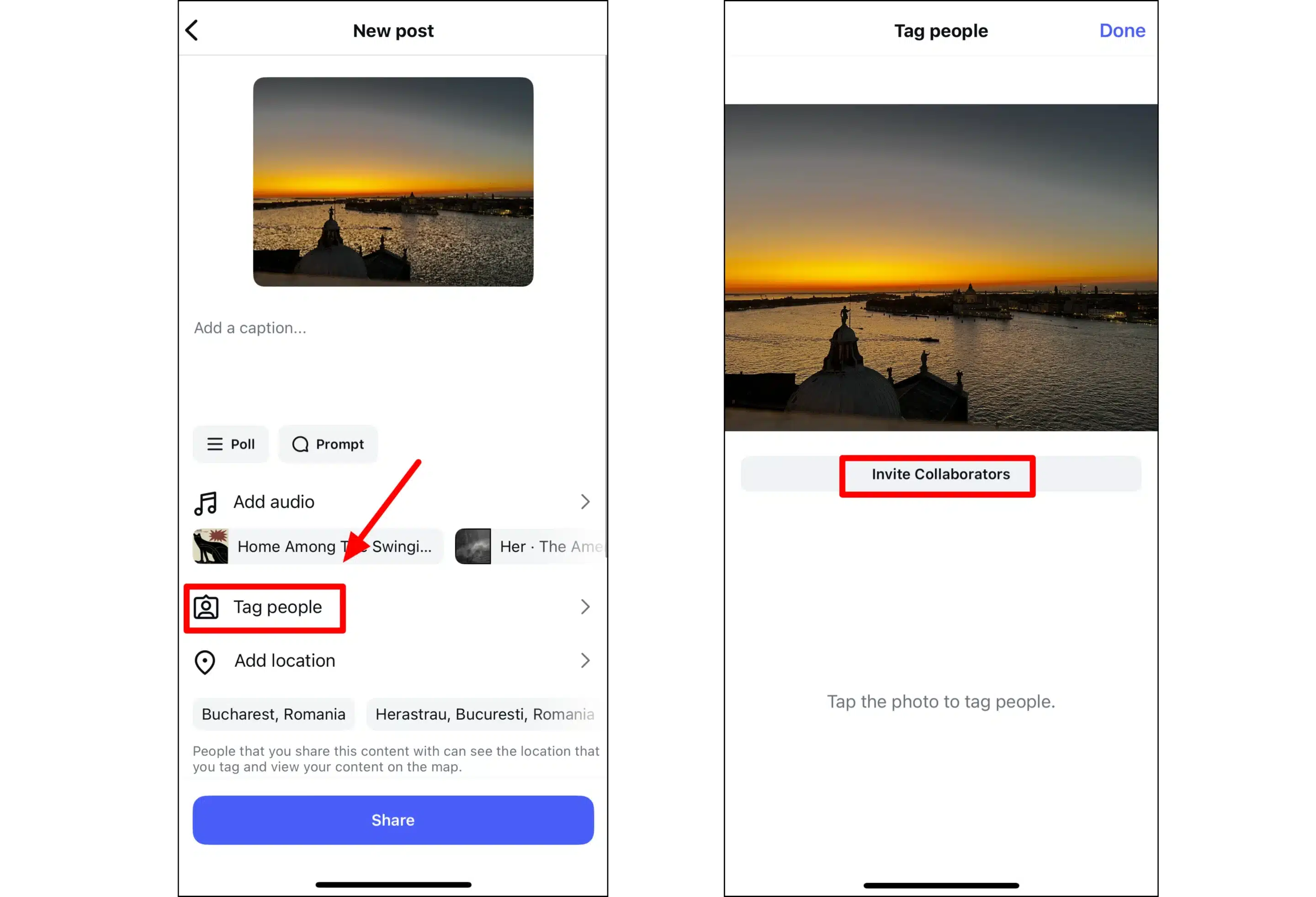
● Create the post or Reel as usual and go to the final screen where the caption and music are added.
● Tap Tag People, then tap Invite Collaborator, which sits just below the usual tagging option.
● Search for each partner account and select it. Up to five accounts can be added to one post.
● Tap Done, then tap Share. The post goes live on the main account right away.
The mobile app is the most reliable place to do this. Desktop support is limited and does not always show the option. The post only appears on a partner's profile after they accept, so nothing shows up on their account without their approval.
How to Invite After Publishing
In the past, forgetting to add a collaborator meant deleting the post and starting over. That is no longer the case. A partner can be added even after the post is live.
To do it, open the post, tap the three dots, and choose Edit. Then tap Tag People and Invite Collaborator, just like before. The post keeps all the likes and comments it already has, so nothing is lost. This is helpful during campaigns, when a partner joins a day or two after the post goes up.
How to Accept or Decline an Invite
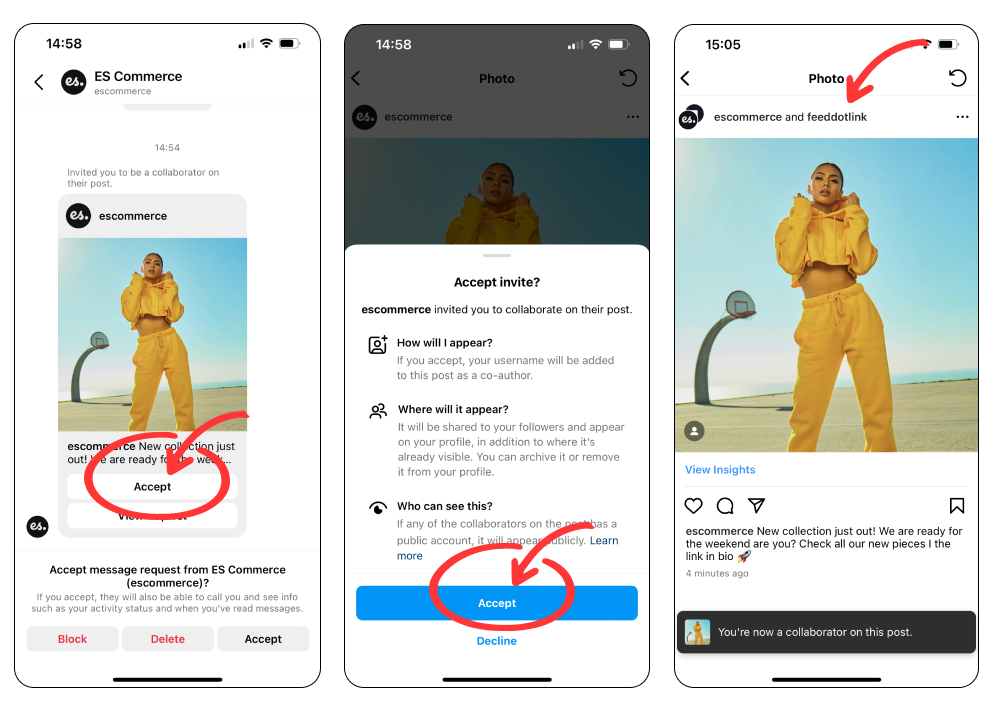
An invite does nothing until the other account accepts it. The invited account gets a notification, and in most cases the invite also arrives as a message in the DM thread with the person who sent it.
● Open the notification or the DM invite to see a Review screen that shows the post and who sent it.
● Tap Accept to add the post to the invited account's grid and send it to that account's followers.
● Tap Decline to keep the post on the original account only.
Each account accepts on its own. On a post with several partners, every one of them has to accept before the post reaches their followers. This is why it helps to let partners know an invite is coming.
What You Can and Cannot Collab On
Collab works on feed posts and Reels, including carousels. Stories are the main exception, since they cannot be co-authored in the same way. The shared grid and shared engagement do not apply to Stories.
Instagram does have a separate collab sticker for Stories, but it works differently and is not the same as a Collab post. There is also one simple rule for eligibility. Both accounts must be public. A private account cannot be added as a collaborator on a public post.
Collaborator Limits in 2026
A Collab post can have up to five collaborators. That means six accounts in total, counting the original creator. The limit has changed a few times over the years, which is why some older guides still list the wrong number.
| Stage of the feature | Collaborators allowed (besides the creator) |
| 2021 launch | One |
| 2023 expansion | Three |
| 2026 | Five, so six accounts in total |
Once a post reaches the limit, the option to add more is hidden until someone declines or a pending invite is removed. Invites that are still waiting to be accepted count toward the limit too.
Who Controls the Post
Sharing a post does not mean sharing control of it. The original creator stays in charge. Only that account can delete the post or change the list of collaborators, and only that account can edit the caption after posting. A collaborator can remove themselves at any time, but cannot remove anyone else or delete the post.
The shared setup also affects comments. Since everyone shares the same comment section, anyone blocked by one of the collaborators cannot see the post at all. There is one comment thread for all audiences, not a separate one on each profile. It is worth knowing this before partnering with an account that has a history with your followers.
When the Invite Button Is Missing
Sometimes the Invite Collaborator option does not appear, and the reasons are usually simple. The most common one is an outdated app, since Instagram rolls out these features in stages and older versions may not have them yet.
● The post type may not support it, because the option only appears on feed posts and Reels, not Stories.
● One of the accounts may be private, which stops the invite from being sent.
● The action may be happening on desktop, where Collab support is limited.
● The post may already have the maximum number of collaborators, which hides the option until a spot opens up.
Instagram has never given a clear answer on how long an invite lasts. Different guides mention anywhere from one to two weeks, so it is best to accept an invite fairly soon rather than leave it sitting.
Smart Ways Brands and Creators Use Collabs
A Collab works best when the two audiences are different enough to add new reach but similar enough to care about the same content. A few setups tend to work well.
● Product launches work well when a brand and a creator share one post, so it reaches buyers who follow only one of them.
● Giveaways run smoothly as a single Collab post, which keeps all the entries and comments in one place.
● Interviews and guest features fit the format when a page and its guest share the clip and both get the full view count.
● Group campaigns use the higher limit to put several partners on one announcement, such as an event lineup or a bundle.
The setup that does not work is two accounts with almost the same followers collabbing out of habit. If both audiences already overlap, the post reaches very few new people, and the main benefit is lost.
Collab Etiquette and Disclosure
Since a Collab is shared, planning it together matters. Partners usually agree on the timing first, because the post does best when both sides are ready to share it through their own Stories and comments early on.
Paid partnerships have an extra rule. A normal Collab is not a paid promotion, but once money or free product is involved, the post counts as sponsored and needs the paid-partnership label. The co-author tag does not replace that label. An undisclosed paid Collab is treated the same as any other hidden ad.
Measuring a Collab's Success
Likes alone do not show whether a Collab worked, because the point of the format is new reach, not approval from current followers. The same issue appears with Reels that get views but no followers. The more useful numbers sit a little deeper in the insights.
● Reach from non-followers shows how many new people saw the post because of the partnership.
● Profile visits and new follows show whether those new viewers were interested enough to look further.
● Saves and shares show that the content was worth keeping or passing on, which helps the post last longer.
Comparing these numbers to a normal solo post gives the clearest answer. A Collab that brings in more non-follower reach than usual is working. One that only collects likes from people who already follow both accounts is not.
The Verdict
Collab posts work best when two accounts have real differences in their audiences. The steps are simple once the invite and accept process is clear, and the newer options, like a higher limit and adding partners after posting, have made the feature easier to use. The main strength of a Collab is reach, and that only happens when two different audiences meet on one post.
The accounts that get the most out of Collabs treat them as a shared plan, not just a quick tag. Choosing the right partner, agreeing on timing, labeling paid posts, and checking the non-follower numbers afterward make the difference. Done well, one post can reach people that neither account could have reached on its own.
Comments