
I have installed plenty of productivity extensions that looked useful in the Chrome Web Store but added very little to my actual workflow. Some stayed in the toolbar for weeks without being opened. Others introduced another dashboard, another login and another place to manage information.
The extensions that remained useful were much simpler. They solved a repeated browser problem, such as saving research, controlling tab overload, tracking work time or avoiding repetitive typing.
For this article, I used each extension during a realistic task rather than judging it from its feature list. I paid attention to how quickly I could understand it, whether it removed steps from my workflow and whether the free version was practical enough for regular use.
How I Tested Them
I did not test every extension in the same way because they are designed for different purposes.
For OneTab, I opened a large research session and checked how easily I could store and restore pages. With StayFocusd, I created limits for websites I regularly open without thinking. Clockify was tested across research, writing and editing sessions, while Loom and Scribe were used to explain and document browser-based tasks.
I assessed each extension based on:
● How easy it was to set up and use during normal work.
● Whether it solved a real problem rather than adding more organization.
● How much value was available without paying.
● Whether its browser permissions made sense for its function.
● How reliable the extension felt after repeated use.
● Whether I would realistically keep it installed.
Quick Comparison
| Extension | Best for | Free option | Main limitation | My rating |
| Todoist | Turning webpages into tasks | Yes | Works best for existing Todoist users | 4.7/5 |
| OneTab | Managing browser tabs | Yes | Limited long-term organization | 4.6/5 |
| StayFocusd | Blocking distracting websites | Yes | Rules require careful setup | 4.5/5 |
| Clockify | Tracking work time | Yes | Timers still need manual control | 4.4/5 |
| Grammarly | Editing browser-based writing | Yes | Suggestions can change your voice | 4.4/5 |
| Notion Web Clipper | Saving research | Yes | Clipped pages need organization | 4.3/5 |
| Loom | Recording visual explanations | Yes | Free recordings have limits | 4.5/5 |
| Text Blaze | Reducing repetitive typing | Yes | Advanced templates take time to build | 4.7/5 |
| Scribe | Creating process guides | Yes | Screenshots need a privacy review | 4.5/5 |
| Momentum | Daily focus and planning | Yes | Does not replace task management | 4.1/5 |
1. Todoist: Best for Turning Webpages Into Tasks
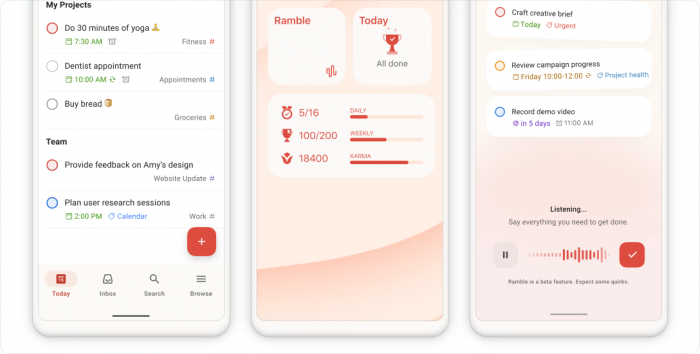
I used Todoist for Chrome when I needed to save webpages that required action later. Before using the extension, I often left important pages open in separate tabs because I did not want to forget them. That worked for a few pages, but after a full research session, the browser became its own disorganized task list.
My Workflow
I opened a report that I needed to review for an article. Instead of bookmarking it or leaving the tab open, I clicked the Todoist extension and turned the page into a task.
The extension retained the webpage title and link. I added a deadline, assigned it to the correct content project and gave it a priority level. When I later opened Todoist from my phone, the task and original page were both available.
I also used the Quick Add field to assign projects and dates without opening the full Todoist dashboard. That kept the capture process quick enough that I did not return to leaving tabs open as reminders.
My Experience
The extension worked because it changed the status of a webpage: it stopped being something I might remember to read and became a scheduled task with a clear next step.
The risk was saving too much. Early on I turned almost every interesting article into a task, and my list filled with vague "read this later" reminders. I eventually limited it to pages tied to active work. Todoist for Chrome is also far more useful when Todoist is already your main task manager on its own, with another system in place, it won't change much.
Advantages
● I could turn any useful webpage into a task without leaving the page.
● The original link remained attached, so I did not need to search for it later.
● Dates, projects and priorities could be added during capture.
● Tasks stayed synchronized across the browser, desktop and mobile apps.
Limitations
● It can quickly fill the task list with low-priority reading material.
● The extension offers less value if Todoist is not already part of your workflow.
● The free plan limits how many personal projects can be created.
● Some reminder and project-management features require a paid subscription.
Who Should Use It?
I would recommend Todoist for Chrome to writers, researchers and project managers who regularly discover new work while browsing. It is especially useful for people who already use Todoist and need a faster way to capture tasks.
My rating: 4.7/5
2. OneTab: Best for Managing Too Many Tabs
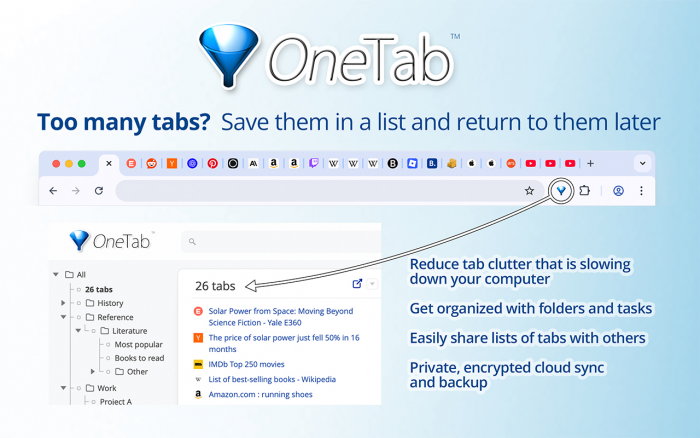
OneTab was one of the easiest extensions to test because the problem was already visible in my browser. During research, I regularly had product pages, reports, articles and documents open across more than 20 tabs.
Chrome tab groups helped separate them, but the browser still felt crowded. OneTab took a more direct approach by removing the active tabs and placing them into one saved list.
My Workflow
I started with 24 tabs open for an article. After clicking the OneTab icon, all of them disappeared from the tab bar and moved to a single page.
From that page, I could restore one tab at a time or reopen the entire collection. I restored only the pages needed for the section I was currently writing and left the rest in the list.
I also tested separate groups by moving different research sessions into OneTab at different times. This worked, although the page became less organized once several large groups had accumulated.
My Experience
The immediate payoff was a cleaner browser. I was no longer hunting through tiny favicons for the right source.
It was most useful when pausing one project to start another, I moved the whole session into OneTab and came back later instead of bookmarking or closing everything. I wouldn't use it as a permanent archive, though; it lacks the tags, notes and folders of a real bookmark tool, and with several large groups saved I still had to remember which held what. It worked best as temporary tab storage.
Advantages
● It cleared a crowded browser window with one click.
● I could restore individual pages instead of reopening an entire session.
● The extension required almost no setup.
● It worked well when switching between multiple projects.
Limitations
● Large groups become difficult to scan without manual organization.
● It is not a replacement for permanent bookmarks.
● Important sources should still be stored somewhere more reliable.
● Shared OneTab pages should be reviewed before publishing because they make the link collection accessible through a webpage.
Who Should Use It?
OneTab is useful for writers, students, researchers and anyone who keeps tabs open because they may need them later.
My rating: 4.6/5
3. StayFocusd: Best for Blocking Distracting Websites
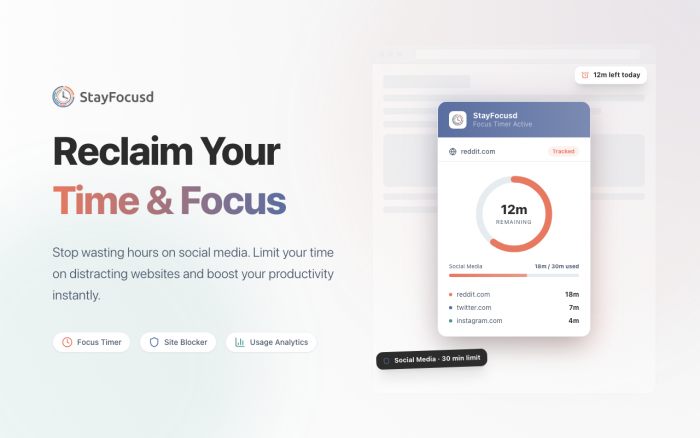
StayFocusd was more revealing than I expected. I already knew which websites distracted me, but I underestimated how often I opened them automatically.
The extension allows users to set daily time limits for selected websites. Once the available time is used, access is blocked for the rest of the day.
My Workflow
I created a combined daily allowance for a few social and entertainment websites. Instead of blocking them immediately, I gave myself 20 minutes across all restricted pages.
I also tested blocking only distracting sections of certain websites. This was useful for platforms that I still needed for work. For example, I could keep access to useful videos while restricting areas that encouraged endless browsing.
After the daily allowance expired, StayFocusd prevented further access. I could not simply close the warning and continue.
My Experience
The extension worked because the restriction created a real consequence. A reminder to focus was easy to ignore; a page that simply stopped loading pushed me back to work. The usage history helped too, showing how a few short visits added up over a day.
The hard part was setup. I once blocked a site I later needed for research, and it became a nuisance, the extension doing exactly what I'd told it to. Results improved once I limited the list to sites that were almost always distractions. It also can't tell productive time from scrolling; it only measures minutes.
Advantages
● The daily time limit was harder to ignore than a normal reminder.
● I could block complete websites or selected sections.
● Usage history made repeated browsing habits more visible.
● The controls could be adjusted around my working schedule.
Limitations
● Poorly chosen rules can interfere with real work.
● Setting up useful restrictions takes some trial and error.
● Website duration does not explain how the site was used.
● The extension still depends on the user being willing to follow self-imposed limits.
Who Should Use It?
StayFocusd is best for students, freelancers and remote workers who repeatedly open distracting websites without consciously deciding to take a break.
My rating: 4.5/5
4. Clockify: Best for Tracking Where Work Time Goes
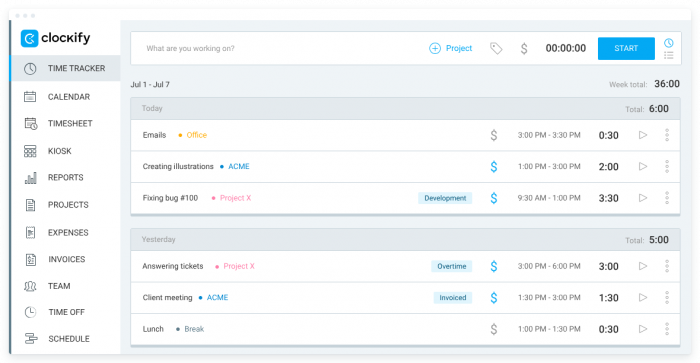
I tested Clockify because I wanted to compare how long different parts of my writing process actually took.
Without tracking, it was easy to describe a project as a three-hour article without knowing how much of that time went into research, writing, formatting or revision.
My Workflow
I created separate tasks for research, drafting and editing. Before beginning each stage, I started the Clockify timer from the browser extension.
The timer stayed accessible while I moved between websites, documents and project tools. I did not need to keep the main Clockify dashboard open.
At the end of the session, I reviewed the report and compared the time spent across the three stages.
My Experience
The report showed I was spending more time on research than I'd assumed, which explained why some assignments felt long despite a similar final word count. It helped me understand the shape of my work, not just total hours, useful for pricing projects, improving estimates and spotting tasks that drag.
The weak point was human error. Once I forgot to stop the timer; another time I started working without starting it. Idle detection caught the first, but the data was only reliable when I used the extension consistently. The free plan covered everything I needed for personal tracking.
Advantages
● I could start and stop timers without opening another dashboard.
● Time could be separated by client, project and task.
● Reports showed the difference between estimated and actual effort.
● The free plan covered the core tracking workflow.
Limitations
● Forgotten timers can make reports inaccurate.
● Projects need clear names to keep the data understandable.
● Manual tracking requires consistent habits.
● Advanced approvals, invoicing and attendance tools require paid plans.
Who Should Use It?
I would recommend Clockify to freelancers, agencies and consultants who need a clearer record of billable and non-billable work.
My rating: 4.4/5
5. Grammarly: Best for Everyday Writing
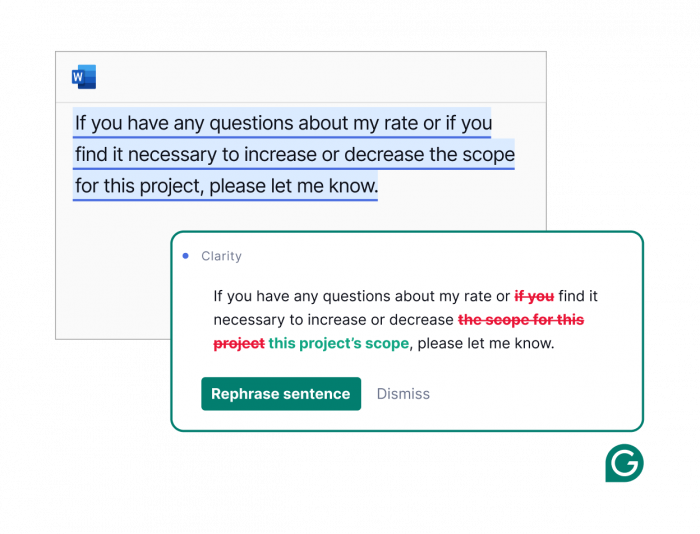
I used Grammarly across emails, Google Docs and browser-based content forms. Its main value was not writing complete text for me. It was catching small mistakes before I sent or published something.
My Workflow
I wrote a client email containing a spelling error, a long sentence and wording that sounded more direct than I intended.
Grammarly identified the spelling problem immediately. It also suggested dividing the long sentence and showed that the message might sound slightly abrupt.
I reviewed each suggestion separately instead of accepting all corrections at once.
My Experience
Grammarly was strongest during final editing, catching errors I'd stopped seeing after rereading the same paragraph. The clarity prompts helped on tangled sentences, and tone indicators were handy for keeping messages professional without sounding cold.
I didn't accept everything. It sometimes swapped specific wording for something generic and stumbled on product names, unusual terms and intentional repetition. I treated it as an editing assistant, not an auto-corrector. I also watched where it was active, a tool that reads every text field can touch sensitive text, so confidential writing deserves extra care.
Advantages
● It caught spelling and punctuation mistakes across many websites.
● Corrections appeared inside the text field I was already using.
● Tone feedback was helpful for emails and support messages.
● The free plan covered the most useful basic corrections.
Limitations
● Some suggestions made the writing sound less personal.
● Technical language and brand names could be flagged incorrectly.
● Rewriting tools could change the intended meaning.
● Sensitive material should not be treated like ordinary browser text.
Who Should Use It?
Grammarly is useful for professionals who write emails, reports and online documents every day. It works best as a final review tool, not as a replacement for proofreading.
My rating: 4.4/5
6. Notion Web Clipper: Best for Saving Research
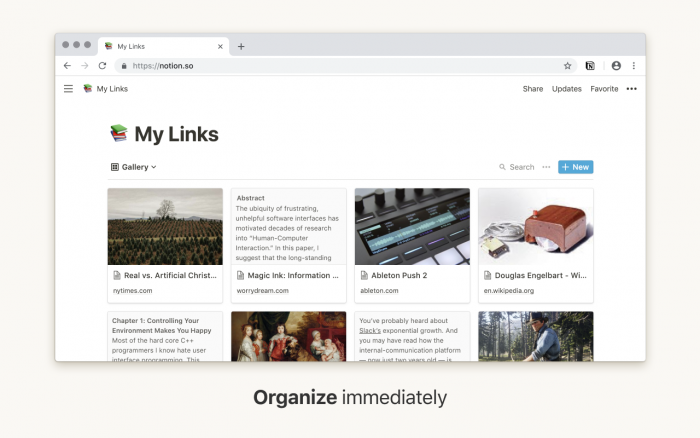
I tested Notion Web Clipper while collecting sources for an article. Before using it, I usually saved research in browser bookmarks or left the pages open.
Both methods stored the links, but neither explained why I had saved them.
My Workflow
I created a research database in Notion and used the extension to save five webpages into it.
The page titles and original URLs were added automatically. Inside Notion, I assigned each source a topic, status and article project. I also added short notes explaining which part of the article the source could support.
My Experience
The clipper itself was simple; its value came from what happened after the page landed in Notion. Instead of becoming another forgotten bookmark, each source sat beside the outline, notes and task list, so I could see whether I'd reviewed it and where I planned to use it.
It still took discipline. Clipping ten pages was easy, but organizing them wasn't, without properties or notes, the database just becomes another unsorted reading list. The official extension also felt basic, saving pages reliably but lacking the highlighting and field-mapping of dedicated research tools.
Advantages
● I could save webpages directly into an existing Notion workspace.
● Sources stayed connected to the projects where they were needed.
● Database properties made the research easier to sort.
● The extension was quick to learn.
Limitations
● It only makes sense for people already using Notion.
● Saved pages still need tags, notes or statuses.
● The official clipper offers limited capture customization.
● A clipped page does not guarantee that the original content will remain available permanently.
Who Should Use It?
Notion Web Clipper is best for writers, students and content teams that already organize projects in Notion.
My rating: 4.3/5
7. Loom: Best for Replacing Long Explanations
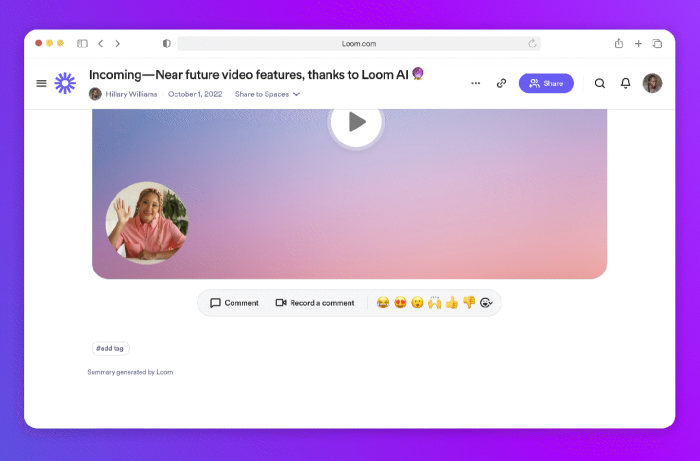
I used Loom when I needed to explain changes on a webpage. Writing the instructions would have required several screenshots and a long message.
Recording the screen turned out to be faster and clearer.
My Workflow
I selected the browser tab I wanted to record and enabled my microphone. While recording, I moved through the page and explained each requested change.
Once the recording ended, Loom created a shareable link. I sent that link instead of attaching screenshots or writing a detailed email.
The viewer could leave comments at specific points in the video, which made follow-up questions easier to understand.
My Experience
Loom was excellent for visual feedback. Showing that a button was misplaced, or how an error appeared, was far easier on screen than in writing.
It wasn't right for everything, though. A short checklist still beat video when the recipient just needed to scan information, and unplanned recordings dragged on while I hunted for the right page. The free plan suited short demos but its limits would pinch daily use. I also checked the screen before recording, notifications, account names and private tabs slip into captures easily.
Advantages
● I could show a browser problem instead of describing it.
● The finished recording was automatically hosted.
● Time-based comments kept feedback connected to the correct moment.
● It reduced the need for multiple screenshots.
Limitations
● Free recordings are limited in number and duration.
● Videos are harder to scan than written instructions.
● Unplanned recordings can become unnecessarily long.
● Private information may appear on screen if the recording area is not reviewed.
Who Should Use It?
Loom is useful for remote teams, designers, support staff and managers who regularly explain visual tasks.
My rating: 4.5/5
8. Text Blaze: Best for Repetitive Typing
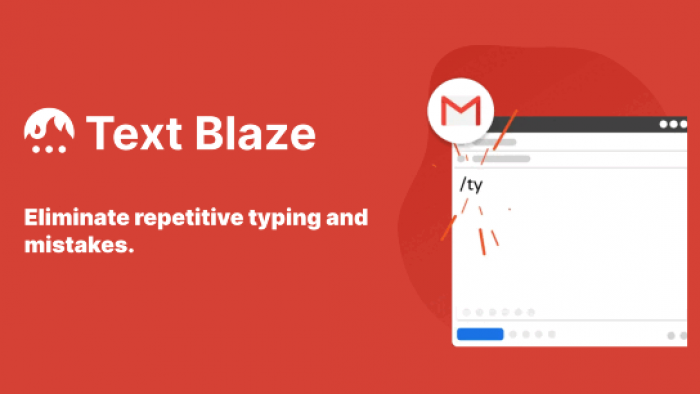
Text Blaze produced one of the clearest improvements in my test because it targeted a task I repeated every day.
The extension allows users to create short commands that expand into complete messages, phrases or templates.
My Workflow
I created snippets for three messages I typed regularly: a meeting confirmation, a request for missing project information and a standard progress update.
Each snippet received a short command. When I typed the command inside Gmail, Text Blaze replaced it with the complete response.
I added fields for the recipient’s name, project title and date so the messages could still be personalized.
My Experience
Each snippet saved only a little time, but the benefit compounded fast with repeated use. It also cut inconsistencies: instead of retyping the same instructions and occasionally dropping a detail, I started from a complete template and adjusted it per recipient.
The main danger was carelessness, a template makes it easy to fire off an outdated link or a message that reads too impersonally, so I reviewed every expansion before sending. Basic replacements were quick to set up; dynamic fields and advanced actions took more learning. The free plan's snippet limit still covered my most-used messages.
Advantages
● It removed repeated typing from emails and browser forms.
● Snippets worked across different websites.
● Dynamic fields helped personalize reusable messages.
● The free plan was practical for a small template library.
Limitations
● The free plan limits the number of active snippets.
● Advanced templates take time to create.
● Shortcuts need to be memorable.
● Outdated information can be repeated quickly if a snippet is not reviewed.
Who Should Use It?
Text Blaze is a strong choice for recruiters, support teams, sales professionals and anyone who types similar responses throughout the day.
My rating: 4.7/5
9. Scribe: Best for Creating Process Guides
I used Scribe to document a browser process that normally required several screenshots and manually written instructions.
The task involved publishing an article inside a content-management system.
My Workflow
I started Scribe before beginning the process. I then uploaded the article, added its image, formatted the headings and scheduled the post.
Scribe recorded the steps and produced a guide containing screenshots and short instructions.
After the recording ended, I removed unnecessary actions, corrected a few descriptions and added context where the automated text was too basic.
My Experience
Scribe removed the most tedious part of documentation, I didn't have to capture, crop and place every screenshot myself. The first draft was useful but never share-ready: it showed which buttons I clicked but couldn't explain why I chose a setting or what to do when an option was missing.
Privacy mattered too. Because it captures webpage content, account names and confidential details can land in screenshots, so I reviewed every step before sharing. For repeated onboarding it saved real time; for a one-off task, building the guide wasn't worth it.
Advantages
● It created screenshots and instructions automatically.
● The generated guide was easy to edit.
● It worked well for onboarding and repeatable processes.
● The free plan supported browser-based documentation.
Limitations
● Automated descriptions still required correction.
● Sensitive information could appear in captured screenshots.
● Some export and redaction tools require a paid plan.
● It offered limited value for one-time processes.
Who Should Use It?
Scribe is useful for operations teams, trainers and managers who regularly create browser-based process documentation.
My rating: 4.5/5
10. Momentum: Best for Daily Focus
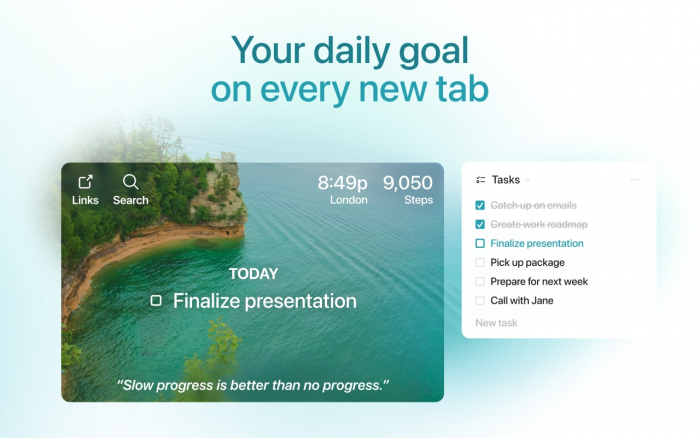
Momentum replaces Chrome’s default new-tab page with a cleaner dashboard containing a daily focus, a task list, shortcuts and other optional widgets.
It does not automate work, but it changes what appears each time a new tab is opened.
My Workflow
At the start of the day, I added one main task to the daily focus field and placed three smaller tasks in the to-do list.
I also added shortcuts to the tools I opened most frequently. Throughout the day, the main task appeared every time I opened a new tab.
My Experience
Momentum worked best as a behavioral nudge. Opening a blank tab usually pulled me into email or a random search; seeing my main task first gave me a beat to reconsider what I was about to do.
As a planning tool it was limited, fine for a few daily items, but not for projects, deadlines or collaboration. It also lost its effect when I switched on too many widgets; one focus task and a few shortcuts worked better. It didn't reshape my workflow like Text Blaze or OneTab, but it made the browser feel calmer and more intentional.
Advantages
● The main task stayed visible throughout the day.
● The new-tab screen felt cleaner than Chrome’s default page.
● Frequently used websites were easy to access.
● The free version covered the essential experience.
Limitations
● It cannot replace a proper task manager.
● The effect depends on updating the daily focus.
● Too many widgets can recreate visual clutter.
● Motivational images and quotes may not suit every user.
Who Should Use It?
Momentum is best for people who want a simple daily reminder without adopting a more complicated productivity system.
My rating: 4.1/5
What I Learned About Extension Permissions
Testing these tools also reminded me that productivity extensions often require access to parts of the browser where sensitive information may appear.
Some permissions made sense. Grammarly needed access to writing fields, Clockify inserted timers into supported websites and Scribe captured webpage steps. The concern was not simply whether an extension requested access, but whether the level of access matched its purpose.
Before keeping an extension installed, I checked its publisher, Chrome Web Store privacy disclosure and site-access settings. Chrome allows extensions to work across all websites, selected websites or only after being clicked.
I also removed the extensions that did not remain useful. Even a legitimate tool does not need permanent browser access if it is opened only once every few months.
Which Extensions Stayed Installed?
The extensions I found most useful were the ones connected to repeated tasks.
I kept Text Blaze because I regularly write similar messages. OneTab remained useful during research-heavy projects, while Todoist gave important webpages a clear next action.
I would use Loom when written feedback became difficult to follow and Scribe when documenting a process that other people needed to repeat. Clockify was valuable when I needed accurate project estimates rather than for every normal workday.
StayFocusd worked when I set realistic restrictions. Grammarly remained helpful for final editing, but I rejected suggestions that changed my meaning or voice. Notion Web Clipper made sense because my research already lived in Notion.
Momentum was pleasant to use, although it felt more optional than the others.
Final Verdict
After using these productivity Chrome extensions, I found that installing more tools did not automatically create a better workflow.
The most useful extensions solved one repeated problem clearly. OneTab removed tab clutter. Text Blaze reduced repetitive typing. Todoist turned browsing into scheduled work, while Loom and Scribe made visual explanations easier to share.
The less useful setup was a toolbar filled with overlapping extensions, each asking for attention, data and another account.
My recommendation is to begin with the problem that interrupts your work most often. Install one extension, use it through several real tasks and check whether it genuinely removes effort. If it only adds another icon to Chrome, it probably does not deserve to stay.
Comments