

Gamma AI looks like the kind of tool that can save hours if it works properly. It promises to turn a prompt, document, or rough idea into a polished presentation, webpage, document, or social post. I tested it from a practical user angle: could it actually help me create a presentation faster, or would I still end up fixing everything manually?
After using it, my view is simple. Gamma is one of the better AI presentation tools for creating a clean first draft quickly, but it is not a complete replacement for PowerPoint, Canva, or a human editor. It is fast, visually neat, and useful for structure. The weak spot is accuracy, detailed design control, and final polish.
The Quick View: What Gamma AI Is
Gamma AI, available through Gamma.app, is an AI-powered content creation tool mainly known for presentations. But it is not only a slide maker. It can also create documents, webpages, social media posts, graphics, and API-generated content. Gamma says its platform has been used to generate more than 250 million presentations, websites, social posts, and documents.
The easiest way to understand Gamma is this: Gamma is an AI presentation builder that turns rough input into visual cards instead of traditional slides.
That card system is important. In Gamma, a card can behave like a slide, a section of a webpage, or a block in a document. It feels more flexible than PowerPoint when starting from scratch, but less precise when you want exact layout control.
Gamma is best suited for:
● Students who need a quick presentation draft.
● Marketers creating campaign decks, explainers, or carousels.
● Founders building pitch decks or product stories.
● Teachers preparing lesson material.
● Consultants creating client-facing summaries.
● Small teams turning notes into visual documents.
It is not the kind of tool I would use for a highly controlled corporate deck without checking every slide carefully.
My Testing Setup
I used Gamma as a normal user would. I did not test it by clicking random features. I gave it a realistic task and judged the result.
I asked Gamma to create a presentation on: “How AI tools are changing social media marketing in 2026.”
The goal was to see if it could create a presentation that would be useful for small business owners, marketers, and creators. I checked the deck from five angles: structure, writing, design, editing control, and export quality.
| Test area | What I wanted to check |
| Prompt-to-deck generation | Could Gamma create a complete presentation from one prompt? |
| Writing quality | Was the content specific enough or just polished filler? |
| Design quality | Did the deck look professional without manual formatting? |
| Editing control | Could I change the output easily after generation? |
| Export and sharing | Could I use the final deck outside Gamma without problems? |
This type of test matters because many AI tools look impressive in demos but become frustrating when you try to use them for real work.
First Impression
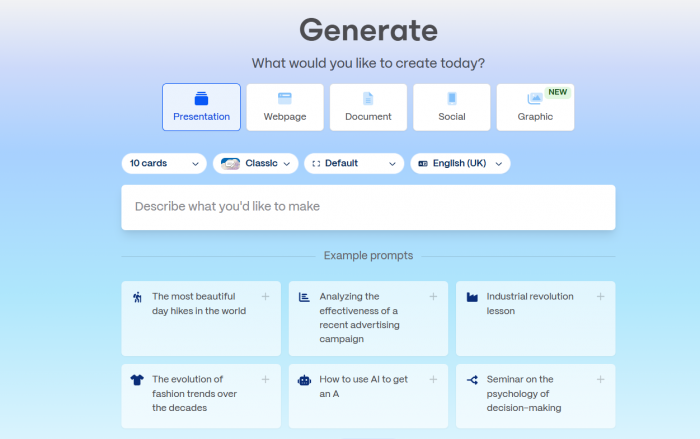
Gamma feels much more modern than PowerPoint. It does not open with a blank slide and ask you to design everything from zero. Instead, it pushes you toward a prompt-based workflow. You describe what you want, choose a format, pick a theme, and let the AI create the first version.
That makes the starting experience much easier. There is less pressure to think about layout, spacing, slide order, fonts, and visuals. Gamma handles those parts automatically.
The interface is clean and beginner-friendly. I did not feel lost while creating the first deck. The main options were easy to understand: create with AI, import content, choose a theme, edit cards, present, share, or export.
The best part is how quickly Gamma moves from idea to draft. Gamma’s own presentation workflow says users can enter a prompt or upload a document, pick a theme, generate a first draft, then edit, present, share, or export. That matched the actual flow I expected from the tool.
From Prompt to Deck: My First Gamma Test
I used a detailed prompt instead of a short one because AI presentation tools usually perform better when the instruction is specific.
My prompt was:
Create a 10-slide presentation on how AI tools are changing social media marketing in 2026. Make it useful for small business owners. Include sections on content creation, scheduling, analytics, risks, tool selection, and future trends. Keep the tone professional and practical.
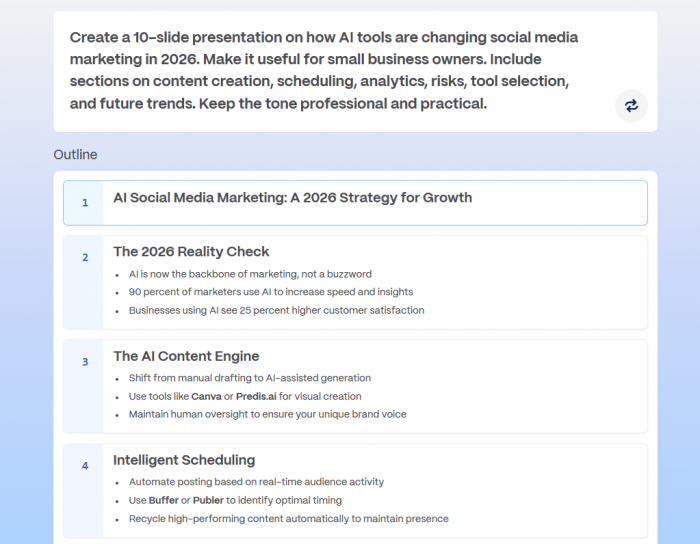
Gamma created the presentation quickly. The first draft had a clear structure and did not feel like a random collection of slides. It opened with the topic, moved into practical use cases, covered automation and analytics, then ended with a future-facing section.
The outline was better than what I usually get from a basic chatbot prompt. Gamma understood that a presentation needs flow. It did not simply write ten separate paragraphs and place them on slides. It broke the topic into digestible sections, which made the deck easier to scan.
The first draft was not perfect, but it was usable as a starting point. If I had to build the same deck manually in PowerPoint, I would have spent more time choosing slide titles, arranging sections, and deciding how much text belonged on each slide. Gamma removed that early friction.
The Final Output: Polished but Editable
The output quality had two sides.
Visually, Gamma performed well. The deck looked clean, modern, and balanced. The headings were readable, the text blocks were not overcrowded, and the cards had a good amount of spacing. It looked better than a rushed PowerPoint deck and more polished than a plain Google Slides template.
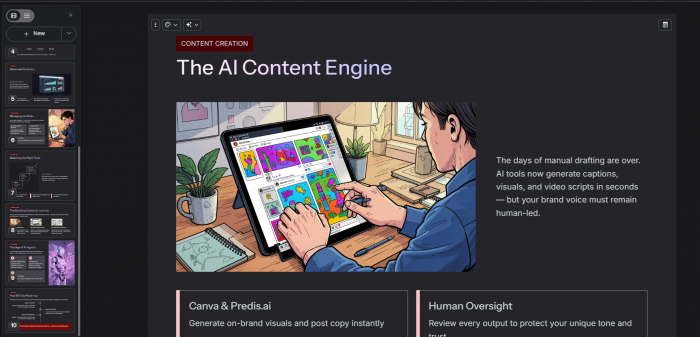
Content-wise, the result needed editing. The writing was clear, but some points were broad. For example, when it explained AI content creation, it gave useful but expected ideas: faster captions, quicker campaign planning, better personalization, and automated scheduling. These are valid points, but they needed sharper examples and updated data before the deck could feel publication-ready.
This is where Gamma should be judged correctly. It is strong at turning a topic into a structured visual draft. It is weaker at deep research, original analysis, and fact-heavy writing.
I would not trust Gamma to write final statistics, legal claims, financial projections, or technical details without checking them manually.
Design Strength: Where Gamma Shines
Design is Gamma’s strongest area. The generated deck looked polished without much effort from my side. The themes were clean, and the cards had a professional layout.
Gamma is especially useful for users who know what they want to say but struggle to make slides look good. It handles visual hierarchy well: title, subtitle, body text, image blocks, icons, and section breaks were arranged in a way that felt natural.
The deck did not look like a boring template. It had enough visual variation to keep the presentation readable.
That said, Gamma still has limits. The design system is more automated than manual. This is great when speed matters, but limiting when you need exact control over every object. If you want to adjust tiny spacing, create a custom chart style, or follow a strict brand template, PowerPoint, Canva, or Figma will give you more control.
Gamma is best for fast clean design, not pixel-level slide design.
Editing Room: Fixing the AI Draft
Editing was simple. I could change text, adjust cards, regenerate parts, and improve sections without rebuilding the deck. This is where Gamma feels more useful than a basic AI generator. It does not just give you output and leave you with a static file. The content stays editable inside the platform.
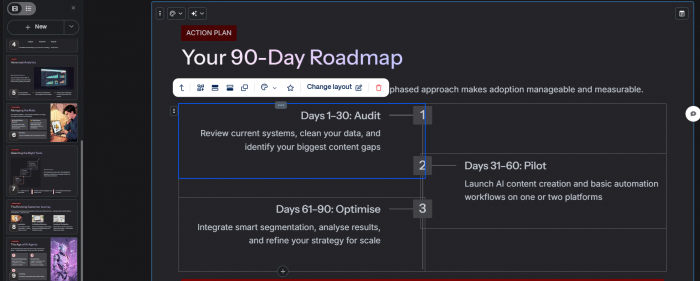
I tested the editing flow by rewriting a few slides and asking Gamma to improve the tone. It handled simple changes well. Shortening text, rephrasing slide titles, and making the language more direct worked fine.
But when I wanted more detailed design changes, the control felt limited. Gamma makes many layout choices on your behalf. That works when you accept its design direction, but it can be annoying when you want a very specific look.
My experience was:
● Text editing was easy and fast.
● Rewriting sections with AI was useful.
● Changing the overall theme was simple.
● Adjusting detailed layouts was more restricted.
● Fine design control was weaker than traditional slide tools.
So the editing experience is good for normal users, but not enough for advanced presentation designers.
Content Repurposing: Turning Notes Into Slides
One of Gamma’s most useful features is import. It can work from a prompt, but it can also build from existing material such as a document, outline, PDF, or presentation. Gamma users can upload a Word doc, PDF, or Google Doc, and the tool reads the content before structuring it into slides.
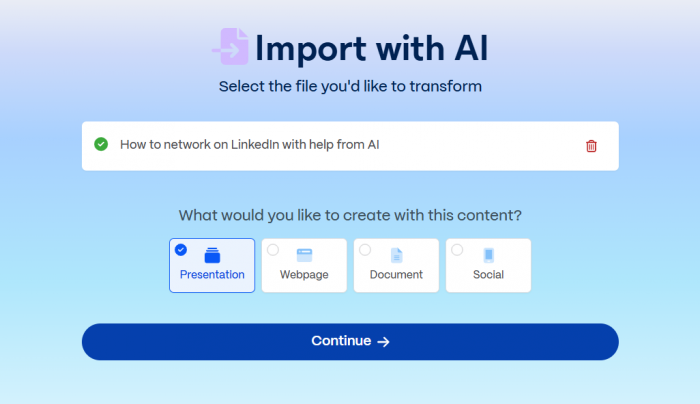
This is more valuable than simple prompt generation.
When an AI tool starts only from a prompt, it fills gaps on its own. That can make the deck generic. But when you give Gamma real source material, it has something concrete to organize. For bloggers, teachers, consultants, and marketers, this is a strong use case.
For example, Gamma can help turn:
● A blog article into a presentation.
● A report into a visual summary.
● Meeting notes into an internal deck.
● A product brief into a pitch deck.
● A lesson outline into classroom material.
This is where I think Gamma can save the most time. It is not just creating from nothing. It is helping users repurpose existing work into a more visual format.
Sharing Test: Exporting the Final Deck
Gamma gives users several output options. Its pricing page lists export support for PDF, PPTX, PNG, and Google Slides even on the free plan.
In practical use, sharing inside Gamma feels smoother than exporting. The live link keeps the deck in its native format, so the design looks exactly as intended. PDF export is also useful because it preserves the visual layout better.
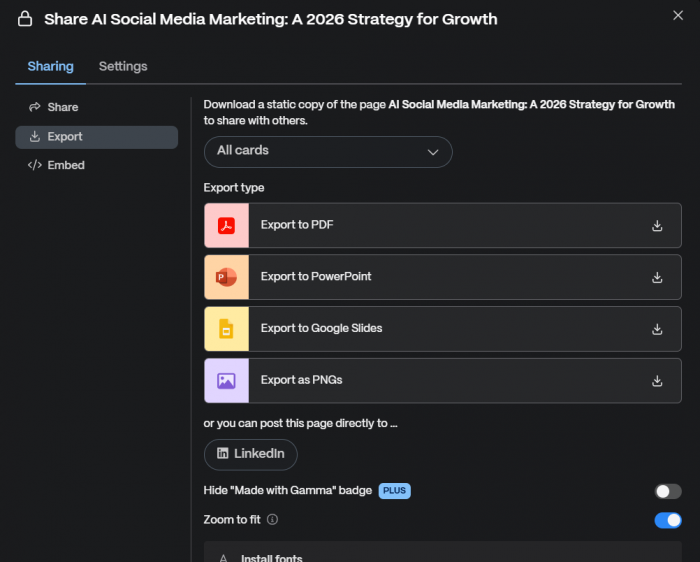
PPTX export is helpful, but I would not send an exported PowerPoint file without checking it first. AI-generated layouts can shift when moved into another tool. If you plan to present inside Gamma or share a link, the experience is better. If your workplace depends on PowerPoint templates, you may need extra cleanup.
My preferred export order would be:
1. Gamma live link for the cleanest viewing experience.
2. PDF for sharing a locked version.
3. PPTX or Google Slides only if further editing is needed outside Gamma.
This does not mean Gamma’s export is bad. It means users should understand that Gamma is not built exactly like PowerPoint.
Feature Breakdown: What Gamma Offers
Gamma has expanded beyond simple AI presentations. On its pricing and product pages, Gamma lists presentations, documents, websites, social content, images, graphics, and API access as part of the wider product system.
Here is the practical feature breakdown:
| Feature | What it does | My take |
| AI presentations | Creates decks from prompts or files | The strongest and most useful part of Gamma |
| AI documents | Turns ideas into visual documents | Good for reports, guides, and one-pagers |
| AI websites | Creates simple shareable webpages | Useful for landing pages, not full websites |
| AI social content | Creates visual posts and carousels | Helpful for repurposing content |
| AI editing | Rewrites and improves sections | Useful, but still needs human judgment |
| Import tools | Converts documents and files into Gamma content | One of the most practical workflows |
| Export tools | Supports PDF, PPTX, PNG, and Google Slides | Useful, but PPTX should be checked |
| API | Generates decks, docs, websites, and social posts through workflows | Strong for businesses and automation-heavy users |
The API is worth mentioning because it makes Gamma more than a manual tool. Gamma says its API can auto-generate presentations, documents, websites, and social posts inside workflows, with export to PDF and PPTX and integrations with tools like Zapier, Make, Workato, and n8n.
That means teams could use Gamma for automated proposals, reports, onboarding decks, or sales material.
Plan Check: Free vs Paid
Gamma has Free, Plus, Pro, and Ultra plans for individuals. The official pricing page lists the Free plan with up to 10 cards per prompt, simple presentations, docs, websites, social content, images, PDF and PPTX import, and export to PDF, PPTX, PNG, and Google Slides.
The same page lists Plus with up to 20 cards per prompt, branding removal, and advanced AI image models. Pro increases the limit to 60 cards per prompt and adds premium image models, custom branding and fonts, detailed analytics, advanced sharing, up to 10 custom domains, API access, and workspace templates. Ultra increases the limit to 75 cards per prompt and adds access to the most advanced text, image, and video models, up to 100 custom domains, and early access to new features.
Search snippets from Gamma’s pricing page show Ultra at $82.60 per seat per month, while third-party pricing trackers show Plus and Pro prices can vary by monthly or annual billing. Because Gamma pricing has changed across 2026, users should check the live pricing page before buying.
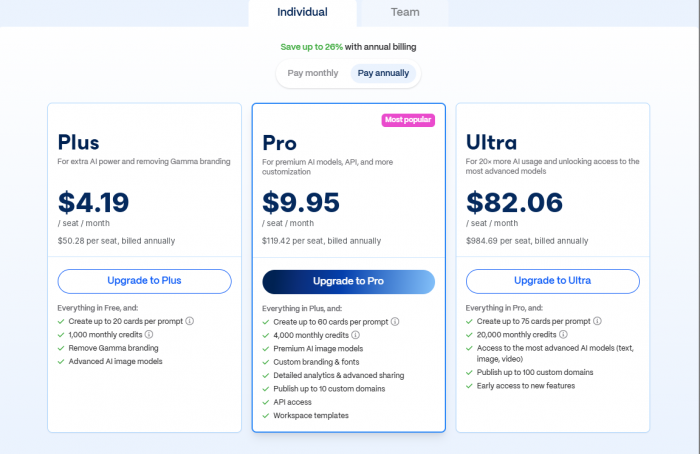
Updated Official Pricing as per July 2026.
The free plan is good enough for testing. It is not ideal for regular professional use because branding, credits, and limits become noticeable. For most individual users, Plus or Pro will make more sense if Gamma becomes part of a weekly workflow.
Privacy and Security
Privacy matters with Gamma because users may upload presentations, internal reports, client notes, pitch decks, business plans, or classroom content.
Gamma says it is SOC 2 Type II compliant on its pricing page. It also has plan-based AI training controls. According to Gamma’s help center, individual workspaces on Free, Plus, Pro, and Ultra can control data preferences in account settings, but the default setting allows data to be used to improve Gamma’s AI features. Users can opt out. For Team and Business workspaces, content is automatically excluded from AI training, and that setting is locked.
That is an important detail.
For personal projects, public-facing presentations, and general content, Gamma’s privacy setup may be acceptable. But I would be careful before uploading confidential client strategy, private financial data, unpublished business plans, legal documents, medical content, or student records.
The practical advice is simple: before using Gamma for sensitive work, check your workspace type, data controls, sharing settings, and export permissions.
User Feedback: What Others Say
Public feedback on Gamma is mixed. This is not unusual for AI tools, but the gap between positive and negative reviews is noticeable.
On G2, one reviewer described Gamma as fast, visually strong, and useful for first-draft presentations, while also saying it still needs hands-on editing before the deck is presentation-ready. Product Hunt shows a stronger public rating overall, but reviews there also include criticism about visual quality and professional usefulness.
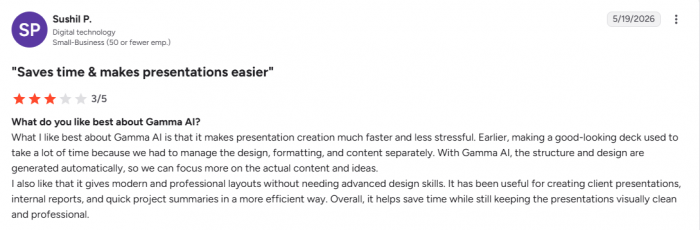
Users still point out several practical issues. Some reviewers complain that Gamma’s AI output can feel repetitive, the customization options are limited, and exported presentations may need extra cleanup before use. Others say the tool is excellent for creating quick, professional-looking drafts, but still requires manual editing when the content needs stronger accuracy, deeper detail, or tighter brand control.

This matched my own view in one way: Gamma is impressive when it gives you a clean first draft, but frustrating if you expect it to follow every instruction perfectly.
Advantages
Gamma’s biggest advantage is speed. It helps you move from a rough idea to a presentable structure quickly. For many users, that is the hardest part of creating a deck.
Its main strengths are:
● It removes the blank-slide problem and gives users a strong starting point.
● The design quality is better than most quick PowerPoint drafts.
● The card-based system works for presentations, documents, and webpages.
● It is useful for turning existing content into visual material.
● Sharing by link is easier than sending heavy slide files.
● It works well for students, marketers, educators, founders, and consultants.
● The AI editing assistant helps with quick rewrites and structure changes.
● The API gives business users an automation option beyond manual deck creation.
Limitations
Gamma’s limitations become clear when you move from draft creation to final production.
The main issues are:
● The writing can sound clean but too general.
● The tool should not be trusted for facts without manual checking.
● Fine design control is weaker than PowerPoint, Canva, or Figma.
● PPTX exports may need cleanup before professional use.
● Brand control is better on paid plans, but still not perfect for strict companies.
● AI image and visual choices can feel generic or inconsistent.
● Some public reviews raise concerns about billing, support, and instruction-following.
● It is not ideal for complex charts, data-heavy decks, or tightly formatted corporate templates.
Gamma is not a lazy shortcut for final work. It is a fast drafting tool that still needs human editing.
Better Options: Gamma AI Alternatives
Gamma is not the only AI presentation tool worth considering. The right alternative depends on what you need most.
| Tool | Better for | Why choose it over Gamma |
| Canva | Social graphics, brand kits, and manual design | Better visual control and a larger design library |
| PowerPoint Copilot | Corporate presentations | Better for Microsoft-based teams and traditional slide workflows |
| Google Slides with Gemini | Team collaboration | Better for Google Workspace users |
| Beautiful.ai | Structured business decks | Better for consistent business slide formatting |
| Pitch | Startup and team presentations | Better for collaborative deck workflows |
| Tome | Story-style visual documents | Better for narrative presentations |
| Visme | Infographics and reports | Better for charts, data visuals, and report design |
| Prezi | Non-linear presentations | Better for zoom-style storytelling |
| Figma Slides | Design-heavy presentation work | Better for designers who need full control |
Gamma is strongest when speed, structure, and visual polish matter more than detailed manual control. Canva is better for design freedom. PowerPoint is better for corporate compatibility. Beautiful.ai is better for structured business decks. Visme is better for infographic-heavy work.
Who Should Use Gamma AI?
Gamma AI is worth trying for anyone who regularly creates presentations but does not want to start from a blank slide. It works well for users who need to turn articles, reports, notes, rough ideas, or outlines into visual content quickly. Students can use it for class presentations, while teachers may find it helpful for building lesson decks without spending too much time on formatting. It can also support marketers who need campaign explainers, founders preparing early pitch drafts, consultants creating client summaries, and creators making visual posts or carousels. For small teams, Gamma can be especially useful when they need quick internal documents, meeting summaries, or presentation drafts that look cleaner than basic notes.
Who Should Avoid It?
Gamma may not be the right choice for users who need complete control over slide layout, branding, animation, or detailed data visualization. Designers who require pixel-level editing may find it limiting, and enterprise teams with strict slide templates may prefer a more controlled presentation workflow. It is also not ideal for complex financial decks, detailed investor materials, or projects that need perfect PowerPoint compatibility. Teams working with sensitive information should review privacy settings carefully before uploading content. Gamma can speed up the first draft, but users should not expect the AI to produce fully researched, final-ready content without human review.
My Verdict: Is Gamma Worth It?
Gamma AI is one of the most useful AI presentation tools I have tested for creating a polished first draft quickly. It does a good job with structure, layout, visual presentation, and speed. If your biggest problem is getting started, Gamma solves that problem well.
But it is not a full PowerPoint replacement. The writing still needs editing, the facts need checking, and the design control is not deep enough for complex professional decks. I would use Gamma to create a strong first version, then refine the content, replace weak visuals, verify facts, and check exports before sharing the final file.
For students, educators, marketers, creators, founders, and small teams, Gamma is worth trying. For enterprise-level presentations, strict brand work, and data-heavy decks, it should be treated as a drafting assistant rather than the final production tool.
Comments