

A shelf can look straight from arm’s length and still sit noticeably off once you step back. Google Bubble Level is made for moments like that. The small Search utility uses a phone’s motion and orientation sensors to show whether an object is level, vertical or tilted, without requiring a separate measuring app.
The tool is convenient, but the first number on the screen is not automatically reliable. Phone cases, camera bumps, curved edges and sensor calibration can all affect the result. This guide explains how Google Bubble Level works, how to use it correctly, what it can measure and where a physical spirit level remains the better choice.
A Measuring Tool Inside Search
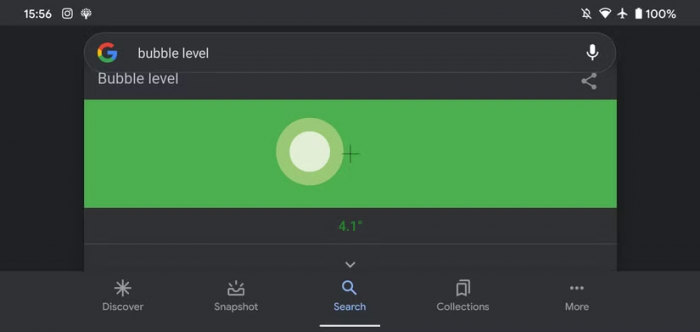
Google Bubble Level is a digital version of the spirit level used by decorators, installers and builders. A traditional level contains an air bubble inside a liquid-filled vial. The bubble settles between two markings when the tool is horizontal. Other vials may be used to check whether an object is vertical, commonly described as plumb.
Google’s version replaces the vial with an on-screen indicator. On a supported mobile device, searching Google for “bubble level” or “spirit level” can produce an interactive tool in the results page. Recent guides published in 2025 and 2026 continue to describe access through the Google app or Chrome on Android, although the card is not guaranteed to appear on every device or browser.
The tool measures the orientation of the phone, not the shelf, frame or table directly. The phone therefore becomes part of the measuring system. An uneven case or raised camera module can make a level surface appear tilted.
| Detail | What Google Bubble Level provides |
| Main function | Checks horizontal level, vertical alignment and approximate tilt |
| Access method | A Google Search for “bubble level” or “spirit level” |
| Installation | Usually none, because it opens inside Search |
| Hardware used | Motion and orientation sensors in the phone |
| Best use | Quick household checks and temporary setups |
| Main limitation | Accuracy depends on the device and its contact with the surface |
Google’s Search utility was discovered working on Android in 2015. It has remained a small, lightly documented feature rather than a standalone product with its own support centre, settings and public update history.
How the Digital Bubble Moves
A smartphone can detect how it is being held because it contains motion sensors. The accelerometer is especially important. It measures acceleration along three axes, usually labelled X, Y and Z. Gravity acts towards the ground, allowing software to estimate which parts of the phone are raised or lowered.
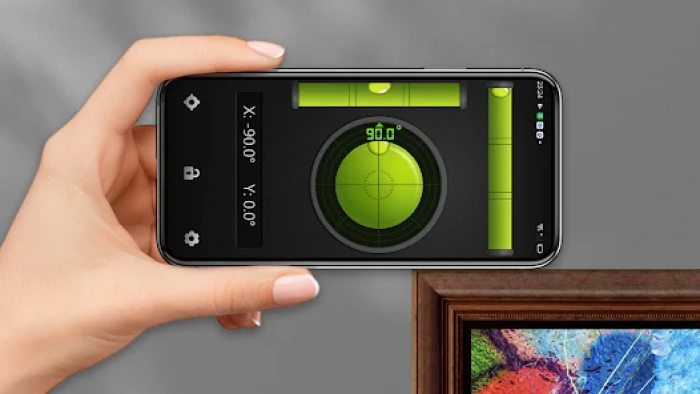
A gyroscope may add information about rotation, while the operating system and browser can combine available sensor readings into orientation data. Web pages receive this information through device-orientation interfaces. Current standards restrict those interfaces to secure HTTPS pages, and some browsers require permission before orientation data can be used.
Consider a phone resting on its long edge across a shelf. If both ends are at the same height, gravity acts across the relevant sensor axes in a balanced way. Raise one side and the sensor readings change. The software estimates the angle and moves the digital bubble away from the centre.
The phone’s position determines what is being checked:
● Resting it on a side edge can test whether a shelf, rod or frame is horizontally aligned.
● Holding the same edge against an upright surface can show whether a door frame, cabinet or post is plumb.
● Laying the phone flat can reveal tilt across a table, worktop or appliance.
The calculation may be sound while the physical setup is poor. A protruding button, flexible case or camera lens can lift part of the phone by a few millimetres. Across the short body of a smartphone, that gap may create a misleading angle.
Opening Google Bubble Level
The tool is designed mainly for smartphones. A laptop may show ordinary search results because it lacks suitable sensors or cannot be positioned against objects in a useful way.
To open and prepare the level:
1. Open the Google app or Google Search in a mobile browser such as Chrome.
2. Search for “bubble level.” Try “spirit level” if the first query does not produce the interactive card.
3. Look near the top of the results for a level that responds when the phone moves.
4. Grant motion or orientation access if the browser asks for permission.
5. Remove a thick or uneven case before taking an important reading.
6. Place the phone on a stable surface and let the display settle.
The card may open immediately on one Android phone and fail to appear on another. Search features can vary by device support, browser behaviour, region, account and interface testing. A browser opened inside a social media or messaging app may also block access to orientation data.
When the tool does not load, try Chrome or the Google app, update the browser and review site permissions. If the bubble appears but remains frozen, reload the page and move the phone gently to confirm that the display is receiving sensor data.
Reading the Display Correctly
A centred bubble and a reading close to 0° generally mean that the measured edge or surface is level in the current orientation. A value away from zero indicates the approximate amount of tilt. The direction of movement helps identify which side needs to be raised or lowered.
Three terms explain the main measurement modes.
● Level means parallel to the horizontal plane, as with a shelf or curtain rod.
● Plumb means vertically aligned, as with a door frame or post.
● Slope describes an intentional or accidental angle away from level, such as a ramp or drainage surface.
Do not chase every tiny movement on the display. Phone sensors may fluctuate while the device is being held. Place it down where possible, remove your hands and wait for a stable reading. During a vertical check, take several readings rather than treating a brief flash of 0° as proof that the whole object is straight.
A flat measurement, a side-edge measurement and an upright measurement are separate setups. Reposition the phone carefully each time instead of assuming one orientation checks every direction.
Three Practical Measurement Tests
The quickest way to understand Google Bubble Level is to use it on jobs that reveal both its strengths and its weaknesses.
1. Straightening a Wall Shelf
Place the straightest long edge of the phone on the shelf. Choose an edge without buttons, since a power or volume button can prevent the frame from sitting flush. Check the centre first, then repeat the measurement near both ends.
Adjust one bracket until the bubble centres or the reading approaches zero. Tighten the hardware gradually and measure again. A screw can pull a bracket slightly out of position during final tightening.
Several readings may also reveal a bowed shelf or an uneven wall. The phone can identify the general direction of the error, but its short body cannot average irregularities across a long board as well as a full-size spirit level.
2. Levelling a Table or Appliance
Place the phone flat on the top surface to see which direction it falls. Check from front to back, then from side to side. If the table has adjustable feet, make small changes and repeat the measurement after each adjustment.
This method can assist with a washing machine or refrigerator, but the phone must lie evenly. A large camera module may lift one corner and produce a false slope. If the device rocks when touched, use a straight side edge, place it on a rigid flat board or compare the result with a physical level.
Appliance installation should still follow the manufacturer’s instructions. An unstable washing machine can vibrate during a spin cycle, while refrigerator doors and internal components may depend on the recommended setup. Google’s tool is useful for an initial check, not as the sole installation standard.
3. Checking a Door Frame
Hold a straight side of the phone against the vertical frame. Measure near the bottom, middle and top. This shows whether the frame is consistently plumb or changes direction along its height.
A zero reading in the middle does not prove the full frame is straight. Timber can bow, trim can protrude and plaster can create local high points. The phone should touch the structural edge rather than decorative moulding.
Repeat the test on the opposite side. If both sides lean in the same direction, the opening may be out of plumb as a whole. If they lean towards or away from each other, its width may change from top to bottom. Fitting a door accurately will normally require a longer level, square and tape measure.
Useful Jobs Beyond Shelves
Google Bubble Level is most useful when the task is simple, the acceptable error is not critical and a physical level is unavailable.
1. Pictures, Mirrors and Displays
Rest a clean phone edge along the top of a frame and adjust it until the reading settles near zero. For a wide or heavy mirror, check the mounting hardware as well. A frame may look better aligned with nearby architecture even when the wall or ceiling itself is slightly off, so visual balance sometimes matters alongside the reading.
2. Curtain Rods and Television Mounts
The tool can help position brackets or a mounting plate before drilling. Mark one point, check the angle and confirm the measurement again before fixing the hardware. For a television, treat the phone as a preliminary guide because mistakes become harder to correct once the mount is secured.
3. Photography and Video Equipment
A tilted tripod head creates a sloping horizon, especially noticeable in architecture, interviews and product footage. Placing the phone on the tripod platform can provide a quick reference before the camera is attached. Compare it with the camera’s electronic level when one is available.
4. Desks, Benches and Games Tables
A small slope can cause pens, balls or liquids to move across a surface. Check several directions and positions. A desk may be level at one corner but twisted because the floor or legs are uneven.
5. Ramps and Drainage Direction
The degree display can show the general direction and approximate size of a slope. It may help compare two surfaces or confirm that water is likely to run towards a drain. It should not certify an accessibility ramp, roof pitch or drainage system where exact tolerances and building rules apply.
Accuracy Depends on the Setup
There is no single accuracy figure for every phone using Google Bubble Level. Results depend on sensor quality, calibration, browser processing and the contact between the device and object.
The largest sources of error include:
● A thick, flexible or damaged case can twist under pressure and prevent the phone from sitting squarely.
● A raised camera module can turn a flat-back measurement into unstable three-point contact.
● Rounded frames make it difficult to identify a genuinely straight reference edge.
● Power and volume buttons can hold the phone away from the object without creating an obvious gap.
● Dust, screw heads, rough timber and trim can produce local high points that do not represent the full surface.
● Hand movement can make the reading jump during a vertical measurement.
● Sensor offset can make the phone report a small angle on a known level surface.
A 180-degree rotation test can expose several of these problems. Place the phone on the surface, let the display settle and note the value. Rotate it 180 degrees in the same location, using the same face or edge, then record the second value.
Similar results suggest that the setup is reasonably consistent. A large difference may indicate sensor offset or uneven physical contact. Repeat the test without the case and inspect the chosen edge for buttons, damage or curvature.
For a stronger check, compare the phone with a physical spirit level on the same smooth surface. The goal is not to make both displays agree perfectly. It is to discover whether the phone is consistently close enough for the job.
| Measurement factor | Google Bubble Level | Physical spirit level |
| Availability | Convenient when the phone is nearby | Must be stored or carried separately |
| Measuring span | Limited to the phone’s length | Longer models bridge bumps and gaps |
| Degree display | Can show an approximate numerical angle | Basic models mainly show level or plumb |
| Calibration | Depends on the phone and may offer little control | Designed around a fixed vial and body |
| Durability | Vulnerable to drops, dust and rough materials | Built for workshop and site use |
| Best role | Quick checks and low-risk adjustments | Installation and repeatable measurement |
Where the Tool Falls Short
Google Bubble Level is useful because it is immediate, not because it replaces specialist equipment. It lacks functions found in dedicated inclinometer apps and digital levels, such as independent edge calibration, saved readings, sound alerts, adjustable tolerances, percentage slope, roof-pitch ratios and measurement reports.
Some Android level apps offer separate calibration for different phone edges, relative and absolute calibration, and 360-degree surface modes. Those controls help when the phone has an uneven body or the user needs to match an existing angle rather than find true level.
Google’s tool should not be the only instrument used for:
● Structural framing, scaffolding or load-bearing work where alignment affects safety.
● Professional surveying or machinery installation requiring documented tolerances.
● Vehicle alignment or workshop jobs involving heavy moving equipment.
● Pipe gradients, roof pitches and drainage systems that must meet specified falls.
● Accessibility ramps or public installations governed by building standards.
● Large wall mounts, stone surfaces or cabinetry where mistakes are expensive to correct.
The concern is not only that a phone may be slightly wrong. Google Bubble Level provides no calibration certificate, known tolerance or permanent record. It cannot demonstrate that critical work was checked with an appropriate professional instrument.
Choosing the Right Level
The correct tool depends on what happens if the measurement is wrong. Use Google Bubble Level for straightening a picture, adjusting a temporary stand, checking a desk or comparing two surfaces. These jobs benefit from speed, and a small error is easy to spot or correct.
Choose a dedicated level app when you need edge calibration, angle locking, sound alerts or relative measurement. It may also be more dependable when Google’s Search card does not appear consistently, although the same physical limitations of the phone still apply.
Choose a physical spirit level when the object is long, the surface is rough or the result must be repeatable. Longer levels bridge local bumps and show the alignment of the object as a whole. They can also be placed on timber, masonry or metal without risking an expensive phone.
A professional digital level or inclinometer is appropriate when the job requires a specific angle, tight tolerance or documented result. This includes construction, fabrication, inspection and equipment installation.
iPhone users have a built-in alternative in Apple’s Measure app. Its Level mode shows whether an object is level and how many degrees it varies. Apple describes these measurements as approximate, which is a sensible expectation for any phone-based level.
| Situation | Most suitable option |
| Straightening a small frame | Google Bubble Level or a built-in phone level |
| Adjusting a desk or tripod | Google’s tool or a calibrated level app |
| Installing a long shelf | A physical spirit level |
| Matching an existing angle | An app with relative-angle calibration |
| Checking structural work | A suitable professional instrument |
| Measuring on rough material | A physical or professional digital level |
Common Problems and Fixes
1. The Interactive Card Does Not Appear
Confirm that the search is being made on a phone, then try both supported search phrases. Open Google in Chrome or the Google app instead of a browser embedded inside another application. If the feature remains unavailable, use a reputable dedicated app or the phone manufacturer’s built-in utility.
2. The Bubble Does Not Move
The browser may not have permission to read device orientation. Review site permissions, reload the page and respond to any motion-access request. Device-orientation features operate on secure pages, while permission behaviour can vary between browsers.
3. The Reading Keeps Changing
Set the phone down and allow movement to stop. Avoid measuring on a running appliance, flexible shelf or unstable table. A small amount of fluctuation is normal, so focus on a settled value rather than a changing decimal.
4. The Result Looks Wrong
Remove the case, clean the edge and repeat the rotation test. Check whether a camera bump or button is touching the surface. Compare the reading with a physical level before deciding that the object is badly aligned.
5. Different Edges Give Different Values
Phone sides may contain buttons, damage or curved transitions into the screen. Choose the cleanest edge and use it consistently. A dedicated app with independent edge calibration is more suitable for repeated measurements.
Verdict: A Useful Backup Tool
Google Bubble Level turns a mobile search into a practical measuring aid with almost no preparation. It can straighten a frame, guide a shelf adjustment, check a tripod or reveal which table leg needs attention. Its degree display also helps compare slopes that are difficult to judge by eye.
Convenience does not guarantee precision. The tool measures the phone, so the case, buttons, camera bump, frame shape and sensor offset all become part of the result. Removing the case, checking several positions, rotating the device and comparing it with a known reference can reduce those errors.
For small, low-risk jobs, Google Bubble Level is a genuinely useful backup. For long installations, professional work or measurements tied to safety and compliance, a properly sized and calibrated level remains the right tool.
Comments