

Ezgif is one of those tools that makes more sense for small editing jobs than complete content creation. It can turn a video into a GIF, compress an oversized animation, change playback speed, or extract frames without opening a full video editor.
What interests me most from a creator's perspective is how much control it provides over the final file. The interface is basic, but the available settings go beyond simple conversion. Here is a closer look at its editing workflow, outputs, limitations, and practical value for social media content.
What Is Ezgif?
Ezgif is a free browser-based editor for creating and modifying animated images. Its main tools include Video to GIF, GIF Maker, Resize, Crop, Optimize, Effects, Speed, and Split.
There is no account setup or paid subscription required for its standard features. Files can be uploaded from a computer, and several tools also accept direct media URLs.
| Detail | Ezgif |
| Website | ezgif.com |
| Pricing | Free |
| Account required | No |
| Main purpose | GIF creation and editing |
| Supported media | GIF, MP4, WebP, APNG, AVIF, and more |
| Maximum upload | 200 MB on major tools |
| Watermark | No Ezgif watermark |
| Best use | Preparing and optimizing animated content |
Ezgif is not a complete design platform. It works with existing files, providing controls for changing their format, dimensions, duration, appearance, and compression.
Getting Started With Ezgif
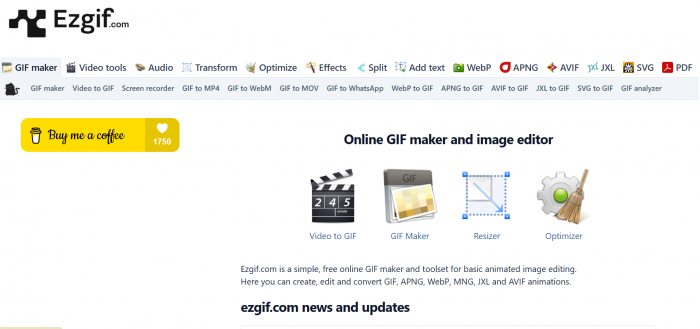
Ezgif keeps its editing tools in a top navigation menu. Selecting a tool opens a dedicated page with an upload field, relevant settings, and a processing button.
The editing sequence is straightforward: choose a file, adjust the available settings, generate the output, and save it. A toolbar beneath processed animations provides access to additional editing operations.
The interface is noticeably more technical than Canva or CapCut. Instead of visual timelines and templates, Ezgif uses numerical controls for frame delays, compression levels, dimensions, and frame rates.
I prefer this type of interface for a quick conversion or correction because the relevant settings are directly accessible. For more complicated projects, however, switching between tools is less convenient than editing everything in one workspace.
Creating and Editing GIFs With Ezgif
1. Converting a Video Into a GIF
The first tool I would focus on for social content is Video to GIF. It handles MP4, MOV, WebM, and several other video formats.
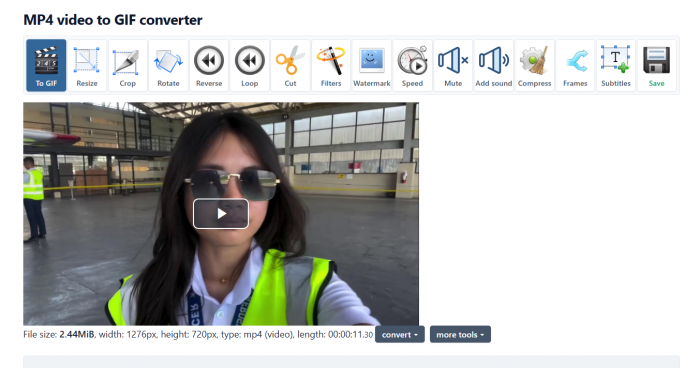
The converter allows precise control over which part of a video becomes the GIF. After loading a source file, the editor provides start and end time fields, output dimensions, frame rate, encoding method, and loop count.
The start and end time controls are particularly useful for isolating a short action from longer footage. Ezgif also provides a preview-position option for selecting a timestamp instead of entering it manually.
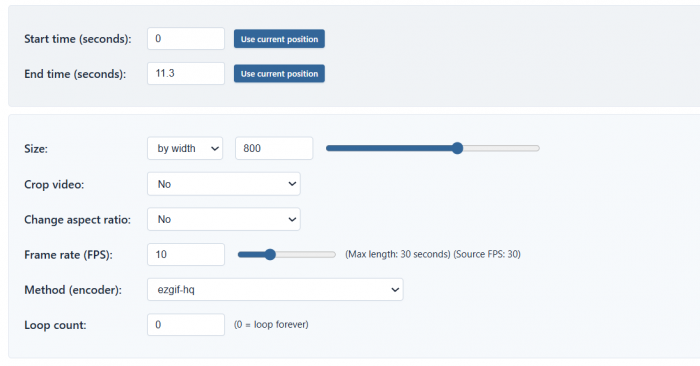
The output settings determine how the animation behaves:
● Frame rate: Controls the number of frames displayed per second. Higher FPS produces smoother motion but generally increases file size.
● Dimensions: Determine the size of the animation. A smaller width reduces the amount of image data stored.
● Loop count: A value of zero makes the GIF repeat continuously.
● Encoding method: Determines how the frames are processed into the final animation.
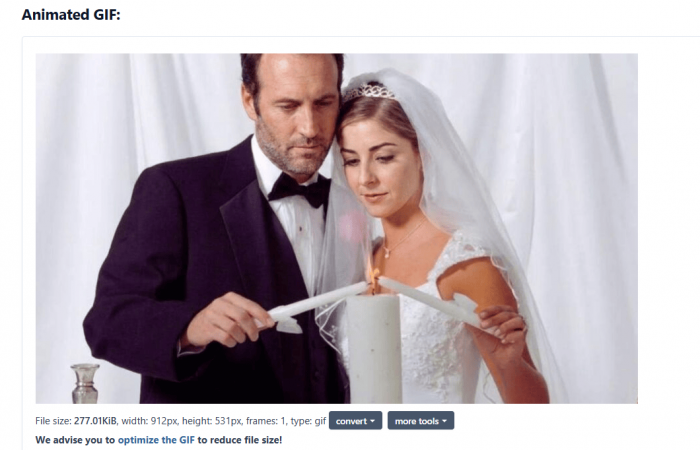
After conversion, Ezgif displays the output animation and provides options to optimize, crop, resize, or save it.
The important result is a silent, looping animation containing the selected portion of the video. It retains movement but does not preserve the original sound.
One technical detail is easy to miss: Ezgif's maximum conversion duration changes with frame rate. At 5 FPS, it allows up to 60 seconds; at 10 FPS, the maximum drops to 30 seconds. This is more restrictive than simply having a universal 60-second conversion limit.
My assessment: The timestamp and FPS controls make this converter useful for short tutorials, reactions, and visual demonstrations. Its main weakness is the GIF format itself, which can produce large files and less accurate colors than the original video.
2. Making a GIF From Images
The GIF Maker takes a different approach. Instead of converting video footage, it combines individual pictures into an animation.
Ezgif accepts multiple JPG, PNG, GIF, WebP, and other supported image formats. Files are initially arranged alphabetically, although the order can be changed manually after upload.
The most important control is frame delay. Ezgif measures delay in hundredths of a second, which means a value of 100 displays a frame for one second. The editor also allows delays to be adjusted individually. This gives more control over which images remain visible longer.
Another feature is Crossfade Frames, which introduces fading transitions between images. This is useful for slideshows because a standard image sequence otherwise changes directly from one picture to the next.
The resulting GIF combines the selected images in order, applies their timing settings, and repeats according to the chosen loop configuration.
One limitation is that the uploaded pictures need compatible dimensions for a consistent result. Images with different aspect ratios can require resizing or cropping before the animation looks properly aligned.
My assessment: GIF Maker is better suited to simple product sequences, educational slides, and image-based animations than advanced motion graphics. The frame-delay controls are detailed enough for these tasks without requiring a dedicated animation editor.
3. Compressing a GIF
Ezgif's GIF Optimizer is particularly relevant for bloggers and creators who work with animated images on websites. GIF files become large because they store multiple image frames. The optimizer provides several methods for reducing the amount of information stored in the file.
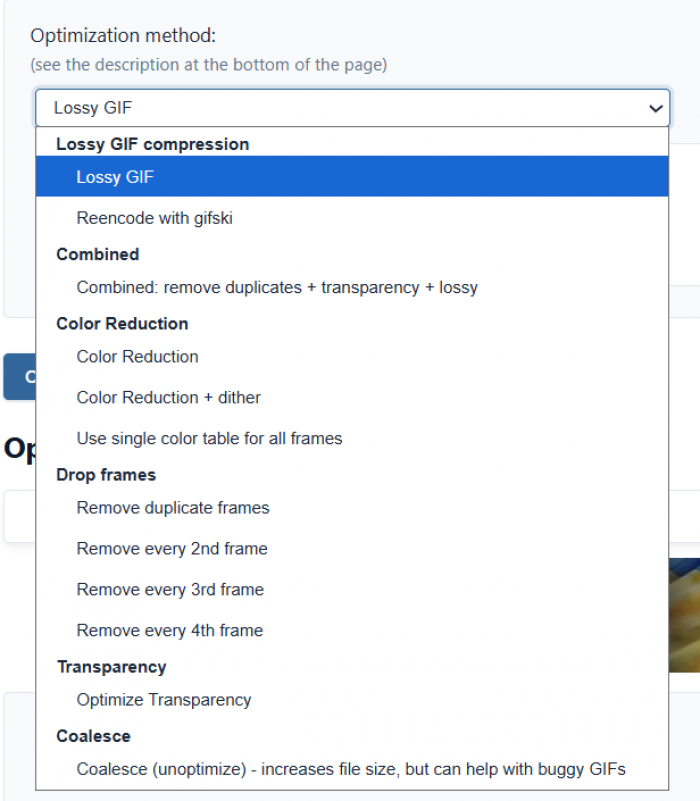
The main option is lossy compression, which uses an adjustable compression level. Ezgif states that this method commonly reduces file sizes by 30–50%, although the actual reduction depends on the source.
Other optimization methods target different parts of the animation.
| Method | What changes | Impact on output |
| Lossy compression | Reduces image data | Smaller file with possible visual noise |
| Color reduction | Uses fewer colors | Smaller palette and potentially visible banding |
| Frame removal | Deletes selected frames | Fewer frames and less fluid movement |
| Transparency optimization | Optimizes unchanged areas | Better efficiency for suitable animations |
The relationship between compression and visual quality matters more than the compression percentage alone. For an animation containing small text, aggressive color reduction can damage readability. A simple graphic with a flat background is more tolerant of compression than detailed footage containing gradients and frequent movement.
I would prioritize dimensions and unnecessary frames before increasing compression strength. Ezgif's own optimization guidance also recommends dealing with oversized images and excess frames before applying more aggressive methods.
My assessment: The optimizer is one of Ezgif's strongest utilities because it gives creators separate controls over the factors that affect GIF size. It is particularly useful for website content, where reducing file weight can matter more than retaining every visual detail.
4. Resizing and Cropping GIFs
Ezgif has separate tools for resizing and cropping, and the distinction is important. The Resize tool changes the animation's dimensions. It accepts a width, height, or percentage value, along with options for handling aspect-ratio differences.
Cropping removes part of the visible image. The Crop tool allows a selection to be drawn over the animation or defined using exact coordinates.
Both operations preserve the animated nature of the file. For creator content, cropping is particularly useful for removing unwanted borders, empty space, or unrelated interface elements from screen recordings. Resizing is more suitable for reducing large animations before uploading them to a website or converting them into another format.
Ezgif also provides alternative processing methods because some optimized animations can flicker after resizing or cropping. Its ImageMagick + coalesce option reconstructs complete frames, which helps address this issue but can create larger files.
My assessment: These tools provide precise control without needing to return to the original video editor. The ability to choose processing methods is useful, although troubleshooting a flickering GIF adds complexity to an otherwise simple task.
5. Adding Text and Changing Speed
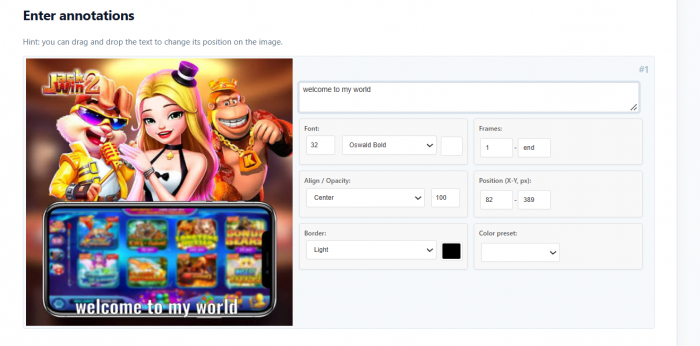
Ezgif includes tools for adding text, changing animation speed, reversing playback, and applying visual effects. The Add Text editor provides controls for placing words over an animation. Recent improvements also allow custom font uploads in its local-processing mode.
The speed editor works with frame delays rather than reconstructing the original video. Increasing the playback percentage makes the animation faster, while reducing it slows the animation down.
Ezgif offers direct percentage controls, including 50% for half speed and 200% for double speed.
It also provides individual frame-delay editing, which is useful for animations where particular moments should remain visible longer.
For example, keeping a final instruction frame on screen longer improves readability without slowing down the entire animation. This is a more precise adjustment than changing the global playback speed.
The Effects section provides options for adjusting colors, sharpening images, applying blur, and making other visual modifications.
My assessment: Speed adjustment is more useful for practical creator tasks than decorative effects. Text overlays work for basic labels, but complex captions and branded typography are better handled in a full design editor.
6. Splitting GIFs and Converting Formats
The Split tool extracts individual frames from an animation. It accepts GIF and several other animated formats, processes the frames, and provides a ZIP download containing the extracted images.
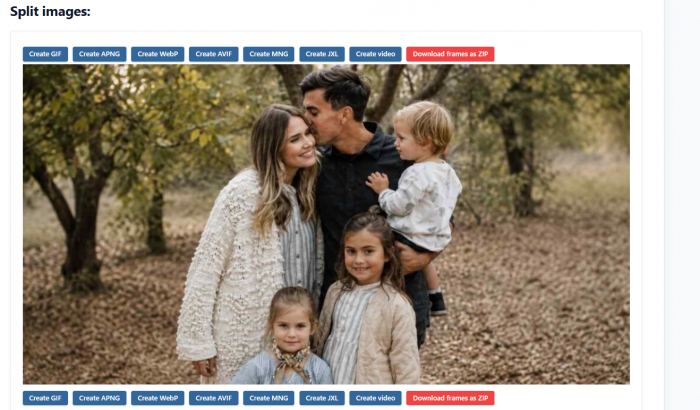
This is a useful way to obtain individual pictures from an existing animation. The extracted frames can be used in tutorials, static graphics, or further editing. The format converters solve another problem: animated GIFs are not always the most appropriate files for publishing.
Ezgif provides tools for converting GIFs into MP4 videos and other animated formats, including WebP and APNG. The GIF-to-MP4 converter is particularly relevant for social media because many platforms favor video files.
The conversion does not restore audio because the source GIF contains none. Transparent areas also require attention because standard MP4 output does not preserve GIF-style transparency.
My assessment: The frame splitter and format converters make Ezgif useful beyond GIF creation. These tools help prepare existing assets for other editing applications and publishing destinations.
How Good Is Ezgif's Output Quality?
Ezgif provides direct control over the properties that affect animation quality. The results depend heavily on the source file and how those controls are configured.
The three most important factors are frame rate, image resolution, and compression. Higher frame rates preserve more movement but increase the number of frames. Larger dimensions retain more detail but require more storage. Stronger compression reduces file size while potentially affecting colors and fine details.
The right settings depend on what the animation needs to communicate.
| Content type | Priority | Editing approach |
| Reaction GIF | Short duration and clear movement | Trim and adjust FPS |
| Tutorial GIF | Readable details | Preserve necessary resolution |
| Blog animation | Smaller file size | Resize and optimize |
| Product animation | Color and detail | Use lighter compression |
| Social video | Platform compatibility | Convert to MP4 |
I consider readability more important than maximum compression for instructional content. For reaction GIFs, shorter duration and recognizable movement matter more than preserving every frame from the original footage.
Another useful consideration is the output format. Animated WebP and AVIF can provide better compression than GIF in supported environments, making them worth considering for website content.
Ezgif gives enough control to make these decisions manually. It does not automatically select one ideal export setting for every platform.
Where Ezgif Fits in My Creator Workflow
The main reason I find Ezgif relevant to content creation is that it handles individual media preparation tasks without requiring a complete editing project.
1. Blog content : its compression, resizing, and conversion tools are valuable for preparing animated illustrations. Short screen recordings can also be converted into animations that demonstrate a process without requiring an embedded video player.
2. Social media content : the format converters and cropping controls are more useful than the GIF Maker alone. The ability to convert an animation into MP4 helps when preparing files for platforms that do not accept GIF uploads as standard video posts.
3. Tutorials : the frame splitter is particularly practical. It provides individual images from an existing animation, reducing the need to recreate visual steps manually.
4. Marketing materials, the ability to control file dimensions, playback speed, and compression makes it easier to prepare animations for supported web and email environments.
I would not use Ezgif as the main application for editing Reels or Shorts. It lacks the integrated audio, captions, transitions, and timeline controls that those projects require.
Its role is more specific: taking an existing media file and making the adjustments needed before it is published or used elsewhere.
What I Don't Like About Ezgif
Ezgif offers a useful collection of controls, but I see several weaknesses in its overall editing approach.
1. The interface is functional rather than visual. Most operations depend on numerical fields, dropdown menus, and separate processing buttons. That works for precise edits, but it is less intuitive than dragging elements around a modern editing canvas.
2. Editing several properties involves additional steps. Cropping, adding text, changing speed, and compressing are handled separately. The toolbar makes it easier to move between them, but it still does not replace a unified editing timeline.
3. Some settings require technical knowledge. Compression algorithms, frame delays, color reduction, and coalescing are useful controls, but new users may need to understand their effect before choosing suitable values.
4. Creative design options are limited. Ezgif is not built for producing complex branded visuals, layered animations, or complete short-form videos with audio.
5. GIF format limitations remain. Even a well-optimized GIF can be less efficient than MP4 or modern animated image formats. Changing the compression settings cannot completely eliminate those differences.
These are not necessarily reasons to avoid Ezgif. They are reasons to use it for the tasks it handles best instead of expecting a full creative platform.
Is Ezgif Really Free?
Ezgif provides its standard editing tools free of charge. There is no mandatory account, subscription, or branded watermark on ordinary exports. Its major editing tools currently support uploads up to 200 MB, although individual conversion restrictions can vary.
Ezgif also states that files uploaded to its servers are automatically deleted after one hour. A particularly useful feature is local processing, which is available on several tools. Instead of uploading the source file to Ezgif's server, supported operations can run inside the browser.
Local processing can have limitations compared with server-based editing, so not every option is necessarily available in that mode. For creators dealing with private drafts, unreleased campaign assets, or client material, this is an important setting to check before uploading files.
Ezgif vs Other GIF Editors
Ezgif overlaps with tools such as Canva, GIPHY, and Kapwing, but they serve different editing needs.
| Tool | Main strength | Where I would use it |
| Ezgif | GIF optimization and format conversion | Preparing existing animations |
| Canva | Design templates and visual layouts | Branded social graphics |
| GIPHY | GIF creation and sharing | Reaction GIFs |
| Kapwing | Browser-based video editing | Edited social videos |
Canva is more suitable for designing visual content from scratch. Its layout controls, templates, and typography options provide more creative freedom.
GIPHY focuses on GIF creation, discovery, and sharing rather than detailed compression and frame-level editing.
Kapwing provides a broader video-editing experience, particularly for combining clips, adding text, and working with other media elements.
Ezgif stands out for offering detailed GIF controls without a subscription. It makes more sense as a companion to these tools than as a direct replacement.
Who Should Use Ezgif?
Ezgif is best suited to creators who already have media files and need to modify them. Bloggers can use it for compressing animated illustrations. Social media managers can prepare short clips and convert file formats. Tutorial creators can extract individual frames and edit animation timing.
It is also suitable for casual users who need occasional GIF conversions without installing additional software. Creators who regularly produce complex videos, animated advertisements, or branded social graphics will benefit more from a full editing application.
The deciding factor is the type of work involved. Ezgif handles targeted media adjustments, while dedicated editors are built for complete content production.
My Final Verdict
Ezgif offers a surprisingly detailed collection of free editing controls for animated content. Video-to-GIF conversion, compression, resizing, speed adjustment, frame extraction, and format conversion are its strongest features. What I like most about its approach is the ability to access these functions individually without setting up an account or working through an elaborate editing interface.
Its main drawback is the lack of a unified timeline. A simple adjustment is straightforward, but a sequence of creative changes requires moving between separate editing tools. For creators who work with GIFs, screen recordings, blog animations, and repurposed social content, Ezgif deserves a place alongside a primary editing application. It is not where I would build a complete social media post, but its focused tools make sense for preparing and correcting the final media files.
Comments