

Napkin AI is built for one very specific problem: people can explain an idea in writing, but often struggle to turn that idea into a clean visual. Instead of asking users to design from a blank canvas, Napkin starts with text and turns it into diagrams, flowcharts, infographics, mind maps, and presentation-ready visuals.
That makes it different from normal AI image generators and also different from full design platforms. This review looks at Napkin AI as a text-to-visual workflow tool, not as another Canva, Figma, or Midjourney replacement.
What Napkin AI Actually Is
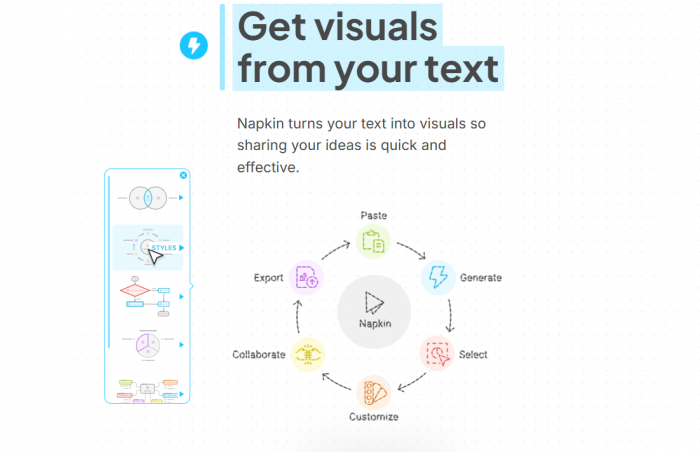
Napkin AI is a visual communication tool that converts written content into structured visuals. A user can paste text, describe an idea, or insert a file, then generate visual options from that content. The tool is mainly useful for business storytelling, presentations, blog graphics, reports, training content, and social media explainers.
Its main value is speed. If a paragraph explains a workflow, Napkin can turn it into a process diagram. If a section compares two ideas, it can create a side-by-side visual. If a note explains a concept, it can turn that into a framework, mind map, or infographic-style layout.
The tool works best when the input already has a clear structure. Steps, categories, comparisons, cause-and-effect explanations, and frameworks usually produce stronger visuals than long, unorganized paragraphs. Napkin is not simply making something “pretty.” It is trying to understand the logic inside the text and convert that logic into a visual format.
What Napkin AI Is Not
Napkin AI should not be judged like a normal AI art generator. It is not designed for realistic images, cinematic visuals, character art, product mockups, or photo editing. Users looking for Midjourney, Leonardo AI, or Adobe Firefly-style outputs will likely misunderstand the tool.
It is also not a complete design platform in the same way Canva, Visme, Figma, or Adobe Express are. Those tools give more control over layouts, templates, brand assets, stock images, animation, and marketing design. Napkin is narrower. It sits between writing and design.
| Napkin AI is good for | Napkin AI is not built for |
| Turning text into diagrams and visual explainers | Creating realistic AI images |
| Making blog sections more visual | Editing photos or product images |
| Building first-draft presentation visuals | Replacing a full presentation builder |
| Explaining workflows, concepts, and frameworks | Handling complex brand campaigns |
| Creating quick infographic-style graphics | Advanced data dashboards or analytics visuals |
This distinction matters because Napkin is strongest when the user already has text and wants to make that text easier to understand. It is weaker when the user expects full creative design control from the start.
Features That Matter in Real Use
Napkin AI has several features, but not all of them matter equally. The most important ones are the features that affect how quickly users can move from text to usable visual.
| Feature area | What it includes | Why it matters |
| Input options | Paste text, describe idea, insert file | Lets users start from finished content, rough ideas, or documents |
| Visual generation | Diagrams, flowcharts, mind maps, infographics, data charts | Converts plain text into structured visual explanations |
| Editing | Text, layout, colors, icons, fonts, connectors | Helps turn AI drafts into publishable visuals |
| Export | PNG, PDF, PPT, SVG depending on plan | Makes visuals usable in blogs, slides, documents, and reports |
| Branding | Brand styles, custom branding, font upload on higher plans | Important for teams and professional content |
| Team use | Teamspace, management, billing | Useful for agencies, marketers, consultants, and businesses |
| Credit system | Credits used for visual generation | Affects how users should select text and manage usage |
The editing layer is especially important. Napkin’s best feature is not only that it generates visuals. It is that the visuals are not fixed images. Users can adjust the design, text, and structure until the output better matches the message.
First 10 Minutes With Napkin AI
The first thing Napkin AI does well is make the starting point obvious. It asks how the user wants to add text. The options are usually simple: paste the text, describe the idea, or insert a file.
That opening choice tells you how the product thinks. Napkin does not begin with a blank page of shapes, lines, arrows, icons, and design settings. It begins with the idea. This makes the tool easier for writers, marketers, students, consultants, and business users who do not want to spend time manually creating diagrams.
In practical use, the workflow feels closer to editing a document than designing a graphic. You add text, select the section you want to visualize, generate options, choose the strongest layout, and then adjust the result. The tool removes the hesitation that often comes before visual design: deciding what kind of diagram to make.
The Three Starting Options: Paste Text, Describe Idea, Insert File
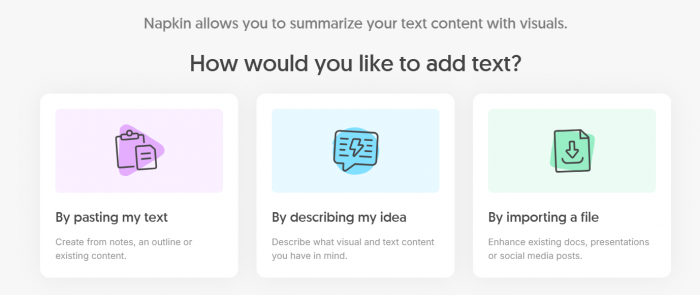
The Paste the text option is the best choice when you already have written material. This could be a blog paragraph, meeting note, article outline, report section, lesson summary, or presentation script. It gives the most control because Napkin works directly from the text you provide.
The Describe my idea option is better for early brainstorming. If you only have a topic, Napkin can help turn that rough idea into text and then into visuals. This is useful for planning, but the result usually needs more editing because the tool is shaping both the language and the visual structure.
The Insert a file option is useful when the source material already lives in a document. Napkin’s Free plan currently supports unlimited file import for PPT, DOC, PDF, HTML, and MD files. That is helpful for users working with reports, slide material, documentation, or long-form drafts. Still, uploaded content should be checked before visual generation because file structure, headings, tables, and formatting may not always translate perfectly.
Hands-On Workflow Test
A practical way to judge Napkin AI is not by asking whether it “makes visuals,” but by checking how it handles different types of input. The tool behaves differently depending on whether the content is a workflow, a blog paragraph, a rough idea, or a file.
Test 1: Workflow Text
A simple workflow is where Napkin feels most natural. Text such as “research topic, create outline, draft article, edit for clarity, optimize for SEO, publish, track results” usually gives the tool a clear sequence to follow.
The output in this kind of test is typically clean because the structure is already built into the input. Napkin can identify the steps and convert them into a process diagram, horizontal flow, cycle, or timeline-style visual. For bloggers and business users, this is one of the strongest use cases because workflow visuals are often needed in articles, decks, and internal documents.
The only real cleanup usually involves shortening labels, adjusting spacing, and picking a visual style that matches the context.
Test 2: Blog Paragraph
A normal blog paragraph is a harder test. Blog writing often contains explanation, context, examples, and opinion in the same section. Napkin can still create a visual, but the quality depends on whether the paragraph has a clear internal structure.
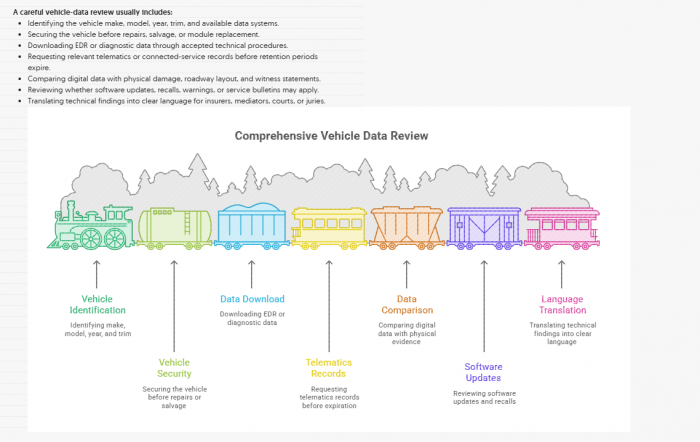
If the paragraph explains a process, Napkin usually performs well. If the paragraph mixes multiple points, the output may become crowded or slightly generic. This is where user editing becomes important. The best method is to rewrite the paragraph into a short visual brief before generating the graphic.
For example, instead of pasting a long section on AI content workflows, a better Napkin input would be: “AI content workflow: research, outline, draft, edit, optimize, publish, measure.” The shorter version gives Napkin a cleaner structure and usually produces a more readable visual.
Test 3: Rough Idea
The “Describe my idea” option is useful but less predictable. It helps when the user has not yet written a proper section. For example, a user can type: “Explain how AI tools help lawyers organize digital evidence.” Napkin can then create starter text and turn that into a visual.
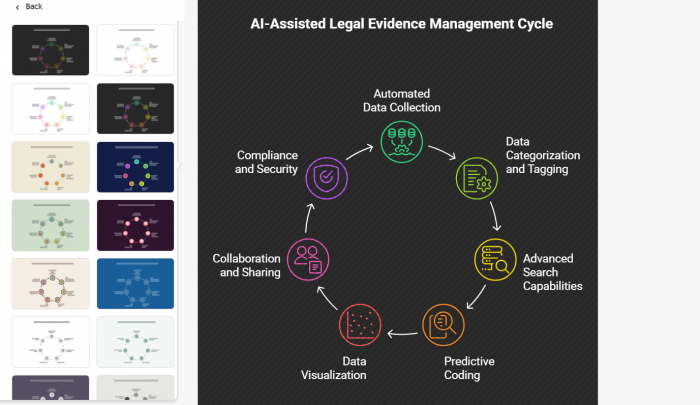
This is useful for brainstorming, but it should not be treated as final copy. The tool may choose a structure that is logical but not specific enough. For professional content, users should refine the generated text before relying on the visual.
This mode is best for early ideation, not final publishing.
Test 4: File Upload
File import is a practical feature for users who already work with documents. A consultant can upload a proposal. A teacher can upload lesson notes. A content editor can bring in an article draft. A founder can add pitch material.
The advantage is speed. Users do not have to manually copy every section into Napkin. The limitation is context control. A full document may contain too many ideas, and the tool may not know which part deserves visual treatment unless the user selects or isolates the right section.
The best workflow is to use file upload as a source, then generate visuals from smaller selected sections instead of trying to visualize the entire file at once.
Output Quality: Clean, Useful, But Not Always Final
Napkin AI’s output quality is best described as strong first-draft visual quality. It can create clean, professional-looking visuals quickly, but not every result is ready for publishing without adjustment.
The tool is strongest at clarity. It can take plain text and make the structure easier to scan. For a presentation slide, blog graphic, LinkedIn post, or internal report, that can save real time. A basic workflow that might take 20 minutes to build manually can often be drafted in seconds.
Where it needs editing is hierarchy and precision. The tool may not always know which point is most important, which label should be shortened, or which icon best matches the idea. Sometimes it creates a layout that looks polished but does not emphasize the right part of the message.
This is why Napkin should be treated as a visual drafting assistant. It gives the user a strong starting point, but serious publishing still benefits from human cleanup.
Pricing and Credit System Explained
Napkin AI currently has a Free plan, Plus plan, Pro plan, and Enterprise option. The Free plan costs $0 and includes 500 AI credits per week, unlimited visual editing, unlimited file import for PPT, DOC, PDF, HTML, and MD files, unlimited PNG and PDF export, built-in styles and fonts, standard icons, and Napkin branding on visuals.
The Plus plan costs $9 per person per month. It includes 10,000 AI credits per month, unlimited PPT and SVG export, three brand styles, bold icons, removal of Napkin branding, and team management and billing.
The Pro plan costs $22 per person per month. It includes 30,000 AI credits per month, everything in Plus, exclusive designs, unlimited custom branding, font upload, team management and billing, and optional credit top-ups.
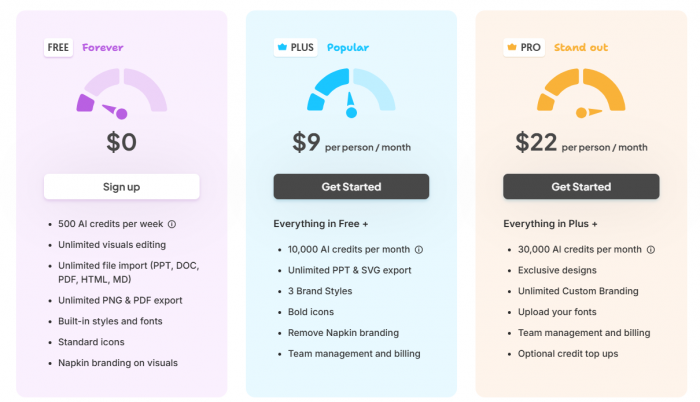
The credit system matters because Napkin charges roughly one credit per selected word for visual generation, though the company says this may change for complex outputs or advanced features. That means users should avoid selecting a full article when they only need one diagram. Short, focused text gives better visuals and uses fewer credits.
Annual billing also matters. Napkin currently says users can save 25 percent by choosing an annual plan instead of monthly billing.
Real User Reviews and Public Sentiment
Public review volume for Napkin AI is still small, so the user sentiment should be read carefully. G2 currently lists Napkin AI at 4.4 out of 5 from 11 reviews. That is a positive signal, but it is not the same as a mature review base from hundreds or thousands of users.
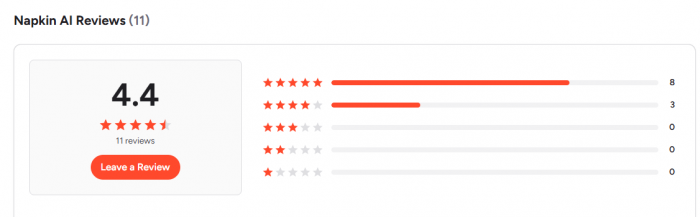
The positive feedback is clear: users like that Napkin is easy to learn, quick to set up, and useful for turning ideas into visual presentations. Reviewers also mention that it helps communicate concepts through infographics and diagrams without requiring heavy design work.
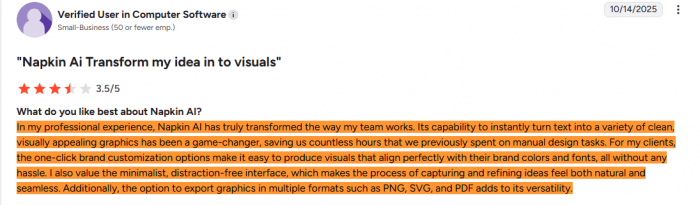
The criticism is also useful. Some users want more flexibility, better handling of complex ideas, and more integrations. That matches the practical experience with the tool. Napkin is strong when the input is clear and the visual can be simple. It becomes less reliable when the idea is dense, technical, or needs strict design control.

Overall, the real user sentiment is positive but early. Napkin is being valued as a fast visual communication tool, not as a full design suite.
Strengths and Limitations
Napkin AI’s biggest strength is speed. It removes much of the manual work involved in turning a written explanation into a visual. This is especially useful for people who write often but do not want to design every diagram from scratch.
Its biggest limitation is control. The tool can produce a useful first draft, but users who need exact spacing, strict brand systems, advanced data charts, or complex technical diagrams may still need Canva, Figma, Lucidchart, Miro, or a professional designer.
| Strength | Limitation |
| Turns text into visuals quickly | Output depends heavily on input quality |
| Easy for non-designers | Not a full Canva or Figma replacement |
| Good for diagrams, flowcharts, and explainers | Complex content may become oversimplified |
| Offers multiple visual options | First result often needs editing |
| Supports useful export formats | Free plan keeps Napkin branding on visuals |
| Strong for blogs, decks, and reports | Not suitable for realistic image generation |
| Useful for teams and branded work on paid plans | Advanced branding sits behind paid tiers |
The fair way to describe Napkin is this: it is excellent at reducing the blank-canvas problem, but it does not remove the need for editorial judgment.
Best Use Cases
Napkin AI works best for content that already has a logical shape. If the idea can be expressed as steps, stages, categories, comparisons, or a framework, Napkin has a good chance of turning it into a useful visual.
For bloggers, it is useful for turning “how it works” sections into workflow diagrams, comparison sections into visual breakdowns, and strategy sections into frameworks. For marketers, it can turn campaign funnels, customer journeys, and messaging structures into cleaner visuals. For consultants, it can speed up business frameworks, operating models, and client presentation graphics.
It is also useful for teachers and students. A lesson summary can become a concept map. A process can become a step-by-step chart. A dense explanation can become a more scannable visual.
The best use cases are:
● Blog graphics that explain workflows, comparisons, or frameworks.
● Presentation visuals for business, education, and consulting.
● LinkedIn and social media explainers based on short professional ideas.
● Training material that needs process diagrams or concept maps.
● Reports and proposals where dense points need visual summaries.
● Startup storytelling around product flows, user journeys, and business models.
Napkin performs less well when the task requires advanced charts, strict technical diagrams, realistic imagery, or highly customized marketing layouts.
Where Napkin AI Is Not the Right Fit
Napkin AI is not the best tool for advanced data visualization. If a user needs interactive dashboards, spreadsheet-linked charts, statistical analysis, or live business intelligence reporting, tools like Power BI, Tableau, Looker Studio, Flourish, or Datawrapper are more suitable.
It is also not ideal for professional designers who need pixel-level control. Designers may appreciate the speed of first drafts, but they will likely still use Figma, Illustrator, Canva, or Visme for final production.
Another poor fit is sensitive document work without policy review. Since Napkin allows file import, users may be tempted to upload business reports, client files, legal documents, finance decks, or confidential strategy notes. That should be done carefully. For casual work, the feature is convenient. For enterprise or regulated work, privacy terms, team settings, and internal approval matter.
Alternatives by User Need
Napkin AI competes with several tools, but not all competitors solve the same problem. The closest alternatives depend on what the user wants to do after creating the visual.
Canva is better for general design, social media graphics, and branded marketing content. Visme and Piktochart are stronger for polished infographics and reports. Venngage is useful for business-friendly templates and professional visual documents. Miro AI and Whimsical AI are better for team whiteboarding, flowcharts, mind maps, and workshops. Lucidchart is stronger for technical diagrams, org charts, and structured process mapping.
Gamma and Presentations.AI are different kinds of competitors. They are better when the user wants a full AI-generated presentation. Napkin is better when the user wants individual visuals that can be placed into a blog, report, slide deck, or document.
In simple terms, use Napkin when the goal is to turn text into a clear visual quickly. Use Canva, Visme, or Figma when the goal is final design control. Use Miro, Whimsical, or Lucidchart when the goal is deeper diagramming or collaboration. Use Gamma when the goal is an entire deck.
Privacy and File Upload Caution
Napkin’s privacy language says data is encrypted in transit, sensitive data stored on servers is encrypted at rest, and access to user data is limited to authorized personnel for operational or support purposes. The company also says it will not use user data to train its models if the user opts out of data sharing, and that AI subprocessors are used to provide Napkin functionality.
That is useful information, but users should still be careful with sensitive uploads. Any AI tool that accepts files deserves extra review before being used with confidential data. A public blog outline is low risk. A client legal file, internal finance report, merger document, healthcare record, or proprietary strategy deck is different.
For individual creators, the practical rule is simple: use Napkin freely for public-facing or non-sensitive content. For business users, check privacy settings, data-sharing options, team controls, and company policy before uploading confidential documents.
Final Verdict
Napkin AI is not a gimmick tool, but it is also not a full design replacement. Its strongest value is much narrower and more useful: it turns written ideas into visual drafts quickly.
For bloggers, marketers, consultants, teachers, students, and business teams, that can save meaningful time. The tool is especially helpful when the input is structured and the user needs a diagram, flowchart, framework, infographic block, or presentation graphic without starting from scratch.
The weak point is final control. Napkin can create a good visual quickly, but it cannot always decide the right emphasis, perfect hierarchy, brand tone, or editorial priority. The best results still come when the user edits the output before publishing.
The most accurate verdict is this: Napkin AI is a strong text-to-visual drafting tool for people who already work with ideas, notes, articles, reports, and presentations. It is worth using when speed and clarity matter, but it works best as a bridge between writing and final design, not as a complete replacement for Canva, Figma, Lucidchart, or a professional designer.
Comments