

Pica AI looks simple from the outside: upload a photo, choose an AI tool, and get an edited image back. After testing its main features, that first impression is mostly accurate. It is easy to use, fast enough for casual edits, and strongest when used for face swaps and playful profile-style images.
But it is not perfect. The photo enhancer is not always dramatic, the headshots can look visibly AI-generated, and the pricing system needs careful checking before you pay. More importantly, this is a tool built around faces, so privacy is not a side issue. It is part of the review.
Pica AI Quick Overview
| Area | My Review |
| Tool type | AI photo enhancer, face swap, portrait, and headshot tool |
| Best for | Casual face swaps, profile experiments, old photo fixes, quick social images |
| Strongest feature | Face swap |
| Weakest area | Consistency in photo enhancement and headshots |
| Ease of use | Very beginner-friendly |
| Output quality | Good with clear photos, mixed with difficult images |
| Pricing | Free credits, paid plans, premium packs, and credit-based usage |
| Privacy concern | High, because users upload face images and personal photos |
| Overall verdict | Useful for casual AI photo edits, but not reliable enough for professional work |
What Is Pica AI?
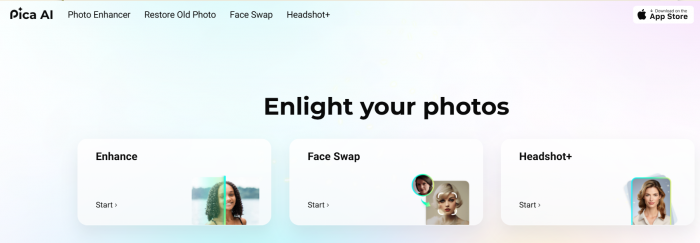
Pica AI is an AI photo editing platform built around quick image tasks. It includes photo enhancement, old photo restoration, face swap, video face swap, multi-face swap, AI portraits, and AI headshots. It is not a full editing suite like Photoshop or Lightroom. It does not give you a detailed editing timeline, layers, masking tools, or advanced manual correction.
The tool works more like a shortcut. You pick one feature, upload your image, wait for the AI to process it, and download the result. That makes it easy for beginners, especially users who do not want to learn professional editing software.
One thing to clarify early: Pica AI is not Pika AI. Pika AI is known for AI video generation. Pica AI is more focused on photos, faces, enhancement, and portrait-style edits.
My Testing Setup: What I Tried Inside Pica AI
I tested Pica AI the way a normal user would use it. I did not approach it like a professional editor with studio files. I tested it with everyday image types: a slightly blurry selfie, a low-resolution profile photo, an old-looking photo, a clear portrait, and a face swap-style image.
The goal was simple: check whether Pica AI can actually improve normal photos without needing manual editing skills. I tested the main features people are likely to use first:
| Feature Tested | What I Uploaded | What I Wanted to Check |
| Photo Enhancer | A slightly blurry, low-detail photo | Whether it could sharpen and clean the image naturally |
| Old Photo Repair | A faded old-style image | Whether it could restore detail without making it fake |
| Face Swap | A clear portrait and target face | Whether the swap looked realistic or obvious |
| Multi-Face Swap | A group-style image | Whether it could handle more than one face cleanly |
| Video Face Swap | A short clip with a visible face | Whether motion made the result fall apart |
| AI Headshot | A regular selfie | Whether the result looked usable for a profile |
| AI Portrait | A clear face photo | Whether the creative result looked polished or gimmicky |
Using the Photo Enhancer
The photo enhancer is one of the first tools most users will try. I uploaded a slightly blurry image with low detail and expected Pica AI to sharpen the face, improve clarity, and make the photo look more usable.
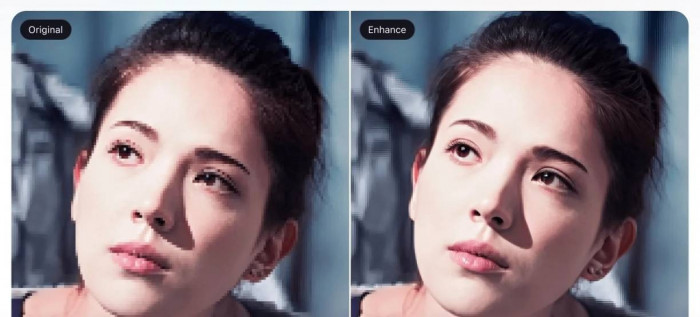
The result was better, but not dramatic. The face looked a little cleaner, and the image had more sharpness, but it did not feel like a complete transformation. It worked more like a light improvement than a full restoration. If the original image is only mildly soft, Pica AI can help. If the image is very blurry or badly compressed, the enhancer has limits.
What I liked was the simplicity. There was no technical setup. I did not need to adjust strength, noise reduction, detail recovery, or sharpening. I uploaded the photo and got a result.
The problem is that the lack of control also works against it. If the output is too sharp, too smooth, or still not clear enough, there is not much you can manually fix inside Pica AI. For basic users, that is fine. For serious editing, it feels limited.
| Photo Enhancer Test | Result |
| Ease of use | Very easy |
| Speed | Quick enough for casual use |
| Improvement level | Mild to moderate |
| Best input | Slightly blurry or low-resolution photo |
| Weakness | Does not always create a major quality jump |
| My rating | 3.5/5 |
Using the Old Photo Repair Tool
The old photo repair feature is designed for faded, scratched, or low-quality older images. I tested it with an image that had a soft, dated look and weaker color.
The result was useful, but not flawless. Pica AI improved the overall clarity and made the image look cleaner. The restored version was easier to look at, and some details appeared stronger. However, it also had that familiar AI-restored look where the image can become slightly too smooth.
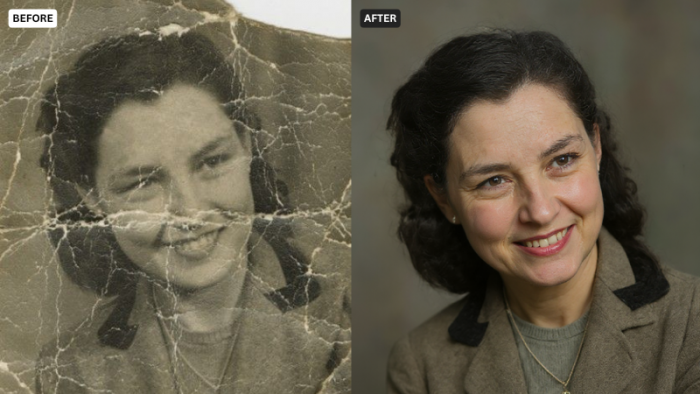
This tool is best for casual restoration. If you want to clean up an old family photo for personal use, it can help. If you want museum-level restoration, accurate texture recovery, or careful manual correction, this is not the right tool.
The biggest benefit is accessibility. Many users do not know how to restore old photos manually. Pica AI gives them a simple way to try. The tradeoff is that the AI decides what the “restored” version should look like, and that may not always match the original photo’s real texture.
Using the Face Swap Tool
Face swap is where Pica AI feels most confident. I uploaded a clear source image and a target face image. The process was simple: upload both, wait for the tool to detect the face, and generate the swap.
The result was surprisingly usable for casual content. The facial placement was decent, the expression carried over better than expected, and the output looked good at first glance. For memes, social media experiments, or fun profile edits, this is clearly one of Pica AI’s strongest features.
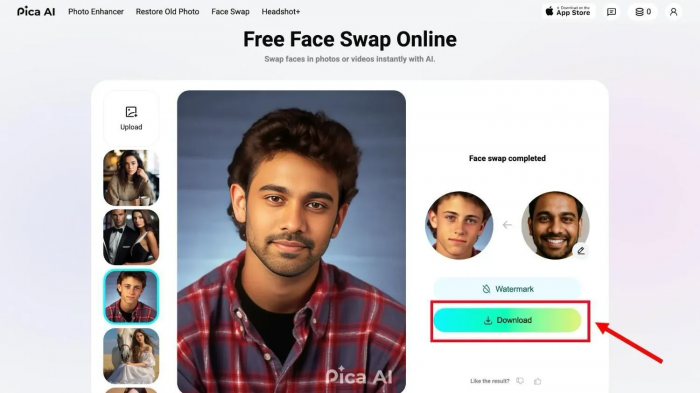
That said, the swap was not perfect. When I looked closely, the lighting did not always match the original image. The face could look slightly sharper than the rest of the photo, and the skin tone could feel a bit different from the surrounding image. These are common problems with AI face swap tools, but they still matter if you want a realistic result.
For casual use, I liked it. For anything serious, public-facing, or identity-sensitive, I would be careful.
| Face Swap Test | Result |
| Ease of use | Very simple |
| Realism | Good at first glance |
| Best input | Clear front-facing photos |
| Weakness | Lighting, tone, and sharpness mismatch |
| Best use | Fun edits, social posts, profile experiments |
| My rating | 4/5 |
Using Multi-Face Swap
The multi-face swap tool is more ambitious because it has to handle more than one face in the same image. I tested it with a group-style image to see whether Pica AI could keep each face aligned and natural.
The result was mixed. It worked, but the consistency was not equal across every face. The face with the clearest angle looked better. The faces that were smaller, turned slightly, or less clearly lit looked weaker.
This is where you can see how dependent Pica AI is on input quality. If all faces are clear and the image is well-lit, multi-face swap can be fun. If the group photo is crowded or uneven, the result becomes less convincing.
There is also a consent issue here. Multi-face swap is fun, but it involves other people’s faces. Users should not upload or edit group photos unless the people involved are comfortable with it.
Using Video Face Swap
Video face swap is more difficult than photo face swap because the face has to stay consistent across movement. I tested it with a short clip where the face was visible and not moving too wildly.
The result was usable, but less reliable than the photo face swap. In still moments, the swap looked decent. During motion, small flaws became easier to notice. The face could look less stable, and lighting changes made the AI effect more visible.
This is not surprising. Video face swap is a harder task. For a short funny clip, Pica AI can be useful. For polished video content, the result may not hold up.
I would treat video face swap as an experimental feature rather than a professional video editing tool. It is fun, but it needs clean footage to work well.
Using AI Headshots
The AI headshot feature is one of the most interesting parts of Pica AI because it targets a practical use case. Many users want a better LinkedIn photo, resume photo, or professional-looking profile image without booking a photoshoot.
I uploaded a regular selfie to see whether Pica AI could turn it into something business-friendly. The output was cleaner and more polished than the original image. The background looked more professional, the face was brightened, and the overall image looked more profile-ready.
But it also looked AI-generated. The skin was a little too smooth, the expression felt slightly processed, and the final image had that “AI headshot app” finish. It was not bad, but it did not fully replace a real professional headshot.
For casual profile updates, it can work. For a serious executive profile, press bio, company page, or official portfolio, I would not rely on it without comparing the result against stronger AI headshot tools.
| AI Headshot Test | Result |
| Ease of use | Easy |
| Professional look | Decent |
| Realism | Mixed |
| Best for | LinkedIn trials, profile experiments, casual use |
| Weakness | Can look too smooth or artificial |
| My rating | 3.5/5 |
Using AI Portraits and Avatars
The portrait feature is better when you stop expecting realism and treat it as a creative tool. I uploaded a clear face photo and tested the stylized output.
This was one of the more enjoyable parts of Pica AI. The result looked more polished than the basic enhancer and had a stronger creative feel. For social media avatars, profile images, and fun personal branding experiments, this feature makes sense.
The limitation is originality. Some outputs can look similar to what many AI portrait tools produce: smooth skin, dramatic lighting, polished face, stylized background. That does not make it useless. It just means the result may not feel highly unique unless the tool provides enough style variation.
For casual creators, this is a good feature. For artists or brand designers, it is more of a quick visual experiment than a serious creative workflow.
User Interface and Workflow
Pica AI is easy to use because it does not ask much from the user. Every feature follows a similar structure: choose tool, upload photo, generate result, download output. That makes the platform beginner-friendly.
The interface is not built for advanced editing. There are no serious manual controls, no layer-based editing, no brush cleanup, and no detailed correction panel. That may disappoint users who want control, but it also makes the tool less intimidating.
My biggest issue with the workflow is that you are mostly dependent on the first AI result. If the output is not right, your best option is usually to try again with a better input image or generate another version. You cannot easily fine-tune small details like face blending, background sharpness, skin texture, or color correction.
That makes Pica AI a fast tool, not a precision tool.
Pica AI Pricing
Pica AI uses a mix of free access, subscriptions, credits, and in-app purchases depending on where you use it. The pricing can feel a little confusing because the website, app store purchases, and credit packs may not always be presented in the same way.
| Plan or Purchase Type | Listed Price | What It Includes or Suggests |
| Free plan | $0 | Limited access, listed as 4 credits per day on pricing listings |
| Monthly plan | $9.99/month | Listed with 1,000 credits per month, fast processing, watermark-free output, HD to 4K photos, iPhone app access |
| Annual plan | $59.99/year | Listed with 8,000 credits per year, fast processing, watermark-free output, HD to 4K photos, iPhone app access |
| Pica AI Premium | $5.99 | App Store in-app purchase option |
| Pica AI Premium | $8.99 | App Store in-app purchase option |
| Pica AI Premium | $9.99 | App Store in-app purchase option |
| Pica AI Premium | $39.99 | App Store in-app purchase option |
| Magic Avatars Pack 1 | $3.99 | App Store listed avatar pack |
| Magic Avatars Pack 4 | $2.99 | App Store listed avatar pack |
| Headshot Pack 1 | $2.99 | App Store listed headshot pack |
| Weekly credits | 400 credits/week | Mentioned in a developer response for weekly subscribers |
The practical advice is simple: test the free credits first. Do not pay only because the demo looks good. The real value depends on how many credits each feature uses, how many usable outputs you get, and whether downloads are watermark-free at your plan level.
For me, the pricing feels acceptable for casual experimentation, but it becomes harder to justify if you are paying mainly for professional headshots or serious photo enhancement. Those results are not always consistent enough.
What Other Real Users Say About Pica AI
Public feedback on Pica AI is split. App Store users are generally more positive, especially about face swaps, avatars, and ease of use. Some users praise the face swap feature because it creates funny and realistic-looking results for family jokes, social media edits, and creative experiments. Others like the app because it keeps adding features and makes AI photo editing feel accessible.
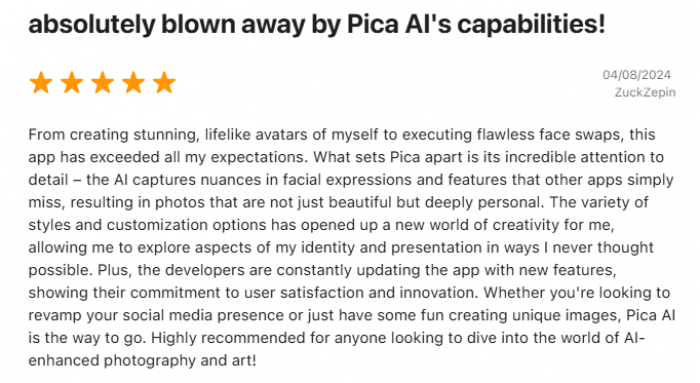
The complaints are more serious on review platforms like Trustpilot. The sample size is small, but the tone is negative. Users complain about artificial-looking professional photos, poor image quality, support problems, and billing or credit frustration.

That difference matters. App Store users seem happier when they treat Pica AI as a fun creative app. Users who expect polished professional results appear more disappointed.
| Review Source | Positive Signals | Negative Signals |
| App Store | Stronger ratings, praise for face swap, avatars, ease of use, fun output | Some users question credit cost, navigation, or quality consistency |
| Trustpilot | Very limited positive feedback | Complaints about artificial photos, poor quality, support, billing, and credit concerns |
| General user pattern | Works better for casual edits | Less convincing for professional headshots or serious enhancement |
The most useful takeaway from user reviews is this: Pica AI’s satisfaction level depends on expectations. If someone expects a fun face swap app, they may like it. If someone expects a polished professional photo service, they may feel let down.
Photo Privacy and Trust
Pica AI needs a serious privacy section because it works with faces. This is not the same as uploading a product image or a landscape photo. Users may upload selfies, family images, old personal photos, professional headshots, or images of other people.
That creates several privacy questions. How long are photos stored? Are uploaded images saved in the account? Is face data processed? Can users delete generated content? What happens if someone uploads another person’s face without permission?
Pica AI does provide privacy documents and app store privacy disclosures, which is better than many low-quality AI face tools. The App Store privacy section says the developer may handle identifiers, purchases, user content, usage data, and diagnostics. That does not automatically mean the tool is unsafe, but it does mean users should be cautious with sensitive images.
My rule for using Pica AI would be simple: do not upload anything you would not be comfortable processing through an online AI tool. Avoid children’s photos, private family images, client images, ID-style photos, intimate images, and photos of people who have not given permission.
| Avoid Uploading | Why |
| Children’s photos | Higher consent and safety risk |
| Client images | Professional and legal risk |
| Private family photos | Other people may not have consented |
| ID-style photos | Identity details may be exposed |
| Sensitive personal videos | Video face swaps carry higher misuse risk |
| Photos of other people | Consent matters, especially for face swaps |
This is not only about Pica AI. It is about the entire face swap category. The technology can be fun, but it can also be misused. A user-first review should not ignore that.
Pros and Cons After Testing
| Pros | Cons |
| Very easy to use | Output quality is inconsistent |
| Face swap is fun and often usable | Photo enhancer is not always dramatic |
| Good for casual social media edits | AI headshots can look artificial |
| Simple upload-and-generate workflow | Limited manual editing control |
| Includes multiple tools in one place | Pricing and credits can feel confusing |
| Free access helps users test first | Privacy caution is necessary because it handles faces |
| Works well with clear photos | Weak input photos produce weaker results |
Where Pica AI Works Best
Pica AI works best when the task is casual and the input image is clear. If you want a quick face swap, a fun avatar, a cleaner profile image, or a light enhancement, the tool can be useful.
It is especially good for users who want speed over control. You do not have to learn editing terms or adjust technical settings. The platform does most of the work for you.
The best use cases are:
● Face swaps for entertainment.
● Social media profile experiments.
● AI portraits and avatars.
● Light photo enhancement.
● Simple old photo restoration.
● Quick headshot-style images.
● Short video face swap experiments.
It is not ideal for professional editing, brand campaigns, official company portraits, client work, or serious photo restoration. For those use cases, the lack of control and inconsistent output become more noticeable.
Best Pica AI Alternatives
Pica AI is useful, but it is not always the best tool depending on the task. If you mainly want face swap, it is worth testing. If you want stronger enhancement or professional editing control, other tools may be better.
| Alternative | Better For |
| Remini | Mobile face enhancement and old photo improvement |
| Topaz Photo AI | Higher-quality sharpening, denoising, and upscaling |
| Adobe Photoshop | Full professional editing control |
| Canva | Social media design and simple AI image editing |
| Fotor | General AI photo editing and quick creative tools |
| Aragon AI | More serious AI headshots |
| FaceSwapper.ai | Simple face swap use cases |
The best alternative depends on what you need. Pica AI is more convenient than professional tools, but it is not more powerful. That is the main tradeoff.
Final Verdict: Is Pica AI Worth It?
Pica AI is worth trying if you want a simple AI photo tool for face swaps, portraits, casual headshots, and quick image enhancement. It is easy to use, fast to understand, and strong enough for casual creative work. The face swap tool was the most convincing part of my test, especially when the input images were clear.
The weaker side is consistency. The photo enhancer did not always create a major improvement, old photo repair worked better on simple images than damaged ones, and AI headshots sometimes looked too smooth or artificial. Pica AI can produce usable results, but it does not give the control or reliability of a professional editing platform.
Pricing is also something users should check carefully. The listed plans and in-app purchases show several price points, but the real cost depends on credits, feature usage, downloads, and how many usable results you get.
My final take: Pica AI is a good casual AI photo tool, especially for face swaps and creative profile experiments. It is not the tool I would choose for sensitive photos, client work, or professional-grade image editing. Test it with free credits first, use low-risk photos, and only pay if the results match what you actually need.
Comments