

Adding subtitles to Instagram Reels should not require a paid video editor or hours of manual transcription. Several free AI tools can convert speech into captions, but they differ considerably in styling, editing controls, and what you can download without paying.
I compared five popular options based on their subtitle workflows, available free features, and export restrictions. The important distinction is not just whether a tool generates captions, but whether it can produce a Reel that is ready to publish.
How I Evaluated the Tools
To keep the comparison consistent, I created one test brief for a 20-second Instagram Reel with English narration, a vertical 9:16 layout, and no background music. The script includes short sentences, punctuation, and natural pauses to make subtitle segmentation easier to evaluate.
The Common Reel I used : A simple reel of a girl with a song and I want a subtitle for the song.
I focused on five practical factors:
● Caption accuracy: Whether the generated transcript preserves the spoken words, punctuation, and sentence structure.
● Synchronization: Whether subtitles appear at the right moment and remain readable during natural pauses.
● Customization: How much control the editor provides over fonts, colors, positioning, and animations.
● Editing: Whether mistakes can be corrected without rebuilding the subtitles manually.
● Free exports: Whether the finished Reel can be downloaded without a watermark, subscription, or major resolution restriction.
The feature and pricing findings below are based on product documentation. They are not measured speech-recognition test results, so I have not assigned unsupported accuracy scores.
Quick Comparison
| Tool | Best for | Free export | Main drawback |
| Canva | Branded Reels | No watermark with free assets | Premium styles and assets |
| Clipchamp | Simple, clean subtitles | Up to 1080p, no watermark | Fewer expressive caption effects |
| VEED | Detailed caption editing | 720p with watermark | Restricted free output |
| Adobe Express | Quick caption styling | Free captioning available | Less specialized caption control |
| Edits | Mobile Reel creation | Up to 4K, no watermark | Less suitable for desktop-first workflows |
1. Canva: Best for Branded Reel Subtitles
Canva is a practical choice for creators who want subtitles that fit an established visual identity. Its caption generator works inside the video editor, allowing text to be styled alongside other design elements without switching applications.
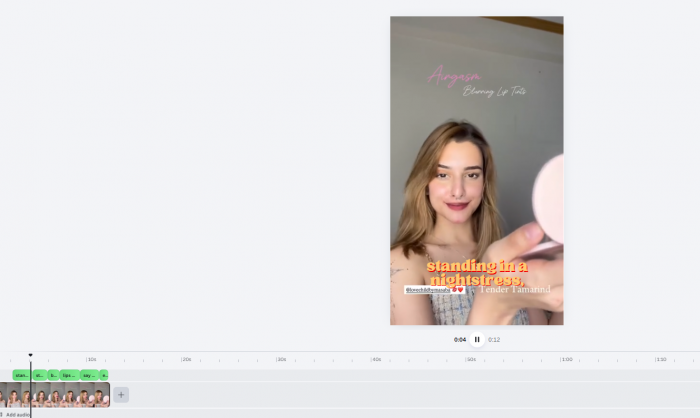
Creating captions in Canva
Canva's Dynamic Text feature generates captions from an uploaded video. The generated text appears on the video timeline, where individual sections can be corrected, repositioned, and styled.
The most useful part is the relationship between captions and the overall design. Fonts, colors, and text effects can be adjusted to match an existing Instagram template. This becomes especially important when working with Reel storyboards, where on-screen text needs to follow the video's structure without competing with the footage. Canva's flexibility makes it suitable for educational Reels, product demonstrations, and creator content that follows a consistent visual style.
Canva also supports caption animations, although some styles and assets may be restricted to paid accounts.
The biggest advantage: Caption styling is integrated with Canva's broader design tools. A creator can adjust subtitle placement, add backgrounds, and maintain consistent typography without using a separate editor.
Where it struggles: Canva offers plenty of visual controls, but creators looking for highly specialized word-by-word subtitle effects may find dedicated caption editors more suitable.
Free plan details: Free plan available. Videos using only free assets can be exported without a watermark.
My assessment: Canva makes the most sense when captions need to look like part of the video rather than an added transcription layer. Its design flexibility is valuable, although choosing and adjusting styles can introduce extra editing work.
2. Microsoft Clipchamp: Best for Clean, Accurate-Looking Captions
Clipchamp takes a more straightforward approach to automatic subtitles. Its captioning system transcribes speech into editable text, making it suitable for creators who want conventional subtitles without spending much time on visual effects.
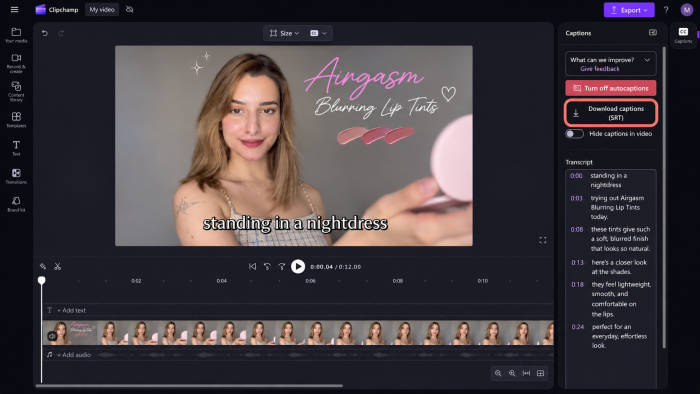
How caption generation works
Clipchamp provides an autocaptions feature within its video editor. After importing a video, the user can select the spoken language and generate a transcript. The resulting captions can be reviewed and edited before exporting the video.
One useful feature is the transcript-based editing interface. Instead of manually adding multiple text boxes, users can inspect the recognized dialogue and correct mistakes directly. Clipchamp also supports downloadable subtitle files, which can be useful when repurposing content for other platforms.
The main distinction is its focus on functional captioning rather than decorative text. It is especially relevant for narration-heavy Reels, interviews, and instructional videos.
A feature worth mentioning: Clipchamp allows free exports at up to 1080p without a watermark when the project uses free features. That makes it a practical option for publishing finished Instagram Reels rather than merely previewing captions.
The main trade-off: Its subtitle styling options are less focused on animated, attention-grabbing captions than those of more specialized social video editors.
Cost and free access: Free plan available, including autocaptions and watermark-free exports up to 1080p.
My take: Clipchamp keeps the captioning process relatively focused. Its transcript editor is useful for reviewing spoken content, although its restrained visual options may feel limiting for creators who prefer fast-moving, animated subtitles.
3. VEED: Best for Detailed Subtitle Editing
VEED is more specialized in caption-based video editing. Its subtitle tools offer control over transcription, timing, appearance, and subtitle placement, which makes it useful for creators who need to work closely with spoken dialogue.
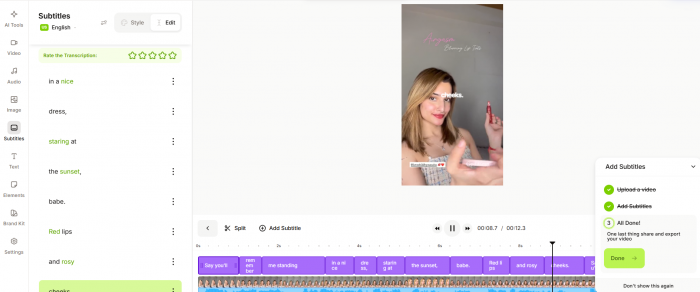
Inside the subtitle editor
VEED's automatic subtitle tool lets users upload a video, select the spoken language, and generate captions. The transcript appears in an editable panel where words and subtitle segments can be corrected.
The editor also supports caption styling and timing adjustments. This is particularly relevant for videos with fast narration, where one long caption can become difficult to read on a mobile screen.
Another useful distinction is the ability to work with subtitles as a separate editing component. VEED supports workflows involving subtitle files and permanently embedded captions, although access to specific export options depends on the subscription.
What makes it different: The subtitle editing interface provides more focused control over the captioning process than a general-purpose graphic design tool. It is useful when sentence breaks and individual caption segments need close attention.
The free-version catch: The standard free editor places a VEED watermark on exported videos and limits export resolution to 720p. Free subtitle usage is also limited. These restrictions reduce its usefulness for creators who need clean, high-quality uploads without paying.
Subscription information: Free plan available with restrictions. Paid subscriptions are required to remove the standard editor's export watermark.
Is it worth using? VEED offers useful control over the small details that affect subtitle readability. However, its free version is better suited to exploring the editing experience than becoming a long-term, no-cost publishing solution.
4. Adobe Express: Best for Quick Styled Subtitles
Adobe Express offers automatic video captioning alongside its visual design and editing features. Its approach suits creators who want attractive subtitles without learning a complicated video editing interface.
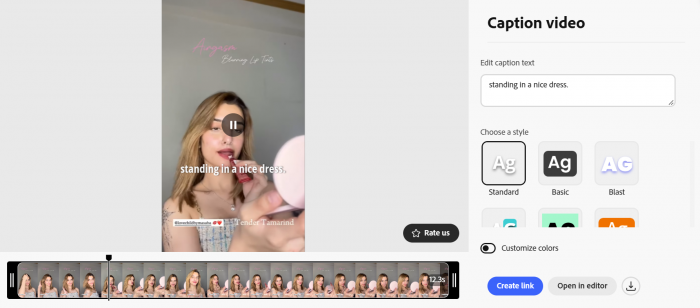
From voiceover to subtitles
Adobe Express provides caption generation through its video caption tools. The editor can recognize spoken words and convert them into subtitles, with controls for correcting text and changing the visual presentation.
A useful feature is the ability to apply preset caption styles instead of designing every subtitle from scratch. For a short Reel, this reduces the amount of formatting required after the transcript is generated.
Adobe Express also allows users to work with the captioned video in a broader editing environment, where other text, graphics, and video elements can be added.
For the common Reel script, the important areas to inspect are how the editor separates the opening two sentences and whether longer phrases remain readable without occupying too much of the video.
Its strongest feature: The balance between automatic caption generation and ready-made visual styles makes Adobe Express appealing to creators who want an organized captioning workflow with minimal design work.
What could be better: Its captioning features are convenient, but creators looking for extensive word-level timing adjustments and highly customized subtitle effects may prefer a dedicated caption editor.
What's included for free: Free plan available with automatic video caption generation. Premium templates, assets, and additional design features require a subscription.
My impression: Adobe Express is appealing for its relatively guided approach to caption design. It reduces the number of styling decisions required, although that convenience comes with less detailed control over individual subtitle effects.
5. Edits by Instagram: Best for Mobile Reel Creators
Edits is Instagram's dedicated video editing app, designed around the type of short-form content creators publish on Instagram and Facebook. Its automatic caption tools sit alongside video recording, timeline editing, text effects, and publishing features.
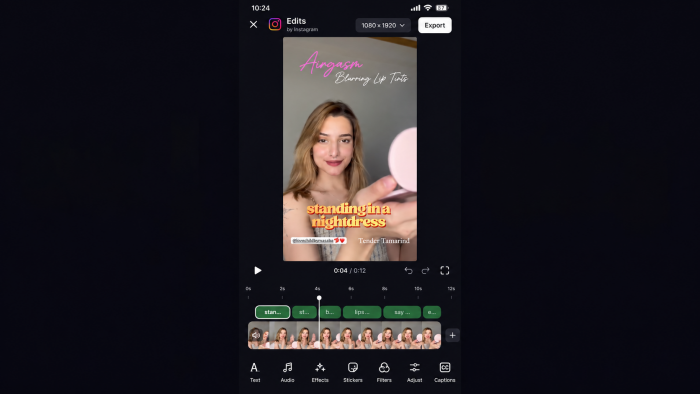
Adding subtitles on mobile
In Edits, creators can import or record a video, open the caption tools, and generate subtitles from the spoken audio. The captions can then be reviewed, corrected, and styled before the video is exported.
The advantage is that subtitle creation happens within a Reel-focused editing environment. Users can arrange clips, modify the video, and work on captions without moving between different mobile applications.
Edits also includes text styling options designed for short-form content. Captions can be combined with other on-screen text, although care is needed to avoid overlapping Instagram's interface elements.
Why it deserves attention: Edits supports watermark-free exports at up to 4K resolution. It also allows videos to be shared directly to Instagram or exported for use on other platforms.
One noticeable restriction: Its mobile-oriented workflow is less convenient for creators who prefer to manage video projects, audio files, and transcription corrections through a conventional desktop setup.
Availability and pricing: Free to use, with automatic captions and watermark-free 4K video exports.
My conclusion: Edits offers a more platform-specific approach than the other tools. Its mobile editing environment is convenient for quick content production, but reviewing longer transcripts or making numerous corrections may be more comfortable on a larger screen.
Which Free Tool Is Best?
The right subtitle generator depends on where the video is edited, how much caption styling is required, and whether the final export has restrictions.
For creators working on a desktop, Clipchamp provides a particularly practical balance of automatic transcription, editable captions, and watermark-free 1080p exports. Canva is more suitable when subtitles must match a brand's existing visual design.
Adobe Express sits between these approaches, offering accessible caption styling without the complexity of a specialist subtitle editor. VEED provides focused caption editing controls, but its free export restrictions are difficult to ignore.
Edits is the strongest option here for creators who primarily work on their phones and publish directly to Instagram.
There are also a few details worth checking before uploading any captioned Reel:
● Keep subtitles inside the visible area. Instagram's interface can cover text near the bottom of the screen, especially around the username, description, and engagement buttons.
● Check every generated caption before exporting. AI transcription can misinterpret brand names, numbers, abbreviations, and words spoken quickly, even when the audio is relatively clear.
● Avoid excessive text per frame. Short caption segments are generally easier to follow on a phone than complete sentences occupying several lines.
● Preview the exported video, not just the editor. Font sizes, animations, positioning, and readability should be checked in the actual MP4 file before posting.
A subtitle generator is useful only when its output is readable, synchronized with the narration, and suitable for the final platform. These details also affect Reel retention, since poorly timed text or captions hidden behind Instagram's interface can interrupt the viewing experience. A large selection of effects cannot compensate for transcription mistakes or a distracting watermark.
Final Verdict
Free AI subtitle generators have become useful enough that basic Reel captioning no longer requires expensive software. However, automatic transcription is only the starting point. Poor sentence breaks, misplaced captions, and unreadable text can still affect the finished video.
The most important step is reviewing the generated subtitles before publishing, particularly around pauses, sentence transitions, and words that are easy to misinterpret.
For regular content production, I would favor a tool that makes corrections quick and keeps the final video free of unwanted branding. Advanced caption effects are useful when they serve the content, but clear text, accurate timing, and a clean export should remain the priorities.
Comments